
Dual Camera Video: How Front and Rear Streams Work
You’re halfway home, the street is quieter than you’d like, and someone you trust is watching a live video from the phone in your hand. One lens points at your face. The other points down the sidewalk. If those two pictures don’t arrive together, the person watching can miss the moment that matters.
That’s the job of dual camera video. It isn’t a portrait filter, and it isn’t a second take you switch to later. It’s a coverage question: what a watcher can see, what your phone can run at the same time, and where an extra inset can make everyone feel safer than the pictures justify.
Table of Contents
- What Dual Camera Video Actually Captures
- Checking Whether Your Phone Can Run Both Cameras
- Recommended Settings for a Reliable Dual Stream
- How the Two Feeds Stay Synchronized
- Picture-in-Picture and Layout Choices for Watchers
- Where Dual Camera Video Falls Short
- Confirm Your Dual Stream Before You Walk Out the Door
What Dual Camera Video Actually Captures
Say you’re on that late walk. The front camera stays on you. The rear camera stays on the street, the corner, and whoever is coming toward you. Both views feed the same live stream at the same time. You aren’t flipping from one camera to the other and hoping the watcher caught the cut.
Think of two witnesses standing on the same corner. One describes the person approaching. The other describes the road, the route, and the exits. Neither witness replaces the other. A watcher who hears both gets more context than a single angle can offer, including where you are in the frame and what is moving behind you.
Dual camera video means capturing the front and rear cameras at the same time and delivering both views, not switching between them and not blending two lenses into one photo.
Portrait and depth modes do a different job. There, two lenses help build one still image, often so the background looks soft. A live safety stream wants two viewpoints, not one prettier frame. The street view carries the scene. The face view shows who is holding the phone and whether they’re speaking.
Dual-camera phones became a mainstream hardware category in the mid-2010s, and an Asia Economy account of those phones traces the shift from depth capture, including the HTC One (M8) launched in April 2014 with a 4-megapixel primary sensor and a 2-megapixel secondary sensor, toward complementary viewpoints such as wide and ultra-wide.
The same coverage idea shows up when people add a fixed second view to a car. The DIY camera wiring tips from Audio Jam walk through mounting a backup camera so the driver sees the space they can’t cover by turning their head.
Before you trust a stream on a real walk, settle three practical questions:
- Can this phone run both cameras at once? Two lenses on the back aren’t the same as a live front-and-rear pair.
- Will the stream stay up on your network? Resolution, frame rate, and upload have to fit your available connection.
- Does the second view help the watcher? An inset that hides the street, or a face you can’t confirm is in frame, adds noise instead of context.
Checking Whether Your Phone Can Run Both Cameras
A phone can ship with several cameras and still refuse to run the front and rear together. Counterpoint Research reported that almost 42% of smartphones sold globally in July 2018 included two or more rear camera sensors, so multi-camera hardware was already common. Simultaneous front-and-rear video is a separate capability, and it depends on the chipset, the camera pipeline, and the operating system, not on how many lenses you can count.
On an unsupported phone, no app can invent that pair through the official camera framework. A guide to recording front and back cameras on Android notes that Android 11 added an API so an app can query which camera combinations run concurrently, and that support still depends on the device’s camera hardware. Even a compatible phone may cap resolution, frame rate, or which pairs are allowed. Samsung documents higher battery use, heavier processing, slower performance, and more storage demand during dual recording, and some models save separate front and rear files while others embed the selfie in a fixed layout.
Comparing lens counts on newer phones, as in this look at iPhone Duo versus Pro Max cameras, is useful for photo quality. It still doesn’t tell you whether that phone will open the front and rear video pipelines together.
| Platform | How to confirm support | If support is missing |
|---|---|---|
| iOS (compatible iPhone or iPad) | Check multicam support when the app launches | Single-camera mode with a clear notice |
| Android 11 and later | Query which camera pairs run concurrently | One camera only; no app workaround exists |
| Samsung built-in dual recording | Test the dual recording mode and review the saved file | Separate files on some models, one embedded inset on others |
| Other Android phones | Run a preflight stream and check both feeds | One camera or a composite; check the vendor documentation |
Run the check on the phone you’ll carry
Do the test on the device and the route, not on a spec sheet.
- Start both feeds. If only one picture appears, stop and read the notice. Don’t assume a later app update will enable the second camera.
- Open the saved file. Play it on another screen. If the face is burned into a corner, you may not be able to separate the views later for evidence.
- Cover one lens. The other feed should keep running, and the app should say which camera dropped. A silent failure is worse than a clear fallback.
If the phone fails, keep the stream alive on one camera and say so on screen. For the missing angle, a second phone can join as its own source, held by a companion or clipped to a bag strap. Label each device so the watcher knows which picture is the street and which is the person.
Recommended Settings for a Reliable Dual Stream
Give the rear camera the bits. The street, the plate, the sign, and the person approaching are the evidence. The face view only has to stay recognizable.
| Setting | Rear (scene) camera | Front (face) camera | Why it matters |
|---|---|---|---|
| Resolution | 1080p | 720p | Keeps signs and faces readable without doubling upload load |
| Frame rate | 30 fps | 15 to 24 fps | Smooth motion for the scene; the face view tolerates lower rates |
| Video bitrate | About 2.5 to 4 Mbps | About 0.8 to 1.5 Mbps | Combined target stays near 3.5 to 5.5 Mbps so a weak upload doesn’t stall both feeds |
| Keyframe interval | 2 seconds | 2 seconds | Lets a late-joining watcher see a picture within seconds |
| Audio | One mono track from the main mic | Not sent separately | One clear audio track matters more than two |
| Fallback when upload drops | Keep running | Reduce or disable first | Protects the scene view when bandwidth falls |
Why each camera gets its own format
On iOS, simultaneous front-and-rear capture uses AVCaptureMultiCamSession, which Apple’s multicamera session documentation says arrived with iOS 13 and runs only on compatible hardware such as iPhone XS and XR-class phones and newer supported iPads. The session uses an inputPriority preset, so the app must pick each camera’s active format. You don’t inherit 1080p and 30 fps from a single-camera preset and hope the second camera matches.
Each camera can feed its own video data output, and a camera can’t be cloned to several outputs of the same media type. Capture each camera once, then compose or encode downstream. A duplicate pipeline wastes encoder time, battery, and uplink for a picture you already have.
A keyframe about every two seconds means someone who opens the stream late gets a full picture quickly, instead of waiting through a long gap of partial frames. If your cellular upload is less steady than roughly 3.5 to 5.5 Mbps combined, both feeds will stutter or freeze. Dropping the face view to 720p and 15 fps is the first cut that usually saves the street.
Audio and the order you sacrifice views
Send one mono track, taken from the mic that faces the scene and your voice. A second audio stream rarely helps a watcher, and it competes with video for the same upload. Wind and traffic already make speech hard. Two noisy tracks don’t fix that.
When the link sags, cut in this order. Reduce or pause the front camera first. Lower the rear bitrate only if the scene is still breaking up. If a view isn’t needed for a minute, such as the rear camera during a stationary check-in, disabling that camera’s connections stops its data while the other input stays live. That same idea is why sending a live stream to cloud storage is worth setting up before the walk: the scene file can outlast the phone if the handset is lost or the battery dies. Save the on-device preflight for the last check before you leave, rather than treating settings alone as proof the route will hold.
How the Two Feeds Stay Synchronized
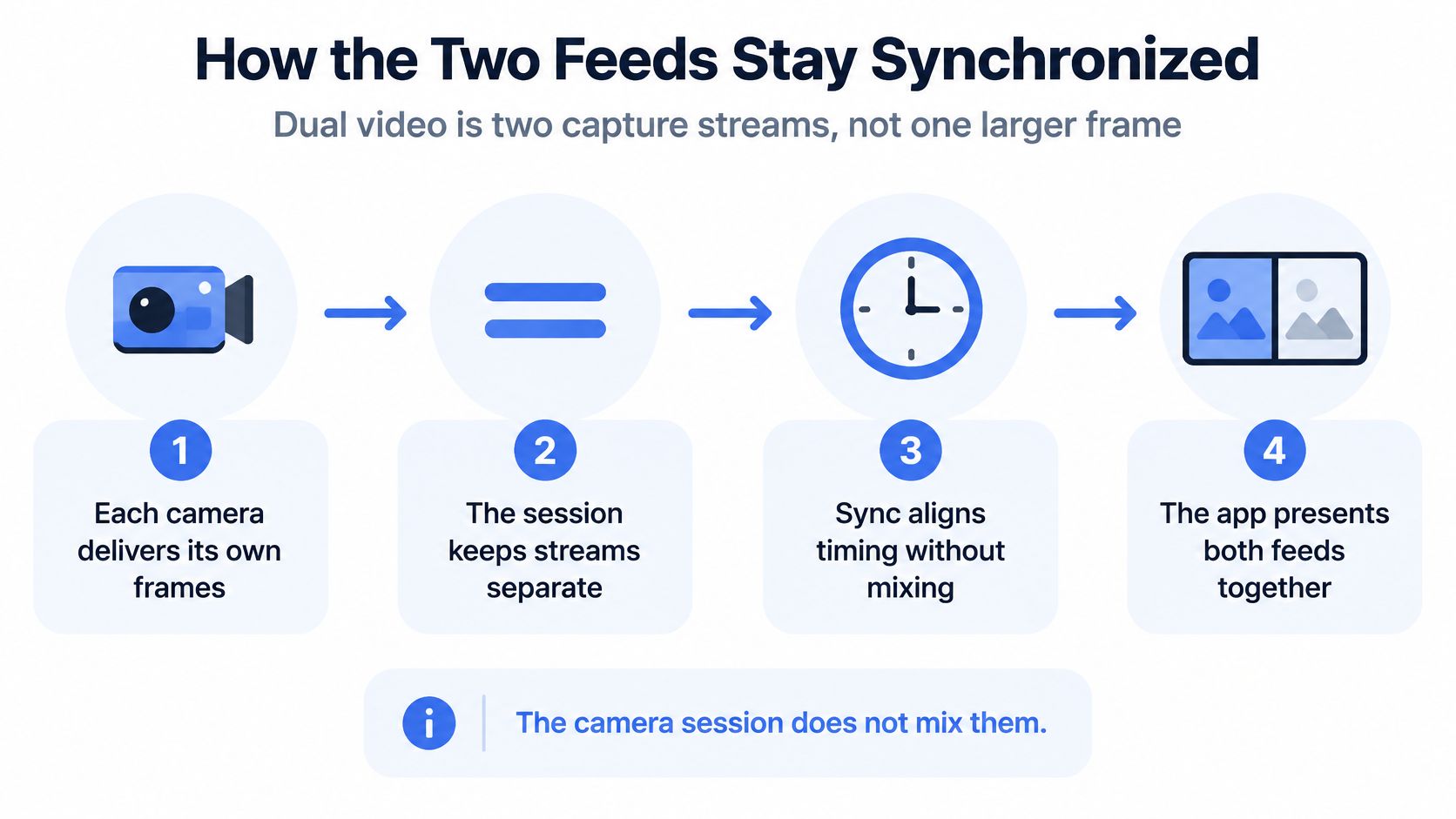
Dual camera video is two capture streams, not one bigger frame. The session hands you separate pictures. It does not mix them into a program for you.
Apple’s multicamera capture notes describe separate video outputs for the front and rear devices, with no media mixing inside the capture session. App code has to line up time, cope with different frame rates, fix orientation and field of view, and only then compose or send the result. If the street view and the face view drift by even several frames, a watcher can tie a shout or a shove to the wrong moment.
The pipeline, in order
- Each camera delivers its own frames. Front and rear never share one sensor buffer.
- Each frame keeps its source timestamp. Don’t throw that clock away when you resize the picture.
- The app picks one master clock. Usually the rear camera, because the scene is the record you care about.
- Frames are aligned to that clock. Drop or duplicate a frame only under a written sync rule, not whenever the buffer feels full.
- Orientation and field of view are normalized. A sideways face next to an upright street makes motion hard to read.
- The app composes one picture-in-picture frame, or it encodes the two views apart. That choice is yours. The session won’t make it.
- Each frame is tagged with camera origin. A label in the metadata says which pixels came from which lens.
A few frames of drift is enough for a watcher to misread who spoke and what moved.
One frame or two encodes
A composite picture-in-picture frame is simpler to send and to store. The layout is frozen, and the bitrate is shared, so a busy street and a face fight for the same bits. Separate encodes cost more encoder work and more uplink, and they let a monitoring client show or enlarge one camera without touching the other. For a live watch, that recovery matters: if the front camera overheats, the street stream can keep going. People who staff a live remote video monitoring view need that choice more than they need a polished inset.
| Trait | Composite picture-in-picture frame | Separate encodes per camera |
|---|---|---|
| Layout control | Locked into one layout | Independent layouts per view |
| Encoder work and uplink | One encode with combined bitrate | Two encodes with more encoder work and uplink |
| Recovery when one view fails | Whole frame affected | Other stream keeps running |
| Evidence separation | Hard to split later | Each stream tagged by camera origin |
| Stream management | Simpler | More complex |
For an incident record, synchronized timestamps and camera labels beat a handsome composite. You can always rebuild a layout. You can’t reliably unmix two moments that were baked into one file.
Picture-in-Picture and Layout Choices for Watchers
The picture a watcher sees is a choice, not a default the phone should make for you. The scene should be large unless you have a reason to feature the face.
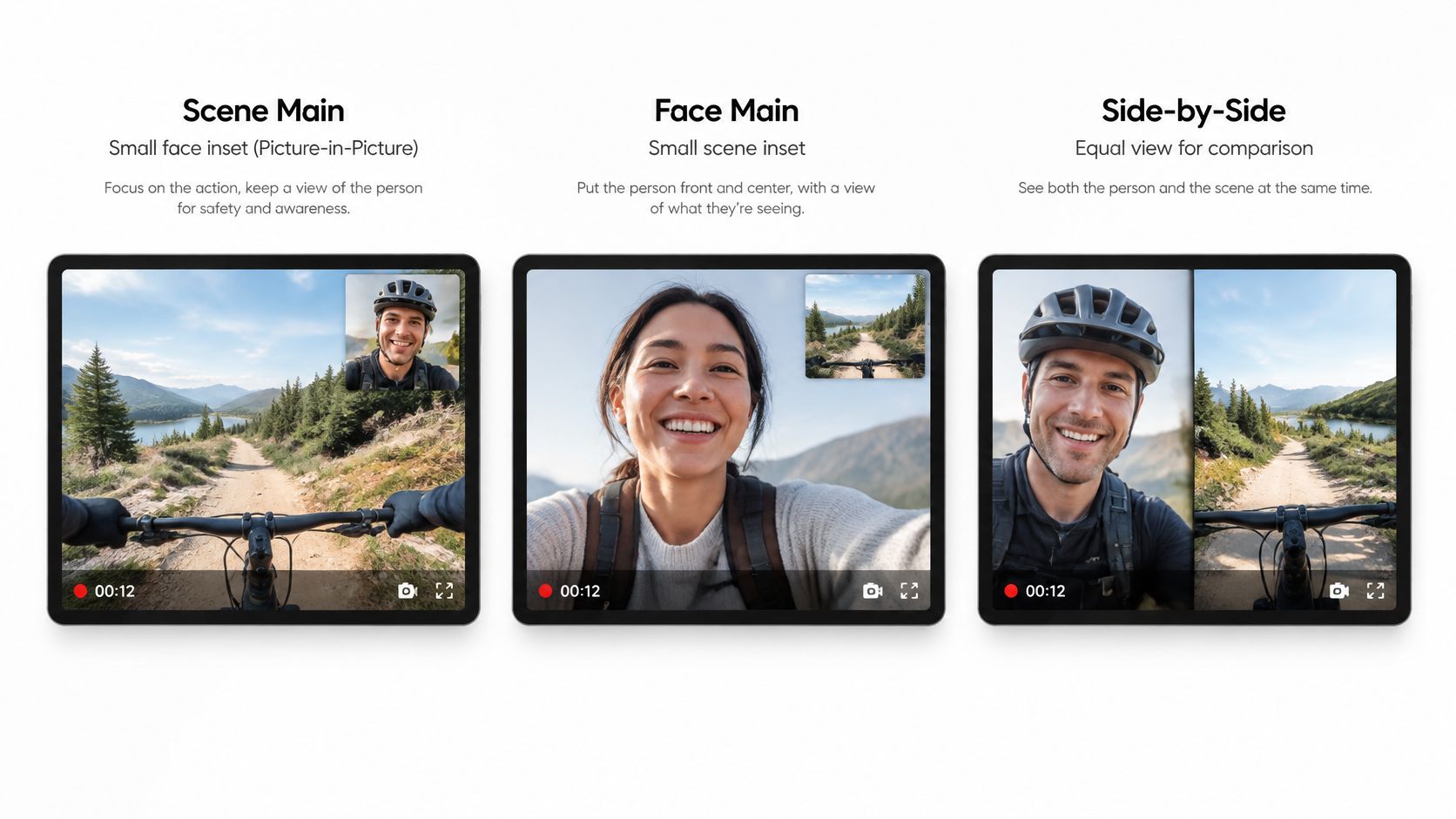
Scene large, face in a corner. This is the layout for most walks, rides, and commutes. The street fills the frame. A small face inset shows that you’re present and speaking. Keep that inset off license plates, door numbers, and the person walking toward you.
Face large, scene in a small inset. Use this for a check-in, when the watcher needs your expression more than the block behind you. It is a poor default for a moving trip, because the danger is usually outside the selfie.
Side-by-side. Equal halves work on a tablet. On a phone they shrink both views until signs and faces get hard to read. People who edit split-screen gaming clips already know how fast two panels crowd a vertical screen. The same squeeze hits a safety watch.
Swap on tap. The watcher, not the person walking, should be able to bring either view to full size. Their hands are free. Yours aren’t.
Scene only. Hide the face inset when it would cover a plate, a sign, or the approach. You can bring it back once that detail has passed.
A rule for the default
The inset should never hide the thing the watcher needs to see, and watchers should enlarge or switch views on their own. Overlays and corner placement are part of live stream video effects, so pick them before you leave, not while you’re crossing a street. Set the scene as the main view and the face inset small. The first seconds of the stream should already be the right picture, because those seconds are often when a watcher decides the link is healthy.
A short layout walkthrough makes the corner placement easier to judge on your own screen:
Watch it once with the sound off and ask whether you could still read a street sign with the inset in that corner. If you couldn’t, move the inset before the walk.
Where Dual Camera Video Falls Short
A second camera does not automatically mean better awareness. In a 2026 mobile-collaboration study, participants used the rear camera 81% of the time and the front camera 19% of the time. Users struggled to balance an overview with a detail view, and a limited field of view plus limited control made the collaboration frustrating. A separate exploratory study of 30 participants found that people could be unable to tell whether their face was in frame during dual-camera interactions.
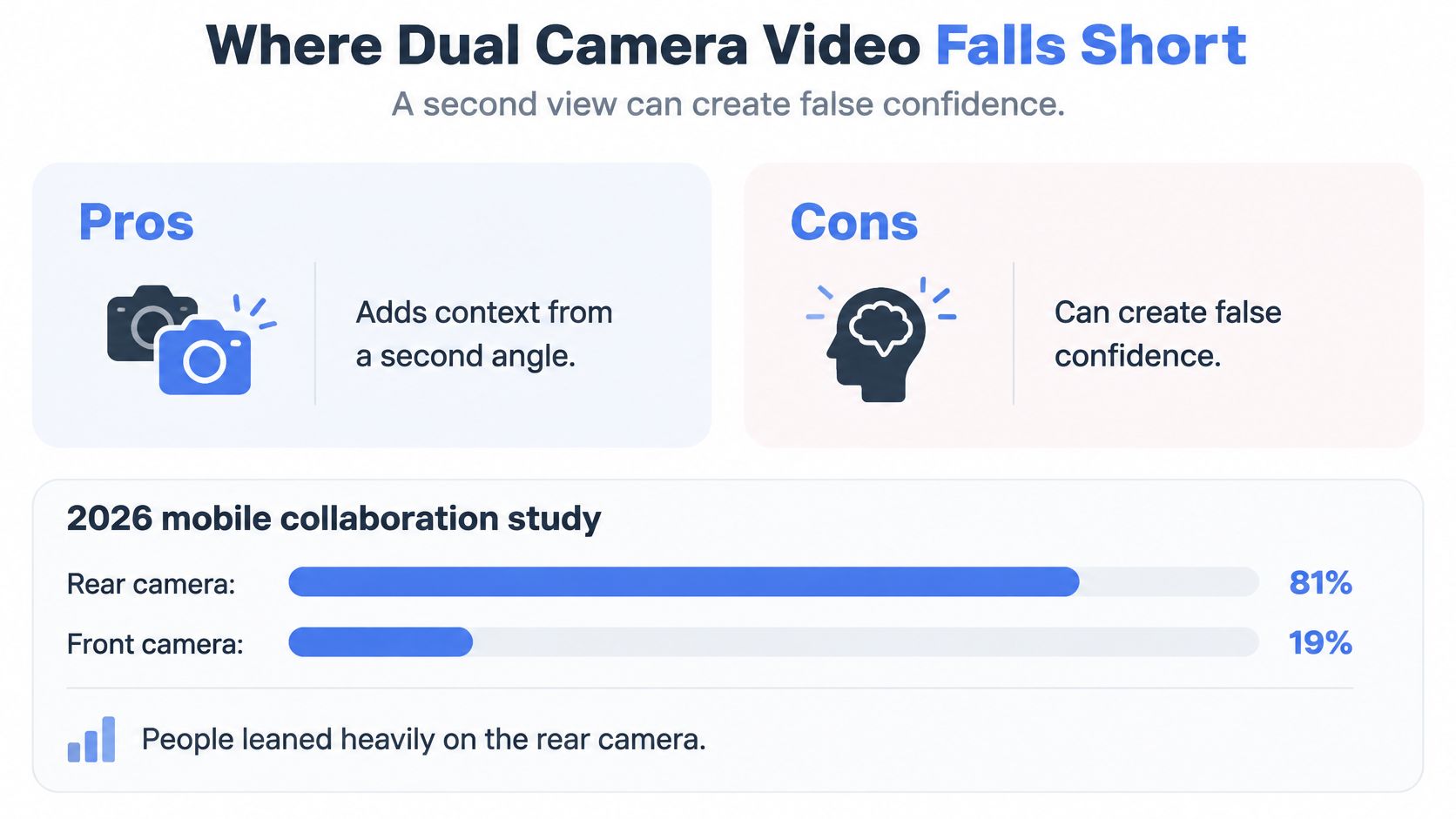
That usage split is the warning. Watchers and streamers lean on the rear picture. A small selfie can still steal attention, cover evidence, or create false confidence that “both angles” means the whole scene is covered. It doesn’t. The phone can’t see behind you. Low light smears faces and plates. Wind and traffic can make the audio unintelligible even when the video looks fine.
What the second view adds
- Context for the watcher. They see you and the street in one session, so a turn or a pause is easier to interpret.
- A face and voice beside the scene. That pairing helps later, when someone asks who was holding the phone.
What it costs
- Your attention. You’re managing a live inset while you should be watching the road.
- Heat, battery, and storage. Two encoders work harder than one, and a long walk will show it.
- A file you may not be able to split. A baked-in inset is awkward evidence if you later need only the street.
Privacy isn’t solved by a smaller inset
Recording bystanders and their voices raises consent questions, and those rules change by place. Decide retention and who can open the file before you stream, not after an incident. A temporary ghost mode that takes you off the map is a reasonable pause when you step into a home, a clinic, or a conversation that isn’t yours to broadcast. Turn the cameras back on deliberately, and confirm both feeds are live again. A dark inset is not the same as a paused camera.
Two live pictures are a tool for coverage. They are not a promise that someone will see the threat in time, or that you are safe because a watcher is online.
Confirm Your Dual Stream Before You Walk Out the Door
Treat the night it matters as too late for a first test. Run this sequence on a calm afternoon, on the route you use.
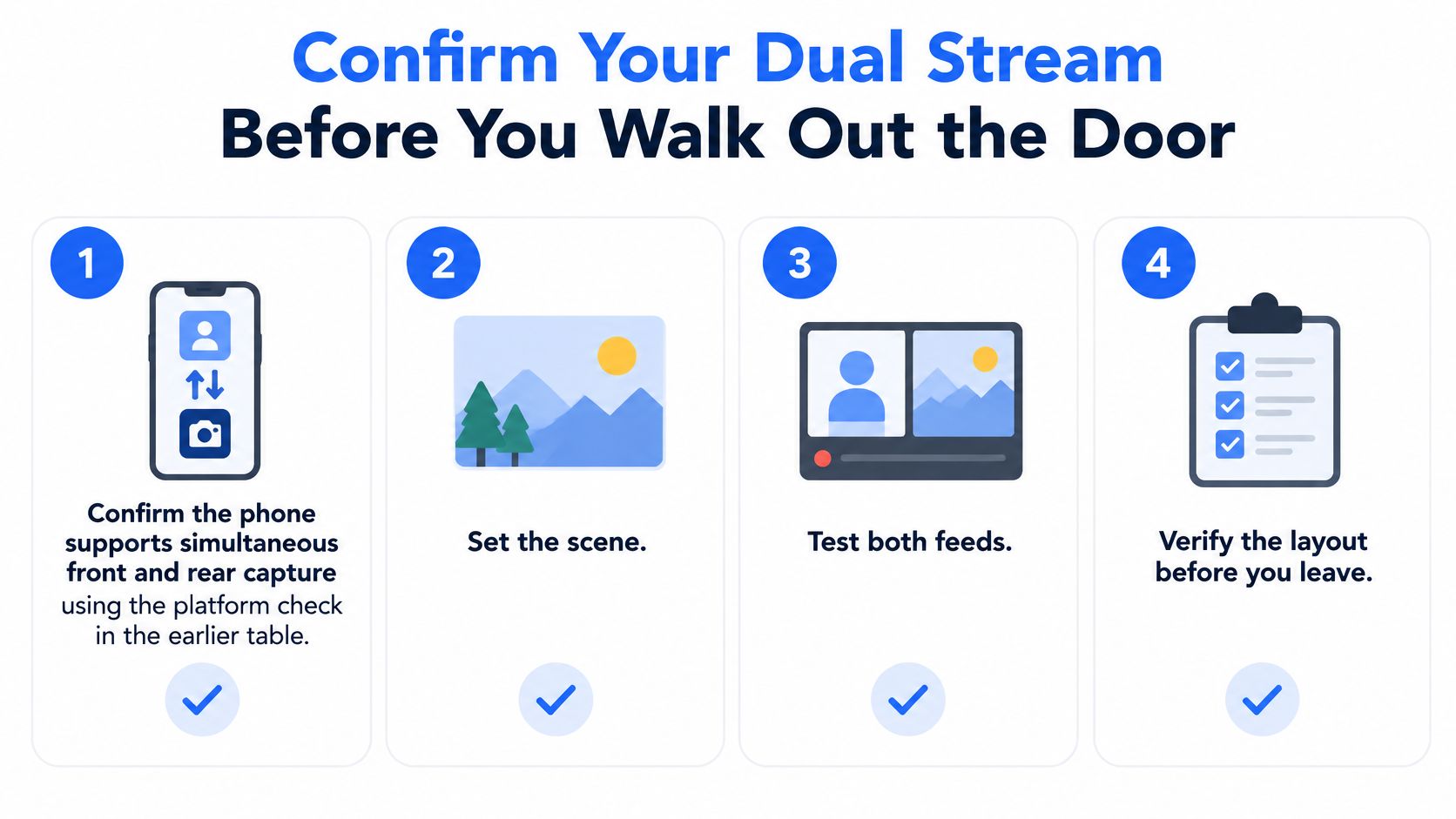
- Confirm the pair. Use the platform check for your phone. If simultaneous front-and-rear capture isn’t supported, plan on one camera plus a spoken notice, not a hidden failure.
- Set the scene as the default. Face inset small, parked in a corner that doesn’t cover plates or signs.
- Walk for ten minutes on the actual route, including the stretch with the worst signal. Watch for heat and for a frozen inset.
- Open the stream on a watcher’s phone. The street should be readable, and your face should be visibly inside the inset, not cropped at the chin.
- Speak from about two metres away with traffic or wind in the background. If the watcher can’t repeat a short sentence, move the phone or accept that audio won’t carry.
- Arm emergency reach. Turn on critical alerts so a contact can break through Do Not Disturb, and add a lock screen widget for go-live and SOS so you aren’t hunting through menus.
- Agree who does what. Name who watches, who may ask to join the audio, and who escalates if you stop responding.
- Put a monitored handoff in the plan. On iOS, 3rd-i Go Live streams video, audio, and route, and a Safety Agent can view both cameras and escalate with the context of the session. The app does not replace calling emergency services.
Do the ten-minute test this week. Don’t save it for the night you’re already outside.
3rd-i streams front and rear video together with audio and your route, so a chosen contact or a Safety Agent can watch the scene and your face in one live session and escalate when something goes wrong. If late walks, rideshares, or lone shifts are part of your week, set up dual camera video before you need it. Visit 3rd-i and run a test stream with the person who would be watching.