
7 Live Stream Video Effects Tools for Every Skill Level
You’re about to go live, but your webcam shows the laundry behind you, your logo covers the presentation, and the camera inset looks stretched. You could add another filter. You could also spend the evening fixing a production setup that’s more complicated than the broadcast needs.
The right live stream video effects tool depends on what you’re trying to fix. Background cleanup calls for a different workflow than branded overlays, picture-in-picture, or a show with remote guests and multiple cameras. A polished preview isn’t enough, either. You need the image, audio, and scene switching to hold up while you’re broadcasting live.
These seven options cover those different jobs, from free webcam filtering to full production switching. OBS Studio, ManyCam, and NVIDIA Broadcast address camera and layout problems in different ways. vMix and Wirecast suit more involved shows, while XSplit Broadcaster and Streamlabs Desktop offer alternative scene-building workflows.
Compare setup effort with the effect you need, not the length of the feature list. Keep a clean camera view available, and test your phone-camera connection before building graphics around it.
Table of Contents
- 1. OBS Studio
- 2. ManyCam
- 3. NVIDIA Broadcast
- 4. vMix
- 5. Wirecast
- 6. XSplit Broadcaster
- 7. Streamlabs Desktop
- Live Stream Video Effects: 7-Tool Comparison
- Choosing Your Effects Stack Before You Go Live
1. OBS Studio
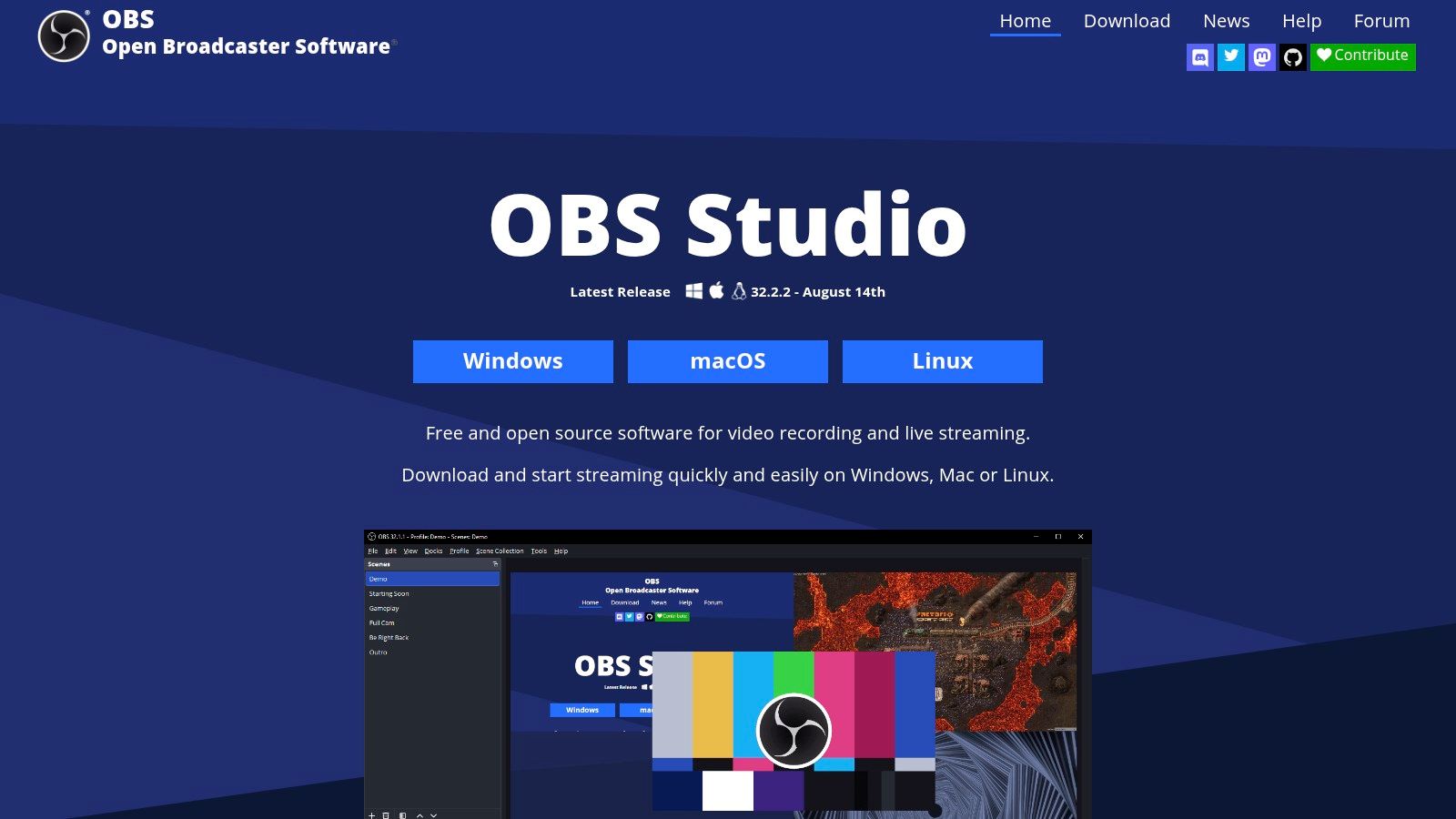
Best for detailed webcam correction and custom branded scenes. OBS Studio is free, open-source production software for Windows, macOS, and Linux. Its source filters, scene composition, and community plugins make it a flexible starting point when you want control rather than a preset look.
Start with the camera image before adding graphics. Frame the shot, correct exposure and color, then decide whether you need chroma key, an image mask, sharpening, or a LUT. Don’t stack corrections just because they’re available.
Build the Image Before the Overlay
For a presentation, place the screen source behind the camera, resize the camera into an inset, and keep branding away from slide text. Treat the camera and the complete scene as separate jobs.
- Fix framing first: Crop distracting edges before using background effects.
- Grade conservatively: Compare skin tones with filters enabled and disabled.
- Add plugins selectively: Test each addition before making it part of your regular broadcast.
The trade-off is time rather than software cost. OBS can handle a straightforward webcam scene or a layered production, but you’re responsible for configuring both. Plugin quality and support vary, so a working built-in filter is preferable to an untested extension before airtime.
For portable use, distinguish desktop production from a dedicated live video streaming app. They solve different problems.
Phone-as-camera tip: Connect the phone through a compatible camera feed before opening your finished scene. Check orientation and reconnect behavior, then save a fallback scene that doesn’t depend on that connection.
2. ManyCam
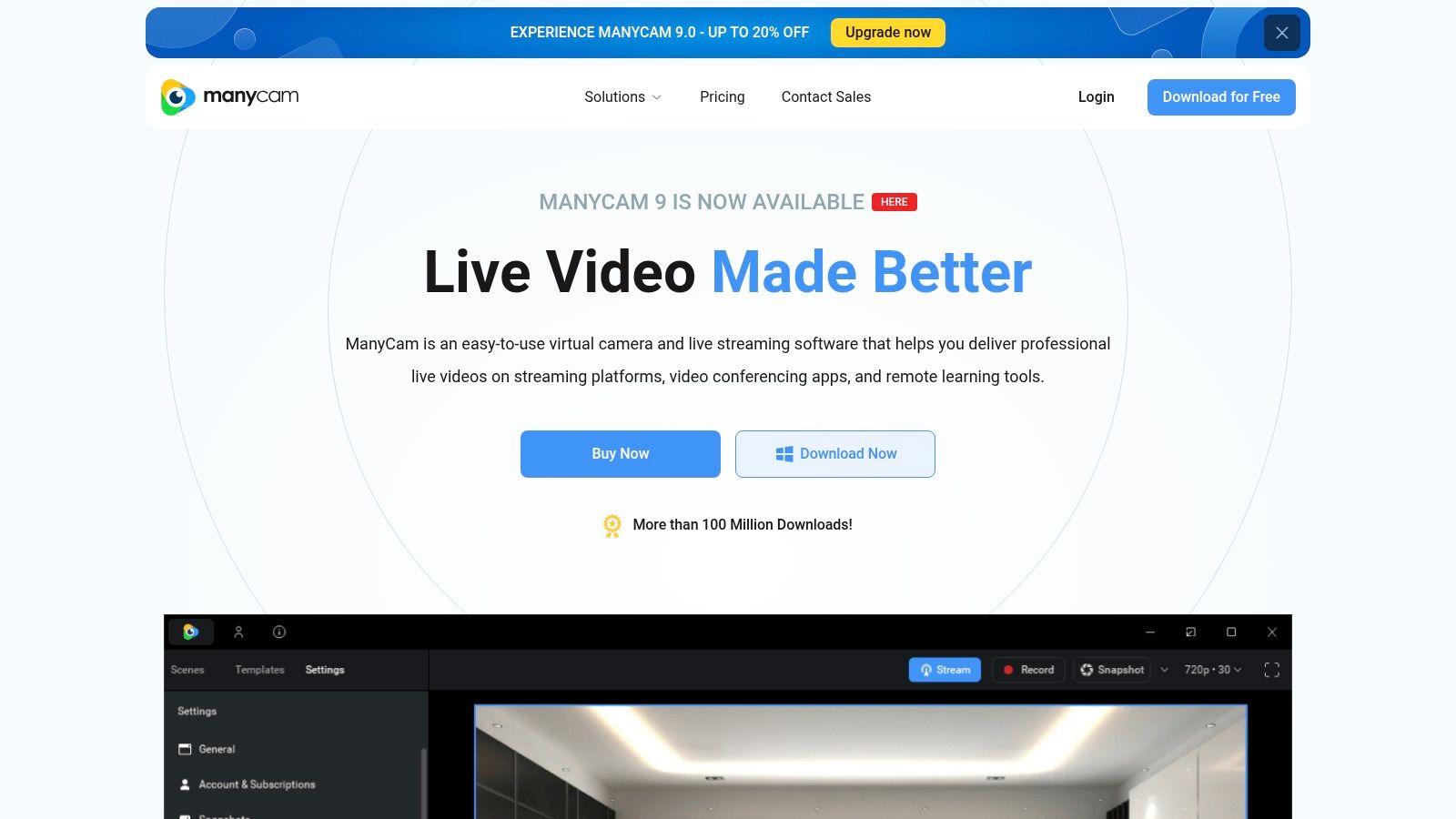
A presenter who needs a clean background and a camera inset may not need a full production switcher. ManyCam combines virtual-camera output, prepared scenes, background effects, and multiple media sources. It’s an approachable option for sending a composed image into a compatible conferencing or streaming application.
The useful effect is the finished layout, not just the background replacement. You can prepare a talking-head scene and a demonstration scene, then switch without rebuilding the composition during the broadcast.
Practical rule: Choose the virtual camera in your destination app, then judge the picture there. The effects app’s preview isn’t the final viewing experience.
Check the Destination Before Paying
Set up the camera source, choose blur or replacement, and add your presentation material. Then inspect the result inside the application your audience will use. Check that the inset doesn’t cover important content and that background processing preserves your hands when you demonstrate something.
ManyCam’s setup advantage becomes less decisive as you add layers and sources. Paid-plan requirements also matter, so confirm that the effects and outputs you need are included before committing. A simpler interface doesn’t remove the need to test the complete signal path.
For a multiple-camera streaming setup, plan each camera’s purpose before arranging the layout. A close-up demonstration feed should show something the main camera can’t.
Mobile tip: ManyCam supports mobile-camera sources. Position the phone for the demonstration angle, check its rotation, and verify that switching away and back preserves the framing.
3. NVIDIA Broadcast
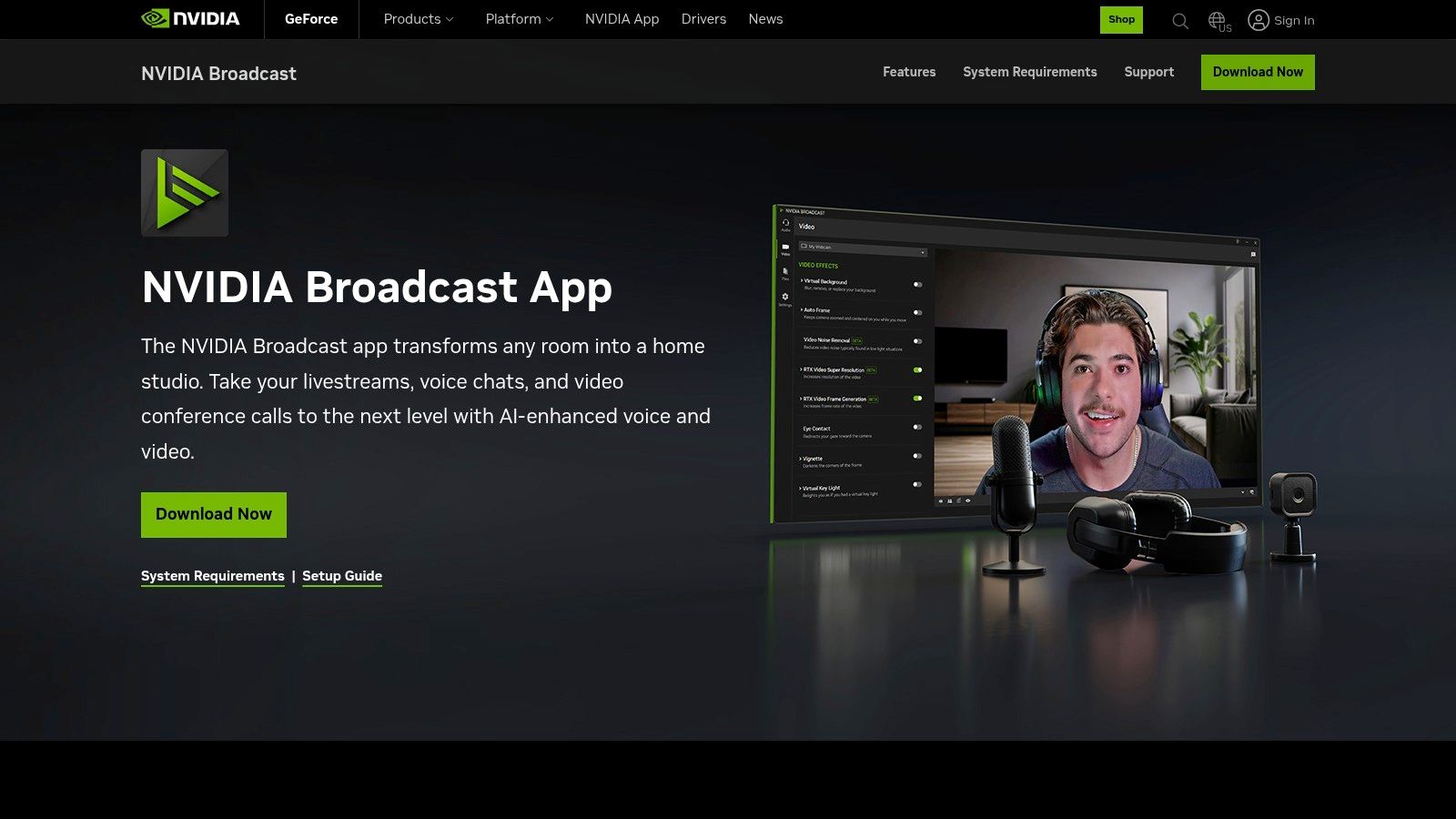
Keep your existing production software if the actual problem is camera or microphone cleanup. NVIDIA Broadcast supplies processed video and audio to compatible applications. Its effects include background blur or replacement, auto-framing, eye contact, video noise reduction, and microphone noise and echo removal.
The limiting factor is hardware compatibility. Many effects rely on RTX GPU capabilities, and combining effects adds processing load. Check the current hardware requirements before treating Broadcast as an easy upgrade.
Use Processing Where It Helps
Begin with the unprocessed camera and microphone. Enable the effect that addresses the most obvious problem, then compare the result while your usual streaming workload is running.
- Background cleanup: Test hair, headphones, hands, and objects held near your face.
- Auto-framing: Move naturally and check whether the crop suits your presentation.
- Audio cleanup: Listen to recorded speech, including quieter words and pauses.
Broadcast isn’t a substitute for a scene builder. Use it to improve the source, then let OBS or another compatible application handle overlays and switching. Avoid applying similar cleanup again downstream unless the comparison clearly justifies it.
Image alteration also needs context. Eye-contact and background effects may suit entertainment or presentations, but they’re poor defaults when viewers need an unmodified account of what’s happening.
Phone-as-camera tip: If your phone appears as a compatible camera input, test it without processing first. Then select that feed in Broadcast and compare the processed output in your streaming application, checking lip sync and framing.
4. vMix
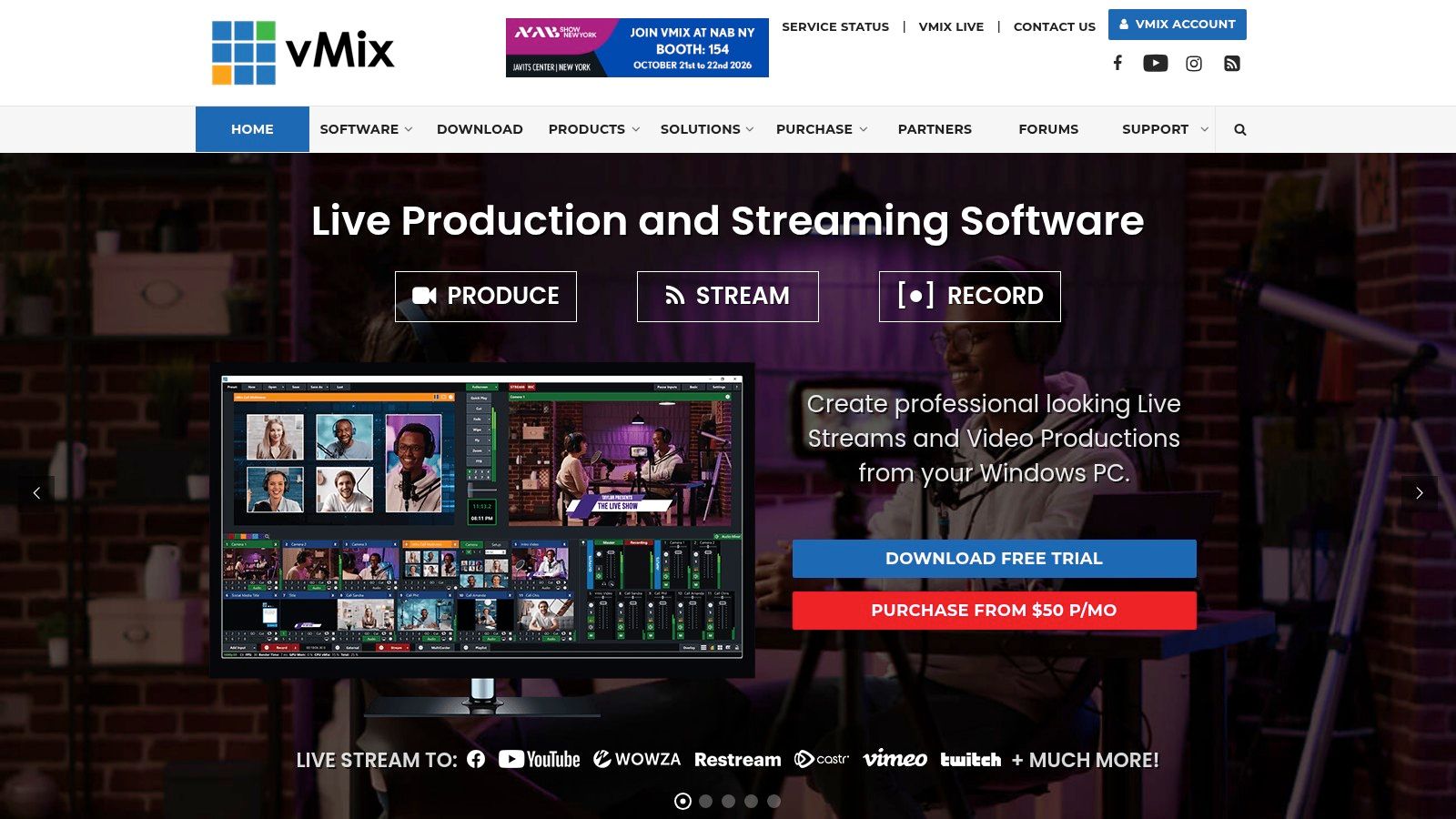
When your show includes camera changes, recorded segments, titles, and remote guests, effects become a production task. vMix is Windows live-production software built around mixing those sources into a stream or recording. It’s a better fit for a planned show than for someone who only wants webcam blur.
The setup cost is the production workflow itself. You need suitable hardware, clearly named inputs, prepared graphics, and an operator who knows what should appear next. A free trial lets you evaluate that workload before committing.
Start with the show’s running order. Prepare the opening, speaker view, presentation layout, and holding view before experimenting with virtual sets. A reliable title change is more useful than a complex effect nobody can operate confidently.
Rehearse Changes, Not Just Pictures
A static preview won’t tell you whether the show works. Switch between sources while speaking, play a media segment, return to the presenter, and inspect the recording.
A production setup isn’t ready because every source appears. It’s ready when the operator can recover from the wrong source appearing.
Test the complete live video transmission system, including the destination output. Watch for audio changes, incorrect graphics, and awkward crops rather than judging only picture quality.
vMix makes sense when you’ll use its production breadth regularly. For a solo webcam broadcast, the additional configuration can outweigh the benefit.
Phone-as-camera tip: Add the phone through a compatible input method and label it by role, such as “workbench.” Rehearse losing that feed and switching to a usable wide shot.
5. Wirecast
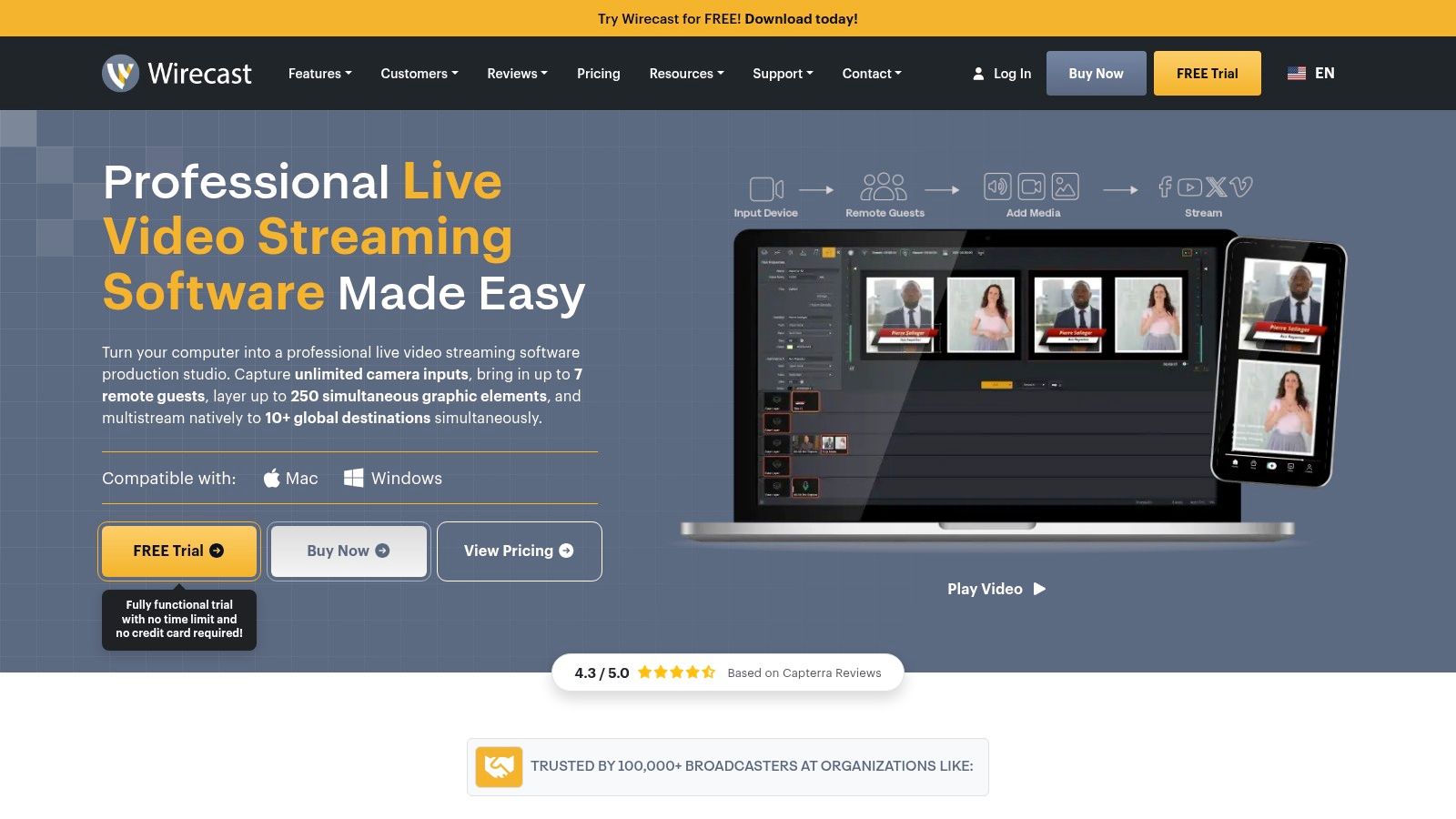
A virtual set won’t rescue a poorly prepared green-screen shot. Wirecast offers GPU-accelerated chroma key alongside multi-camera production, remote guests, graphics, streaming, and recording on Mac and Windows. It suits producers who need those capabilities within a structured broadcast workflow.
Its paid-software commitment is harder to justify for basic webcam effects. Choose it for the show you need to run, not merely because you want to remove a background.
Prepare the Key Before the Show
Light and frame the physical scene before adjusting the key. Check the edges around hair, glasses, clothing, and moving hands, then inspect the composite against the actual background you’ll broadcast.
- Match the composition: Position the presenter so the virtual set looks intentional.
- Test movement: Turn, gesture, and hold demonstration objects near the camera.
- Prepare an alternative: Keep a straightforward camera shot available if the composite becomes distracting.
Wirecast’s production tools are useful for interviews and multi-source shows, but equipment and configuration still determine whether the result is dependable. Don’t assume GPU acceleration guarantees spare capacity while every other production task is active.
Background replacement also isn’t a complete privacy strategy. The American Library Association’s livestreaming privacy guide warns about exposure through visible surroundings, running applications, browser tabs, and location details. Inspect every source, not just the presenter’s background.
Mobile tip: Treat a phone feed as a separate shot with its own framing and privacy inspection. Don’t assume the desktop camera’s keying or masking settings protect the phone’s view.
6. XSplit Broadcaster
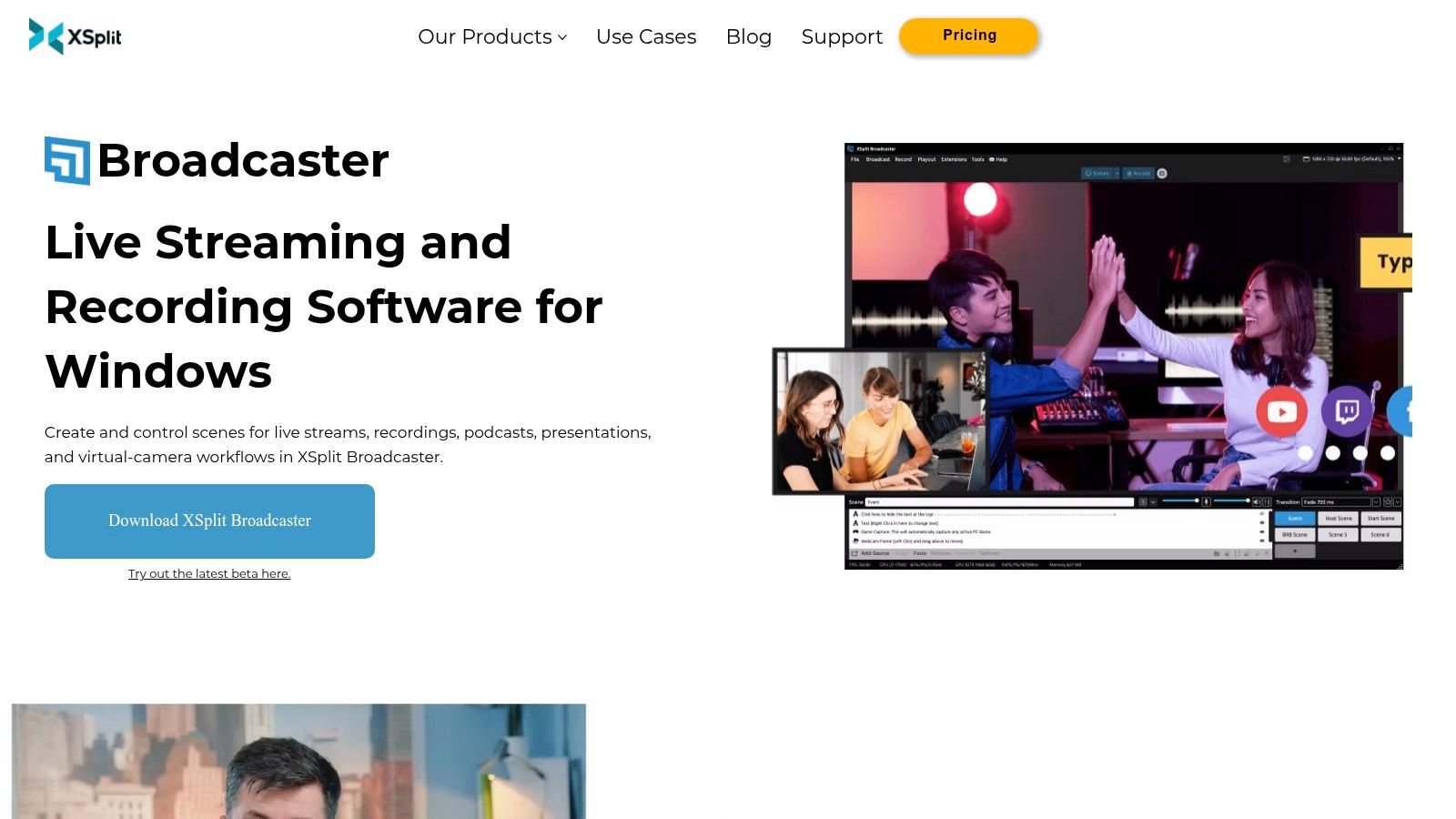
XSplit Broadcaster fits the branded-scene problem more than the specialist camera-cleanup problem. XSplit Broadcaster is Windows software for composing streams, recordings, presentations, and virtual-camera output. Its tools include chroma key, source masking, transitions, and scene layouts.
The free tier gives you a starting point, while Premium licensing affects access to additional output capabilities. Confirm the current restrictions against your intended broadcast rather than assuming a successful preview means the free version meets every requirement.
A sensible first scene contains the main content, a camera inset, and restrained branding. Add another scene only when it supports a distinct presentation task. Repeatedly decorating the same view adds maintenance without necessarily improving communication.
Make Layout Changes Predictable
Build matching layouts for screen sharing and camera-led discussion. Keep the presenter’s position consistent where practical, and check that masks don’t cut off gestures or demonstration objects.
Before airtime: Run the presentation at its normal pace. If you have to stop talking to find the right scene, simplify the controls or reduce the scene count.
XSplit offers a guided alternative to a heavily customized OBS setup, but it doesn’t eliminate configuration. Windows-only availability and paid-feature boundaries are the main selection trade-offs. It’s attractive when its workflow suits you, not automatically because it has fewer decisions on screen.
Phone-as-camera tip: Establish the phone’s compatible camera connection before arranging source masks. Save separate framing for portrait and wide-screen use, and test what happens if the phone rotates during the session.
7. Streamlabs Desktop
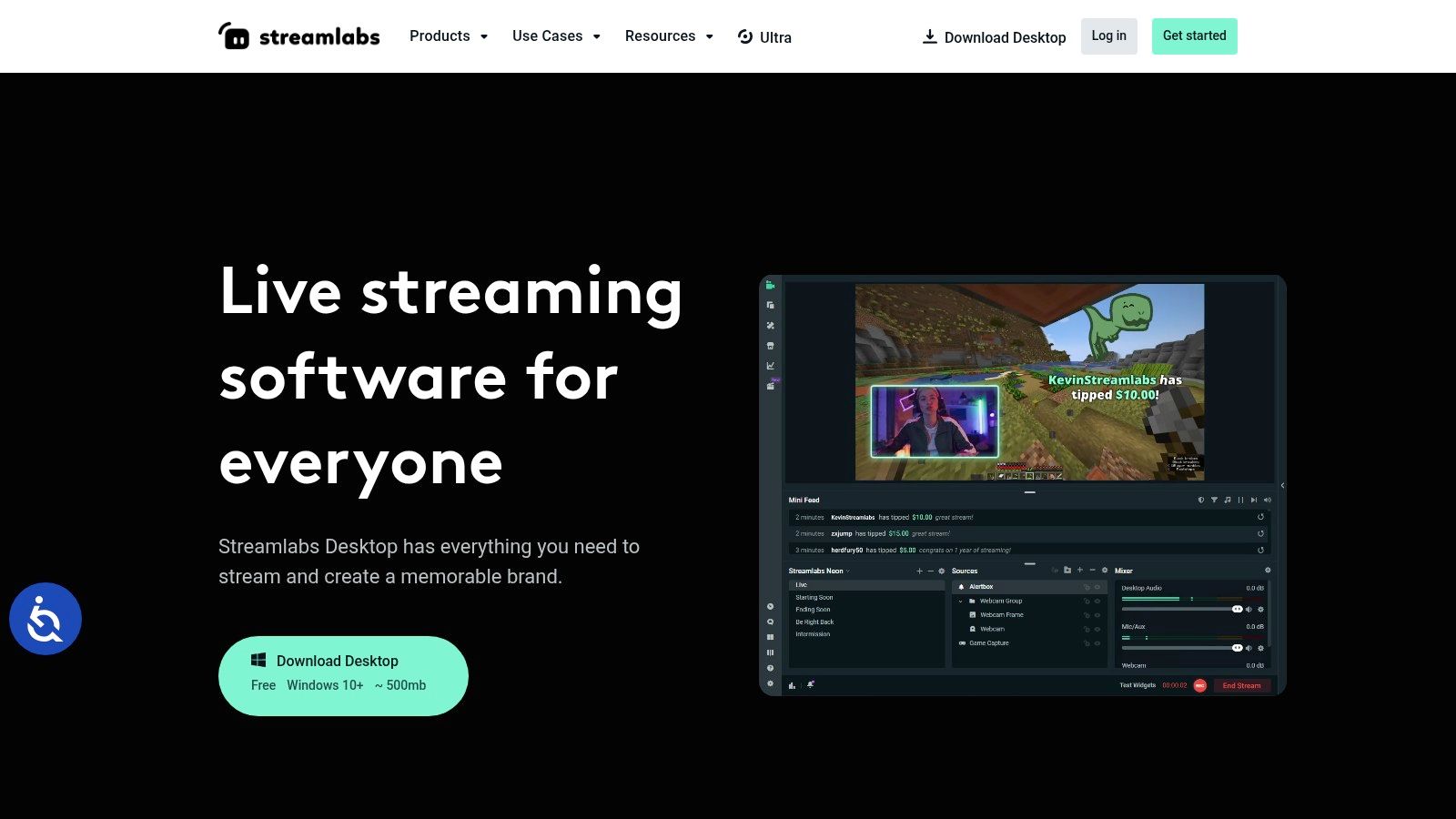
For a creator combining gameplay, webcam, overlays, and guest appearances, Streamlabs Desktop provides a creator-focused workflow on Windows and macOS. Basic streaming is free, while some additional capabilities belong to paid Streamlabs offerings. Its tools include scene composition, horizontal and vertical output, and Collab Cam for guest participation.
Start here for assembling the broadcast, not for an assumed specialist filter collection. Check whether a particular camera effect is included or needs another tool before you build your workflow around it.
Design Around the Content
Place the game, desktop, or presentation first. Add the webcam and graphics afterward, checking that they don’t obscure interface controls, captions, or the subject you’re discussing.
- Keep overlays purposeful: Show information viewers can use rather than filling empty space.
- Review each output: A landscape composition needs a separate inspection in a vertical frame.
- Test guest layouts: Check name placement, camera crops, and the view used when a guest disconnects.
The convenience trade-off is less emphasis on the thoroughly adjustable image-effects workflow available through OBS filters and plugins. If the broadcast needs extensive camera correction, evaluate that requirement separately instead of assuming a creator-oriented package covers it.
Streamlabs Desktop is primarily designed for creator and entertainment streams. A polished overlay shouldn’t be mistaken for a personal-safety monitoring workflow.
Mobile tip: Review the output on a phone before broadcasting. For phone-camera input, test the connection separately, then verify that both horizontal and vertical layouts preserve the subject’s face and any demonstration area.
Live Stream Video Effects: 7-Tool Comparison
| Software | 🔄 Implementation Complexity | ⚡ Resource Requirements | 📊 Expected Outcomes | ⭐ Ideal Use Cases | 💡 Key Advantages |
|---|---|---|---|---|---|
| OBS Studio | Moderate to high; setup and testing needed | Windows, macOS, or Linux; hardware depends on production | Custom scenes, filters, and plugin-enhanced video | Flexible streaming, from webcam effects to complex productions | Free, open source, and highly customizable |
| ManyCam | Low to moderate; multiple sources add setup | Compatible computer; some features require a paid plan | Virtual-camera output, background effects, and multi-source layouts | Video calls and streams needing quick scene or camera switching | Accessible workflow; supports mobile cameras |
| NVIDIA Broadcast | Low; hardware and app compatibility must be checked | Compatible NVIDIA RTX GPU; effects use GPU resources | AI-based background, video, and audio cleanup | Improving webcam and microphone quality in calls or streams | Combines camera and audio enhancements without a full production suite |
| vMix | High; configuration and production skills often needed | Windows PC; suitable hardware needed for multi-source work | Multi-camera streams, recordings, graphics, and virtual sets | Events, interviews, and multi-camera shows | Broad live-production capabilities in one application |
| Wirecast | High; requires production setup | Mac or Windows; suitable equipment needed for advanced workflows; paid software | Multi-source broadcasts with graphics, remote guests, and chroma key | Structured broadcasts, interviews, and green-screen productions | Cross-platform with built-in chroma-key tools |
| XSplit Broadcaster | Moderate; some features require a paid license | Windows PC; free-tier limits apply | Scenes, transitions, chroma key, and virtual-camera output | Windows streaming, recording, and presentations | Free tier and guided scene workflow |
| Streamlabs Desktop | Low to moderate; designed for quick setup | Windows or macOS; some features are paid | Creator-oriented streams with scenes, overlays, and multiple sources | Entertainment and creator streaming | Free basic use and an approachable setup |
Choosing Your Effects Stack Before You Go Live
Choose live stream video effects by the problem you need to solve. OBS Studio suits detailed source control, ManyCam offers approachable virtual-camera layouts, and NVIDIA Broadcast focuses on source cleanup. vMix and Wirecast make more sense for planned multi-source shows, while XSplit Broadcaster and Streamlabs Desktop provide alternative ways to assemble branded scenes.
Don’t install a larger production workflow to solve a smaller camera problem. Start with the effect you need most, test it on a private stream or recording, and judge the destination output rather than the local preview. Keep a fallback scene ready for a failed camera connection, broken overlay, or distracting filter.
Preserve the View Before Adding Polish
Test while running the applications you’ll use during the broadcast. Watch movement, listen for audio problems, and check whether viewers can read the material beneath your graphics.
- For webcam cleanup: Compare processed and unprocessed images during natural movement.
- For branded scenes: Check text, camera placement, and shared-screen visibility.
- For multi-source shows: Rehearse switching, missing inputs, and recovery.
For personal safety, the priorities change. A watcher needs an understandable view of the situation, a live route, and a way to get help. Decorative replacement, aggressive cropping, or image alteration can work against that purpose.
3rd-i streams live video, audio, and location to chosen contacts and trained Safety Agents, with emergency escalation to 911 through RapidSOS. It supports late walks, rideshares, and lone-working situations, where live context matters more than presentation polish. Its front-and-rear camera streaming and picture-in-picture serve situational visibility rather than decoration.
Use creator tools to improve a broadcast, and evaluate safety tools by their monitoring and escalation workflow. For any safety stream, preserve useful context and avoid effects that hide what a watcher needs to see. 3rd-i is not a substitute for calling emergency services.
3rd-i combines live video, audio, and route sharing with chosen contacts and trained Safety Agents, including 911 escalation through RapidSOS. If your reason for going live is a late walk, rideshare, or lone-working shift rather than an audience show, visit 3rd-i to explore a monitoring workflow built around safety instead of visual effects.