
Multiple Camera Streaming Setup How to Go Live Safely
You’re walking home late, checking the route on your phone while a family member waits for your arrival. A single front-facing camera can show your face, but it may hide the road, entrance, driver, or people around you. A rear-facing view can show the surroundings, but it removes the human context that helps a watcher understand whether you’re calm, confused, or in distress.
A multiple camera streaming setup built around a phone’s front and rear cameras closes that gap. It isn’t studio production. It’s a practical way to share your face, surroundings, audio, and route during a late walk, rideshare trip, campus commute, or lone shift. The sections below focus on the parts that usually determine whether the setup works under pressure: permissions, network behavior, privacy, USB controller limits, IP conflicts, and emergency controls.
Table of Contents
- Why Dual Camera Streaming Changes Live Monitoring
- What to Prepare Before You Go Live
- Configuring and Optimizing Your Dual Camera Stream
- Network Performance and Latency Control for Multiple Feeds
- Privacy Recording and Safety Controls You Should Set
- Fixing Common Dual Stream Problems and Staying Reliable
Why Dual Camera Streaming Changes Live Monitoring
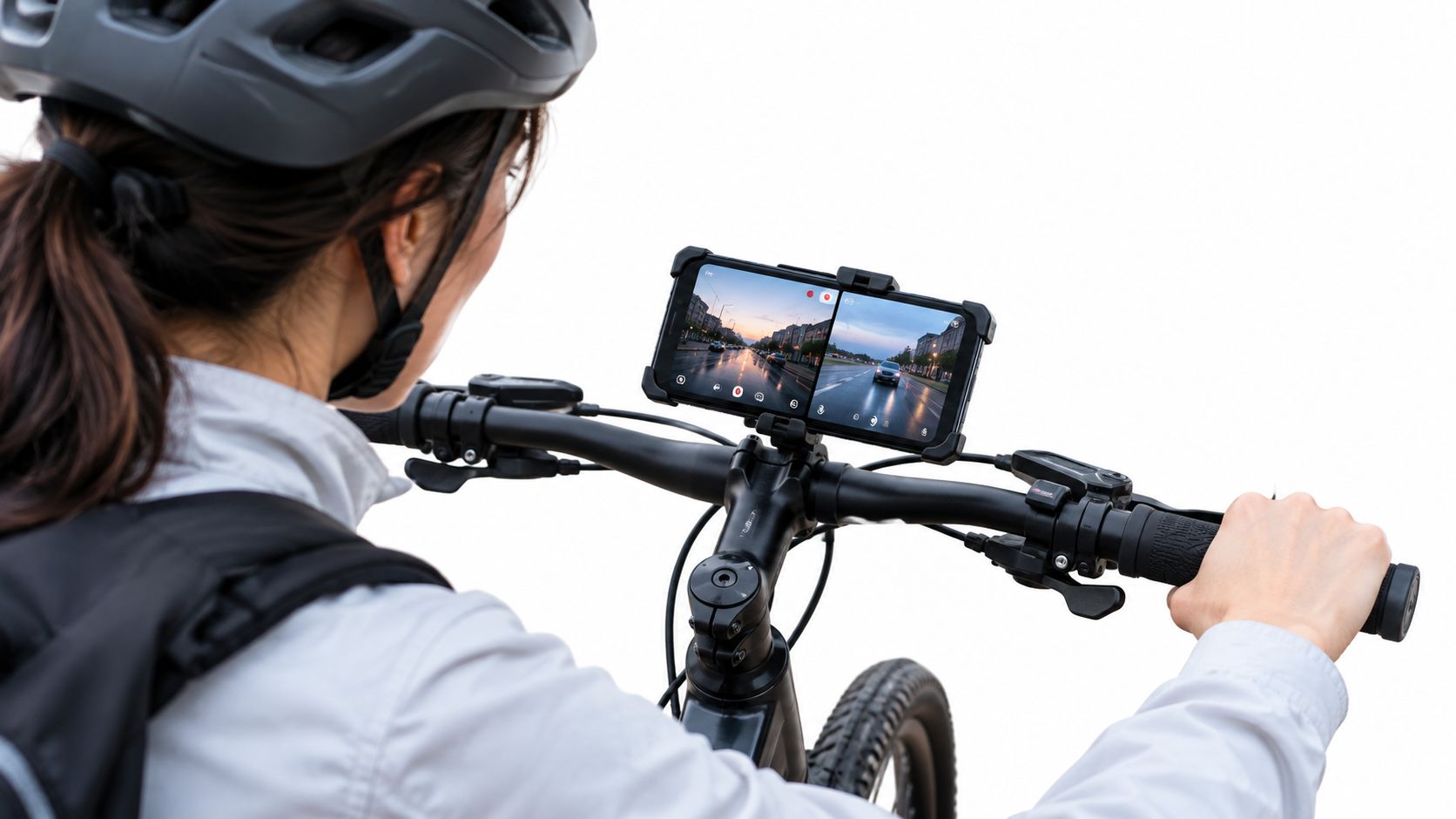
A late walk often becomes difficult to interpret from one camera. Your contact sees your face, but not the vehicle approaching from behind. Or they see the road ahead while missing your reaction when a driver takes an unexpected turn. Dual streaming gives watchers both viewpoints at once, which reduces the amount they have to guess.
The same principle applies in a rideshare. The forward or rear camera can show the route and vehicle interior, while the front camera keeps your face visible. If you stop responding, a watcher has more context than a silent text thread provides. For a lone worker, the surrounding view can document an entrance, loading area, or poorly lit route while the face view confirms who is carrying the phone.
This is an old production idea applied to a safety problem. The first documented multicamera shoot is commonly dated to 1898, and the first multicamera live broadcast to 1928, according to historical and practical live-streaming background. Modern safety monitoring inherits the same logic: one view provides the master context while another captures a reaction or alternate angle.
What one camera leaves out
Single-camera streaming is simpler, but simplicity comes with blind spots. A front camera may be useful for communication, yet it can’t show what’s happening behind or beside the user. A rear camera can document the environment, but watchers lose facial cues and may not know whether the user has noticed a hazard.
Dual camera streaming is most useful when identity and environment matter together. It gives a watcher a moving picture of the person and the situation around them rather than forcing a choice between the two.
Practical rule: Use the main view for the information watchers need most, then keep the second view visible without covering the route, face, or other critical detail.
A tool such as real-time safety monitoring is designed around that relationship between live video, audio, route information, selected contacts, and trained Safety Agents. The technology still depends on preparation, though. A second camera can add useful context, but it also adds battery demand, data traffic, privacy decisions, and more failure points.
The rest of the setup should therefore be treated as a reliability system, not a camera trick. Test both lenses, confirm who receives the stream, choose a network that can sustain the upload, and decide when recording or location visibility should pause.
What to Prepare Before You Go Live
A reliable stream starts before you leave the building. The quickest preparation is a short phone, account, and network check that catches blocked permissions or unreachable watchers while you still have time to fix them.
Check the phone first
Open the safety app and confirm access to the camera, microphone, and location. If iOS denied any permission earlier, dual video or route sharing may fail even though the app itself opens normally. Test the front and rear lenses separately, then start a short private or controlled stream and verify that both angles appear for the intended watcher.
Keep the phone charged and avoid starting with a nearly full storage state if automatic recording is enabled. A mounted phone should also have a stable position. For walking, keep the main view readable without forcing you to hold the device at an awkward angle. For a rideshare, place it where the camera can capture useful context without obstructing the driver’s controls or your own movement.
Confirm the people and alerts
Set up your selected contacts or Squad before you need help. Watchers should know how to open the live route and video, how to send a nudge, and how to respond if you stop interacting. Turn on Critical Alerts where available so important notifications can reach contacts even when Do Not Disturb is active. A Lock Screen widget can reduce the number of taps needed to start Go Live or reach SOS.
Run the two-minute preflight
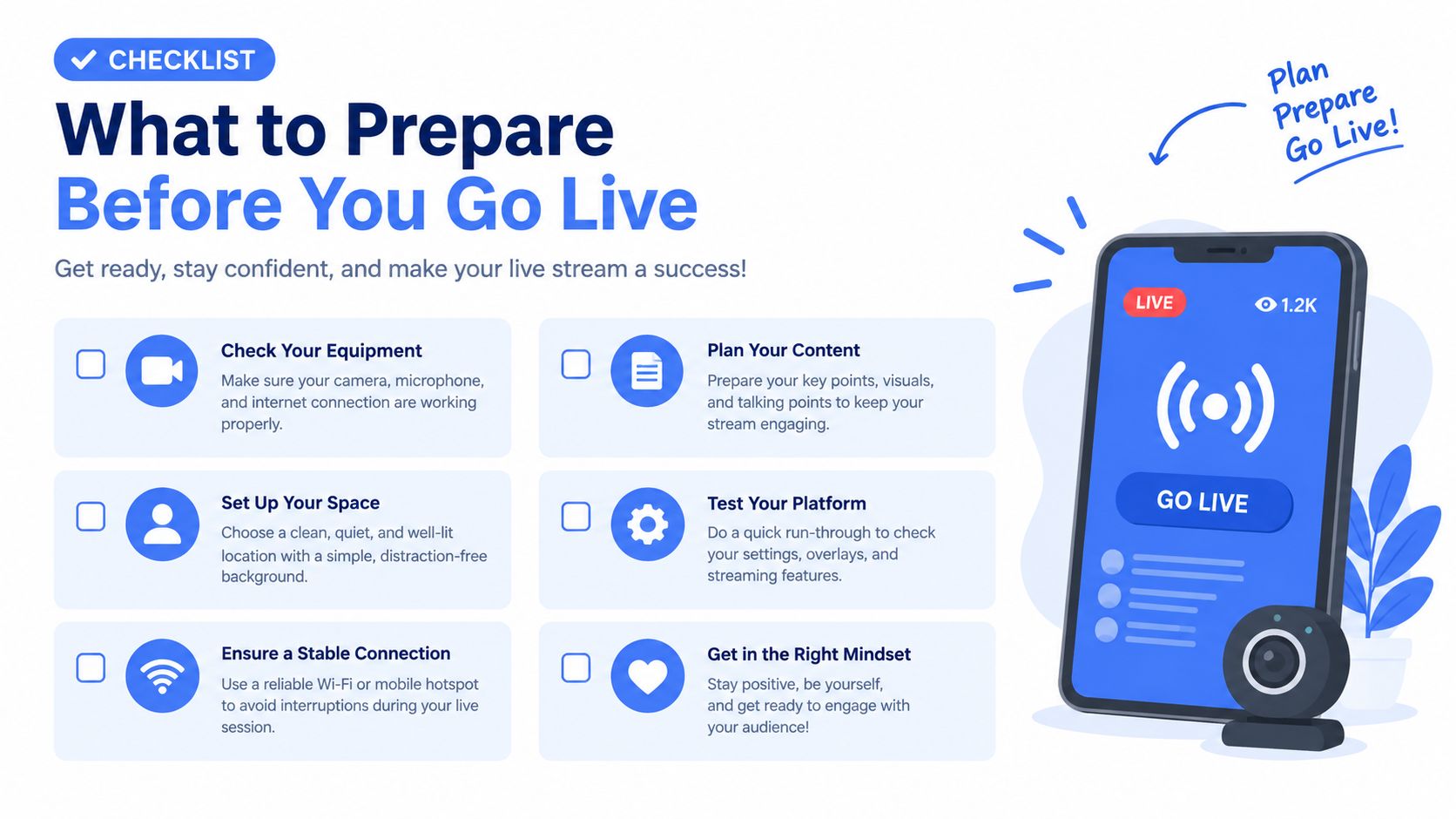
Use this order before a late walk, shift, or pickup:
- Permissions: Confirm camera, microphone, and location access.
- Lenses: Preview both front and rear cameras and check framing.
- Audio: Speak normally and confirm the watcher can hear the active microphone.
- Network: Test from the location where you’ll begin, not only from home Wi-Fi.
- Contacts: Verify the correct Squad or selected watchers are ready.
- Alerts: Check Critical Alerts and Lock Screen access.
- Privacy: Decide whether Ghost mode or recording should be active.
- Power: Remove unnecessary apps and start with enough battery for the planned trip.
For people who need continuous access rather than occasional check-ins, 24-hour-a-day app support fits a different operating pattern. The important point is that availability doesn’t remove the need for a preflight. A phone can have signal and still lack microphone permission, and a contact can be selected while notifications remain muted.
Configuring and Optimizing Your Dual Camera Stream
Start with the safety objective, not the visual layout. During a night walk, the rear camera may deserve the larger view because the route and surrounding movement are the key context. During a rideshare, the face view may need more prominence while the second angle shows the vehicle interior or road.
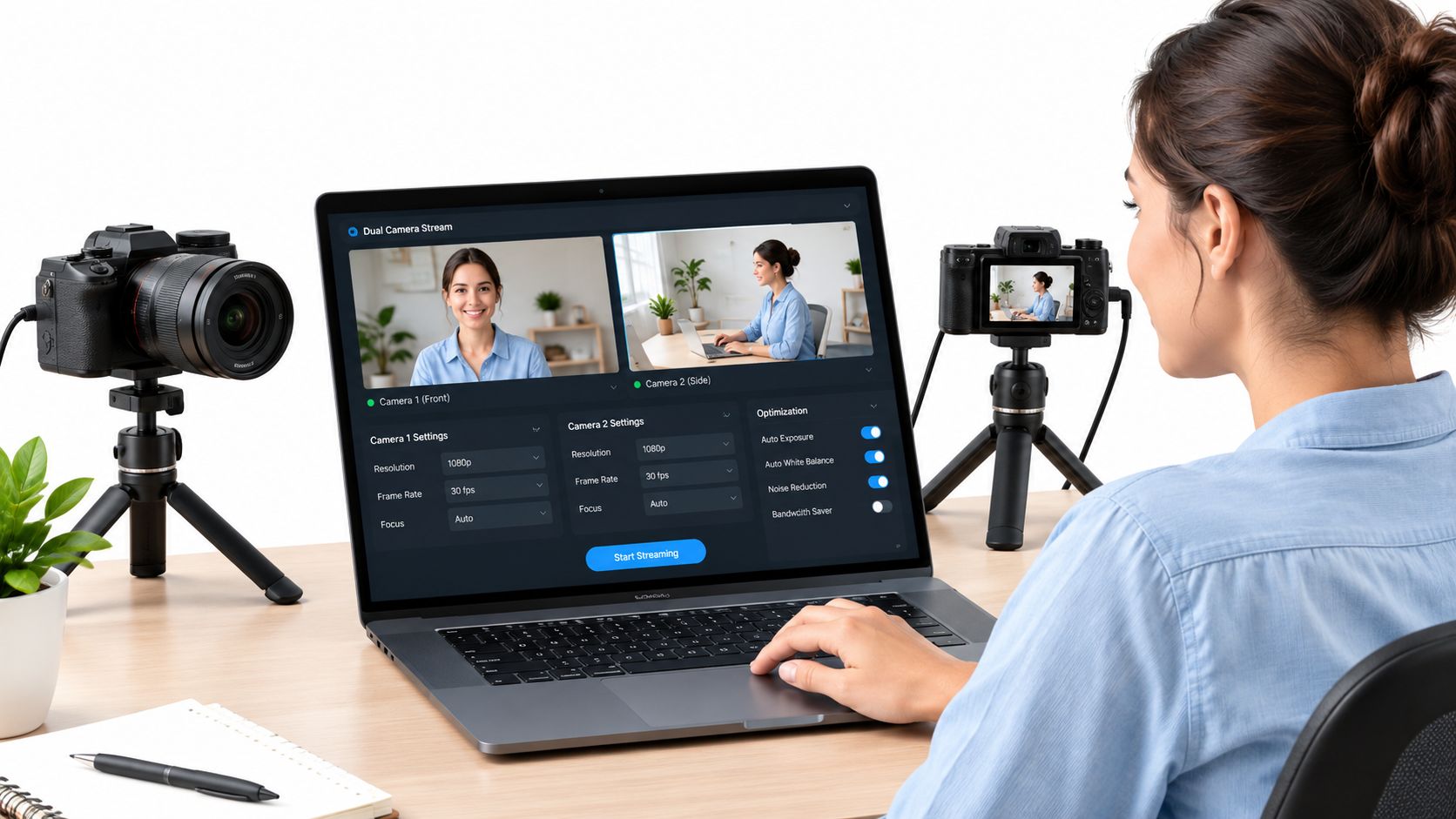
Open the app’s live mode and enable dual camera streaming. Select the front and rear cameras, then activate Picture-in-Picture if the interface offers it. Keep the PiP window small enough that it doesn’t cover the user’s face, the route, or a doorway. Move it before going live, because repositioning a floating view while walking creates distraction at the exact time the phone should stay stable.
3rd-i’s Trip Mode is built for a related arrangement, with the road ahead and the user’s face streamed together while the route remains visible. Its PiP mode keeps both angles live while the user works with other apps. Those layouts are useful only when the secondary window adds information. If it hides the main safety view, reduce it or switch the priority angle.
Keep the phone usable under stress
Lock the orientation before starting. A phone that rotates during a walk can make the PiP window cover the wrong area or force watchers to interpret a sudden layout change. Mounting also matters. A loose handlebar mount, unstable dashboard position, or blocked lens can turn a technically active stream into poor evidence.
Audio needs one clear source. Keep the primary microphone close enough to capture speech, and avoid enabling additional audio devices unless you’ve tested how the app handles them. Watchers don’t need a complicated mix. They need to hear the user, environmental changes, and any approved conversation without distortion.
Use Request to speak when a watcher needs to talk. Approval keeps the streamer in control of incoming audio, which matters in public spaces and during situations where an unexpected voice could increase stress. A watcher can send a nudge when a full conversation isn’t necessary.
A good dual view should make the situation easier to understand, not make the user manage two screens while moving.
Ghost mode and Emergency Entry Pin belong in the privacy and response plan. Ghost mode can temporarily keep the user off the map when continuous location visibility isn’t appropriate. Emergency Entry Pin can provide responders with the closest entrance information when a building has multiple access points. Set these controls before the trip so they’re available without searching through settings.
For teams using capture cards, webcams, or a desktop encoder alongside a phone workflow, clean video capture with AI Video Detector offers useful background on getting a cleaner capture path. That equipment knowledge is most relevant when the phone is feeding a production system. For personal safety monitoring, fewer devices usually means fewer points of failure.
A short demonstration can help new watchers understand the intended layout and controls:
Before relying on the stream, ask a watcher to confirm three things: both camera views are visible, the route or location presentation is understandable, and speech remains clear while the user moves. If one view is dark, mirrored, blocked, or delayed, fix that before the trip.
Network Performance and Latency Control for Multiple Feeds
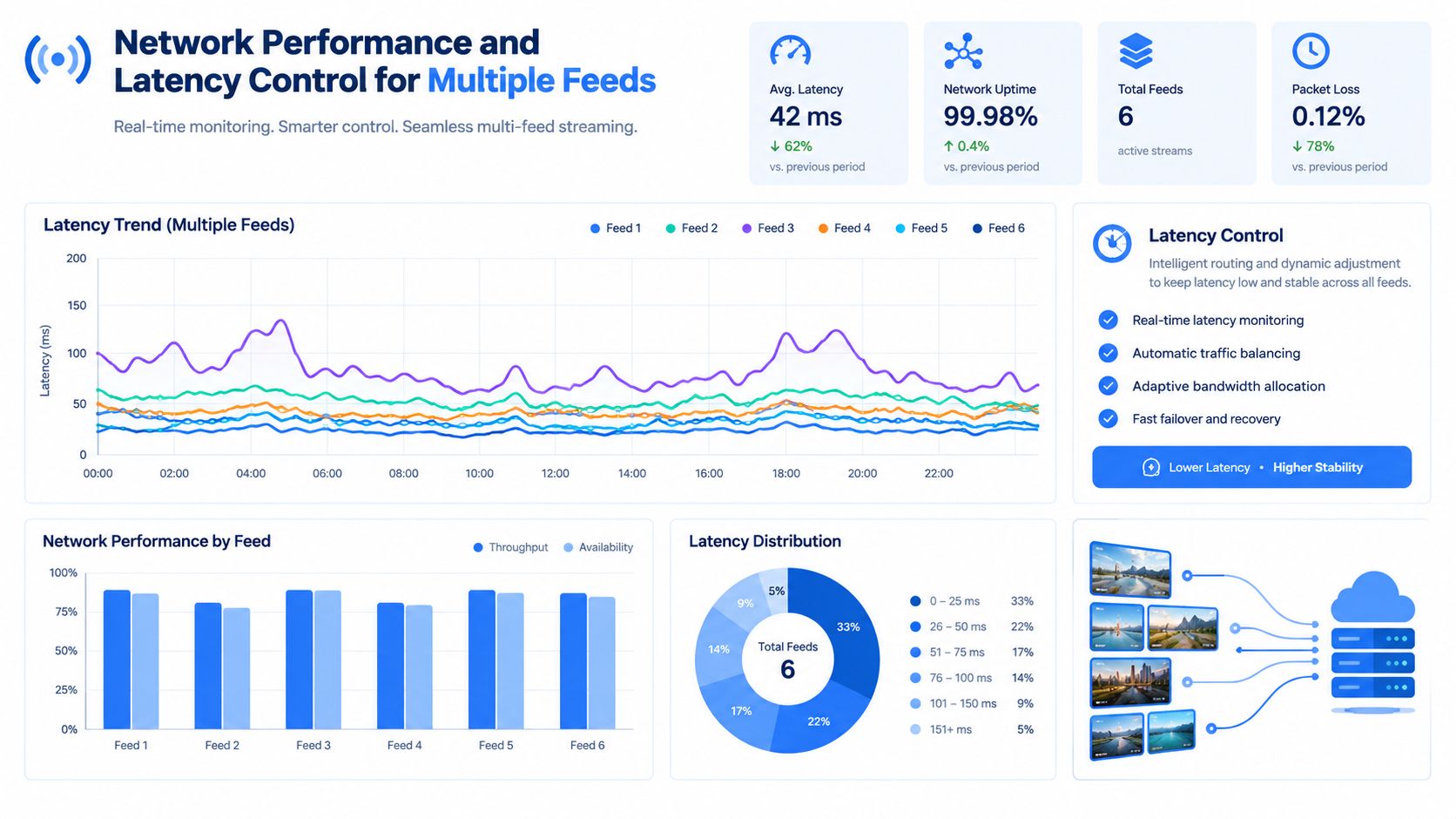
Two mobile camera feeds create a network problem that a single feed can conceal. The phone must capture, encode, upload, and maintain the session while location and control data continue to move. A strong signal at the start doesn’t guarantee stable performance after the user changes streets, enters a building, or moves between cellular bands.
Measure the complete delay with a glass-to-glass test. Put a visible timestamp in the camera view, start the stream, and compare the capture time shown in the image with the playback time on the watcher’s player. Total latency includes camera delay, network delay, and client-side delay, so a slow result isn’t automatically caused by the internet connection. Guidance on testing webcam streaming latency also notes that reducing bitrate or resolution can reduce camera-side delay.
What constrained upload looks like
A documented constrained test sent four HD camera feeds over 5 Mbit/s upload under approximately 200 ms conditions. The recordings were usable but blocky, and the initial image took over 10 seconds to appear, even though motion stayed smooth at 25 fps once the feeds loaded. The result shows why smooth motion alone isn’t enough. A watcher may see fluid video after startup while still waiting too long for meaningful context at the beginning of the stream, as described in the multi-feed live-view implementation details.
A different low-latency architecture reported 230.29 ms latency and stated that adding input channels didn’t increase latency. That comparison points to an important engineering conclusion: camera count matters, but consolidation architecture, encoding choices, and bitrate control can matter more.
Choosing stream quality under constrained upload
| Upload Condition | Recommended Setting | Expected Tradeoff |
|---|---|---|
| Strong, stable connection | Keep both views at the tested quality | Higher visual detail uses more data and power |
| Variable cellular connection | Lower bitrate or resolution before the stream becomes unstable | The image may look softer or show more compression |
| Weak connection at the starting point | Use the simplest reliable layout and test playback first | Less detail, but faster recovery and clearer continuity |
| Connection changes during movement | Favor stable delivery over maximum resolution | Watchers may receive a less polished image |
Limit the number of streams produced by each camera where the workflow allows it. Independent guidance identifies excess streams and high data generation as contributors to latency and instability. A wired connection is practical for a fixed workstation, while a phone user should test the actual cellular route rather than assuming a network label guarantees performance.
For personal safety, the best setting is the one that preserves continuous, understandable context. A slightly compressed face and readable route are more useful than a high-detail stream that arrives late or drops when the user needs it.
Privacy Recording and Safety Controls You Should Set
Live monitoring creates a trust decision as well as a technical one. The right settings depend on whether the stream is for a family member, a campus team, a lone worker, or a trained Safety Agent. Don’t treat every trip as if it needs the same visibility.
Ghost mode is appropriate when the user wants temporary privacy from map visibility while retaining control of the broader session. It shouldn’t be used to conceal an active emergency from the people expected to respond. Conversely, continuous location and video can be justified during a late rideshare or isolated shift when route context is part of the safety plan.
Automatic recording adds another layer. Recording with transcription and AI summaries can preserve information after the live session ends, which may help with incident documentation. The tradeoff is that recording can capture bystanders, private conversations, or sensitive surroundings. Tell watchers and users what the recording does, who can access it, and when it should be paused.
Privacy choices by situation
| Situation | Useful setting | Main concern |
|---|---|---|
| Late walk | Live route, dual camera, Critical Alerts | Bystander privacy and battery use |
| Rideshare | Face and surroundings together, recording when appropriate | Capturing other passengers or private audio |
| Campus escort | Squad viewing and visible watcher count | Making sure the selected group is correct |
| Lone work | Recording, movement prompts, Safety Agent access | Clear workplace rules and retention expectations |
Squad viewing can show the watcher count, which gives the streamer transparency about who’s currently observing. Live location sharing can also help families or teams understand how route visibility works before an urgent situation occurs.
Set movement detection prompts within the hours that match the person’s routine. These prompts should support a plan, not create constant noise. Critical Alerts are useful for urgent notifications that need to reach contacts through Do Not Disturb, while Lock Screen access reduces friction when the user has limited attention.
If the user or another person needs immediate help, Emergency for a Friend allows someone to trigger assistance on another person’s behalf. SOS can connect to a Safety Agent, with emergency dispatch delivered through RapidSOS. The app isn’t a substitute for calling emergency services directly when that is safe and possible.
Fixing Common Dual Stream Problems and Staying Reliable
The most confusing failures often appear after the setup seems complete. A third camera may open successfully at the device level but produce no usable frames because multiple cameras are competing for the same USB controller bandwidth. A powered hub can provide electricity without creating additional host bandwidth, so adding one doesn’t automatically solve the problem.
Use a controller-aware checklist for any laptop or desktop workflow:
- Map the bus: Identify which cameras share a USB controller instead of looking only at the physical port.
- Separate feeds: Move cameras to separate controllers where possible.
- Test independently: Confirm each feed alone before testing the combined layout.
- Add load gradually: Introduce the second or third camera only after the previous feed remains stable.
- Watch the encoder: Reduce bitrate or resolution if the image stalls, blocks, or arrives late.
The same systems issue appears with IP cameras. Feeds can disappear after a restart when devices receive changed addresses through DHCP or when two devices conflict during provisioning. Assign each camera a unique, stable address, isolate cameras one at a time during setup, and test the network after a reboot or outage. The guidance on avoiding network conflicts in multi-camera setups treats addressing and provisioning as reliability controls, not optional administration.
For a phone-based personal safety stream, remove unnecessary complexity first. Test both lenses on the actual route, confirm the watcher can see and hear the session, measure glass-to-glass delay, and decide how recording and map visibility should behave. Families, campus teams, and employers should document who watches, who can speak, who receives alerts, and who escalates an emergency.
3rd-i offers live video, audio, and route sharing to selected contacts and trained Safety Agents, with dual front and rear camera streaming, PiP, recording, Critical Alerts, and emergency escalation through RapidSOS. Visit 3rd-i to set up a practical monitoring plan for late walks, rideshares, campus travel, or lone-worker shifts.