
Live Share Location: How to Set It Up the Right Way
You’re walking to your car after a late shift, phone in hand, while someone you trust watches a moving dot on a map. Or you’re a student in a rideshare at 1 a.m., sending a live share location to a parent who wants reassurance without a chain of check-in texts. Maybe you’re the parent waiting for a teenager to drive home from practice. In each case, the feature looks simple. The consequences of choosing the wrong audience, duration, or privacy setting aren’t.
Live location sharing is a small act of trust with a technical failure surface. A pin can be stale. Background permissions can pause updates. A link can remain visible to more people than intended. A partner, parent, or roommate can turn a safety feature into a demand for permanent visibility.
The right setup starts with consent and ends with a clear stop condition. Treat the settings with the same care you’d use when deciding who gets a spare key.
Table of Contents
- Why Live Location Sharing Matters More Than You Think
- Setting Up Live Location on iPhone, Android, and Safety Apps
- Privacy Controls That Actually Keep You Safe
- Building a Squad That Watches Without Overstepping
- Consent, Coercion, and Healthy Boundaries
- Pairing Live Location with Live Video and Emergency Response
- Pre-Trip Checklist for the Next Time You Go Live
Why Live Location Sharing Matters More Than You Think
A static check-in tells someone where you were when you sent it. A live share location gives them an ongoing view of movement, route, timing, and sometimes battery status. That difference changes the relationship between the person sharing and the people watching. It also creates new questions: Who can see the map, how long will access last, and what happens when the signal disappears?
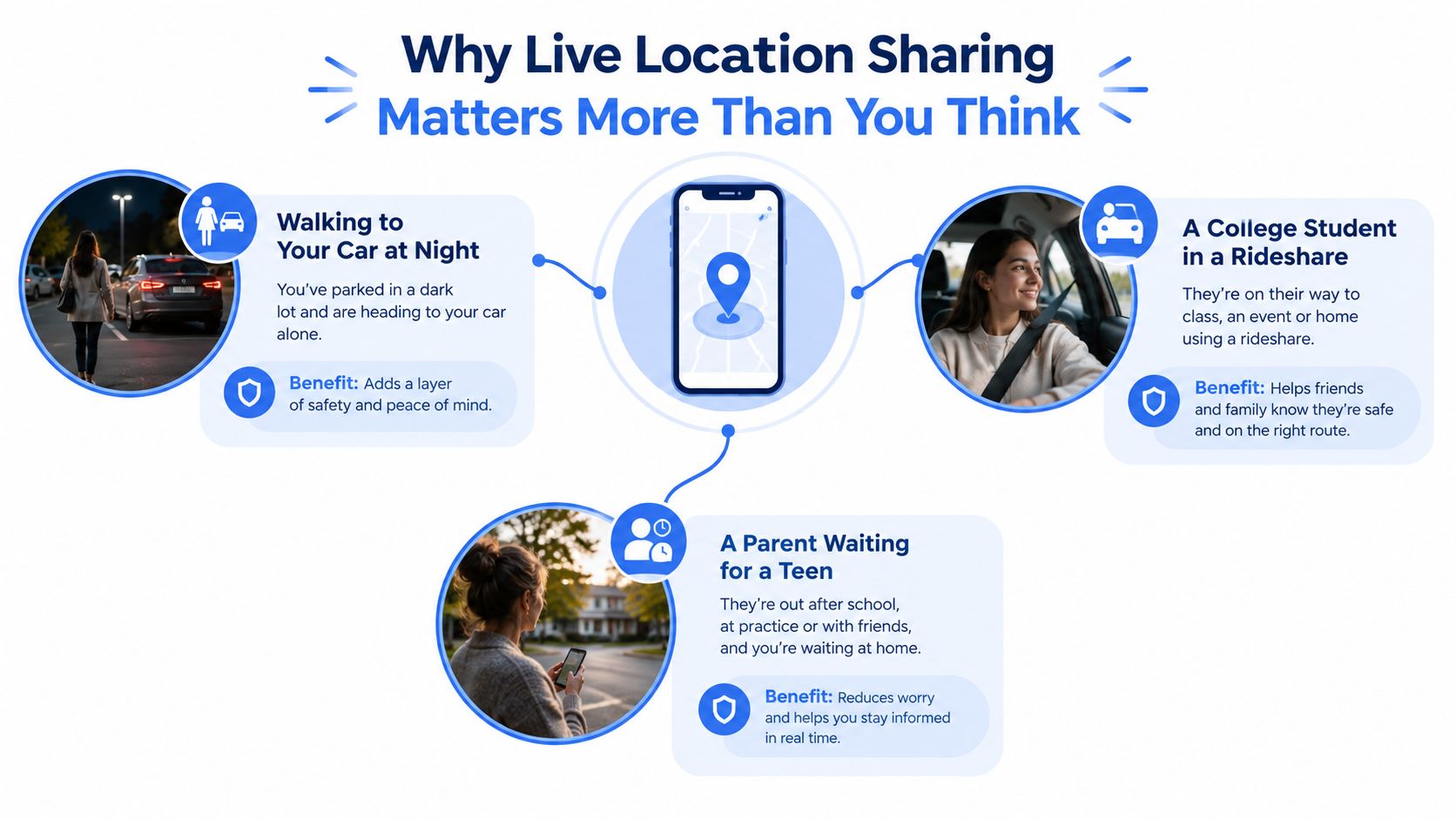
Consider the late-shift worker. She may want one trusted contact to know when she reaches her car and another to respond if the trip stops unexpectedly. She probably doesn’t want a broad contact list watching every detour, shop stop, or delay. The college student needs a watcher who understands that a rideshare route can pause in traffic, while the parent waiting for a teen needs a defined arrival expectation instead of an always-on family map.
A live map also creates a dangerous illusion of certainty. Independent engineering guidance warns that background limits on iOS and Android can slow or pause updates, while weak signal and power-saving modes can create gaps even when the screen still looks live. Engineering guidance on live mobile location reliability recommends treating update frequency as a control rather than assuming continuous, high-accuracy GPS is appropriate.
Four failures deserve attention before you activate anything:
- Stale pins: The last displayed position may not be current.
- Silent background sharing: The app can stop updating without making the failure obvious.
- Oversized audiences: More viewers create more privacy exposure and can dilute attention.
- Coercion: Someone may use sharing to demand proof of loyalty or obedience.
The best setup is therefore not the one with the most tracking. It’s the one that gives the right person enough current information for a defined purpose, then ends access.
Setting Up Live Location on iPhone, Android, and Safety Apps
Start by choosing the platform your watcher already uses. Extra downloads and unfamiliar accounts create friction when someone is already leaving the house or getting into a car.
On an iPhone, open the conversation in Messages, tap the person’s name or the group name at the top, and choose Share My Location. Select the duration that fits the trip, such as one hour, until the end of the day, or indefinitely. For a routine journey, use a limited duration. Indefinite access should be reserved for a relationship where both people explicitly want an ongoing arrangement.
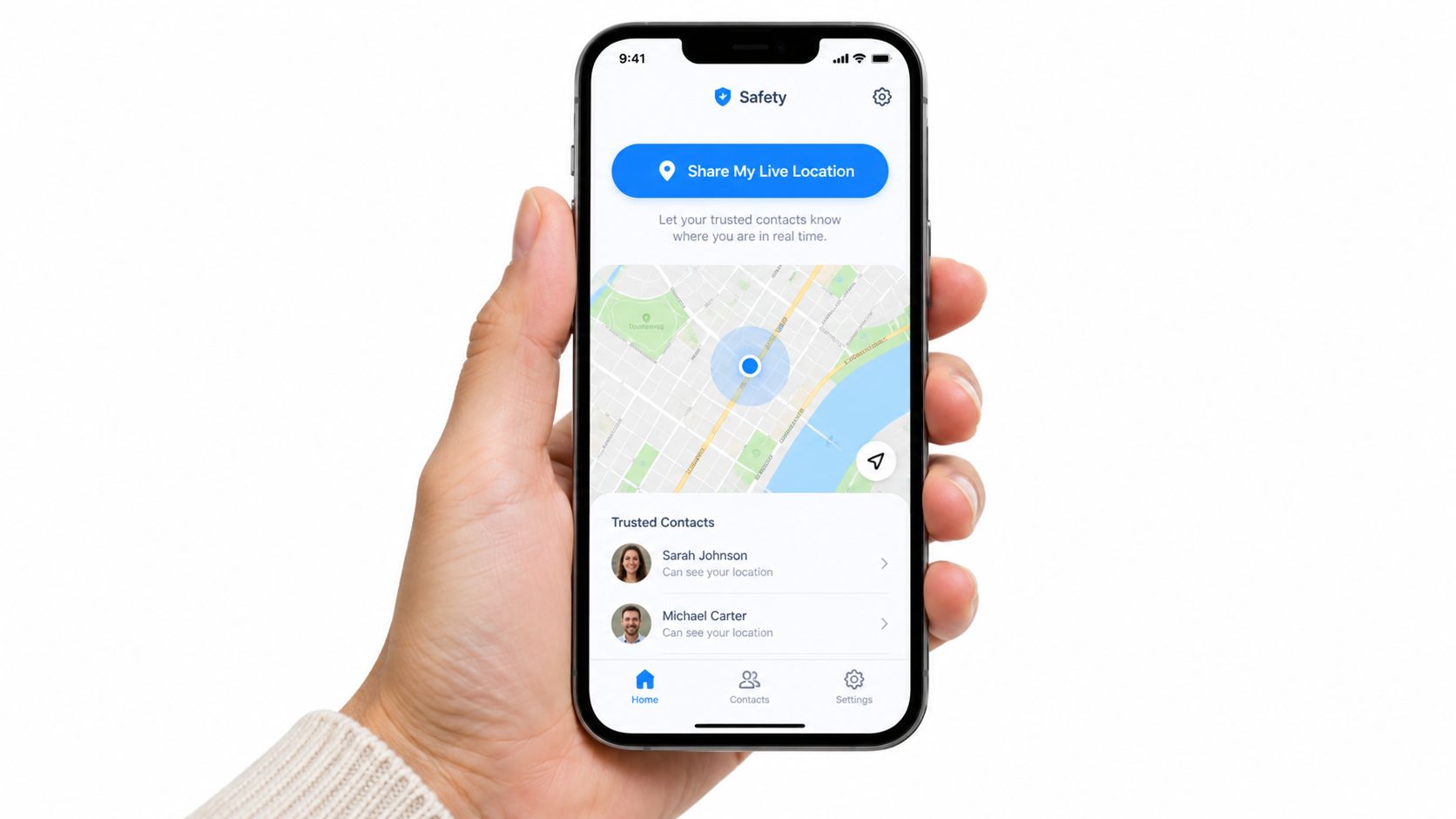
For emergency preparation on an iPhone, review the iPhone emergency SOS setup guidance before you need it. Check that location permission is set appropriately, that the intended contacts are correct, and that you know how to stop sharing.
On Android with Google Maps, tap your profile picture, choose Location sharing, and select a person or create a family-related sharing arrangement. Set a duration rather than leaving access open by default. Confirm the recipient can open the map and understands that the displayed position may carry a freshness delay.
WhatsApp follows a separate flow. Open the chat, tap the attachment icon, choose Location, then Share live location. Pick the available duration that matches the journey, such as 15 minutes, 1 hour, or 8 hours, and add a comment if the watcher needs context. A short note like “walking from the station” is more useful than a bare moving dot.
Prepare a dedicated safety app before the trip
A safety app usually asks for more setup because it can combine location with alerts, audio, video, or monitoring. Create an account, verify the phone number, set an Emergency Entry Pin, and grant precise location and motion permissions only after you understand why they’re requested. Run a first test session and let it auto-resolve so your selected contacts know what a real activation looks like.
Before leaving, enable cellular data. Disable Low Power Mode if it interferes with background updates, and confirm the app has permission to operate while the phone is locked. These checks matter because high-frequency GPS, radio use, and continuous background activity can increase battery drain, while operating-system limits can interrupt updates. Tune the session to the safety need rather than selecting the most aggressive tracking mode.
Privacy Controls That Actually Keep You Safe
Privacy controls aren’t decoration. They decide whether your live share location remains useful during an incident without becoming a permanent observation system.
Ghost mode should be treated as a deliberate privacy state, not a panic button you discover after someone starts watching too closely. In a service that supports it, ghost mode can temporarily remove your visible pin from the selected audience while retaining relevant information in a private record. Use it when a watcher doesn’t need your current position, but don’t assume it makes every device, account, or history record disappear.
Critical Alerts address a different problem. They’re designed to push important notifications through Do Not Disturb or silent settings, so a selected contact has a better chance of noticing an activation. They don’t fix a dead battery, missing permission, or lost signal. Test them with the actual watcher and device combination.
Freshness indicators are essential. A watcher must see the last-seen time, signal status, or another clear indication that the dot may be delayed. High-accuracy fixes sent continuously can consume more battery and radio resources, and background restrictions can introduce gaps ranging from seconds to minutes, as described in independent guidance on live-location update behavior. A map that says “live” without showing freshness invites false confidence.
The Emergency Entry Pin can help a guardian or responder access an incident view without requiring you to open the phone. Store it somewhere safe, avoid obvious combinations, and don’t share it casually. Convenience for a trusted responder must not become easy access for someone who has taken your device or watched you enter the code.
| Control | What It Does | Where It Lives | Trade-off |
|---|---|---|---|
| Ghost mode | Temporarily hides your visible position from selected viewers | Safety app privacy controls | Watchers may lose situational awareness |
| Critical Alerts | Sends selected alerts through disruptive phone settings | App and device notification settings | Too many alerts can reduce attention |
| Freshness indicator | Shows whether the displayed fix may be current or stale | Map, trip view, or watcher dashboard | A delayed location can worry watchers |
| Emergency Entry Pin | Provides controlled access to an incident view | Safety app security settings | The code must stay confidential |
Set up freshness indicators and emergency notifications first. Add Ghost mode and the Emergency Entry Pin on day one if the app supports them. Fine-tune appearance preferences later. For a deeper look at using Ghost mode for location privacy, focus on when hiding your position protects consent rather than using it to create confusion during an active emergency.
Building a Squad That Watches Without Overstepping
A safety audience should be small, role-based, and temporary when possible. Don’t invite every relative, coworker, or friend just because the app makes it easy. A watcher who doesn’t know what to do can add noise rather than protection.
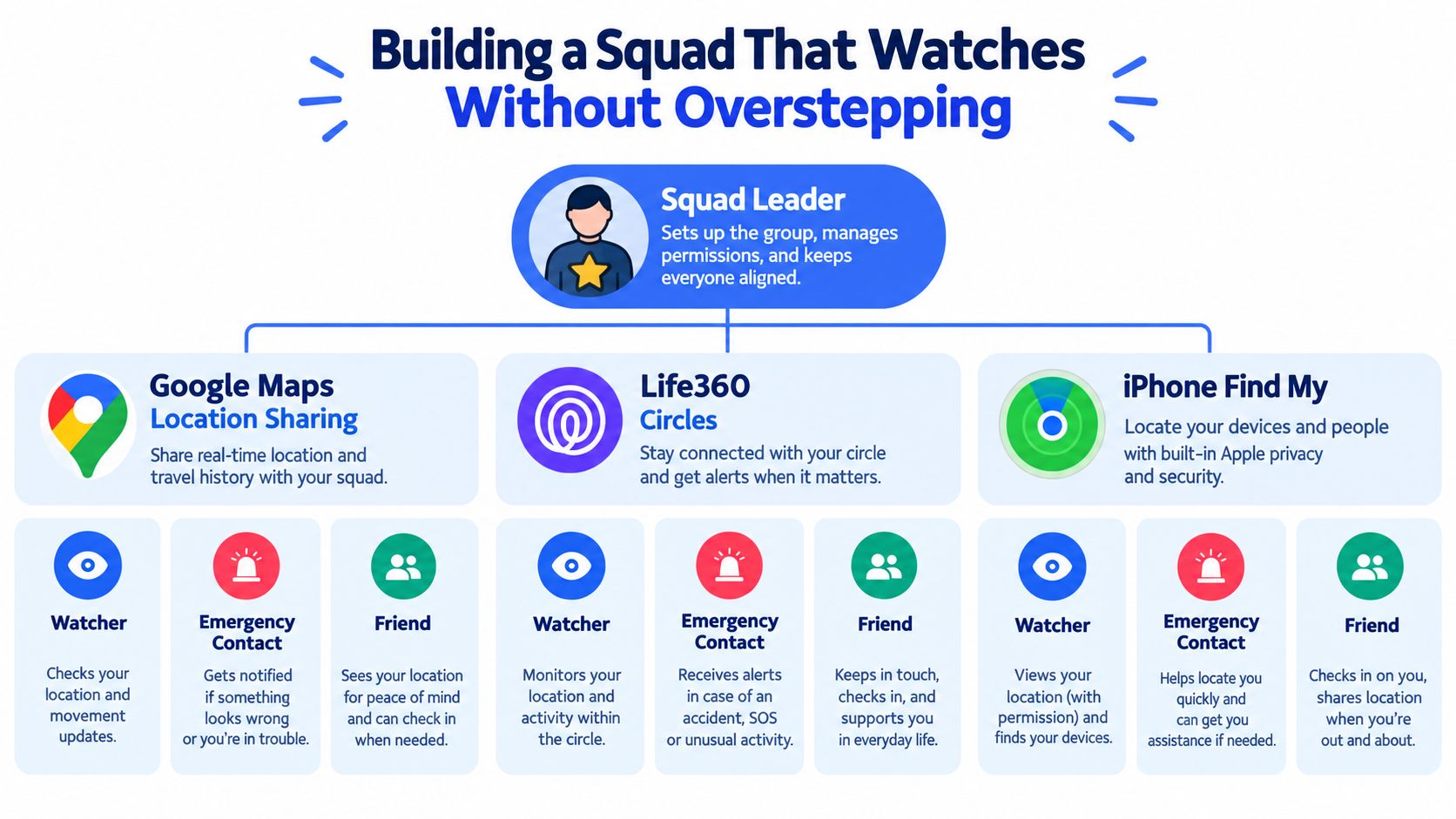
Google Maps lets you manage recipients through Location Sharing. Life360 uses Circles, which work well for ongoing family arrangements but still require clear expectations. Apple Find My supports selected people and groups. The interface differs, but the design rule stays the same: assign people according to what they’re expected to do.
Use three practical labels:
- Trip: A friend or pickup contact who needs your route and expected arrival.
- Daily: A household member who participates in an agreed routine.
- Emergency: A person prepared to respond, call you, contact a local service, or follow an escalation plan.
Keep active sessions limited to three to five watchers. This is a practical recommendation, not a safety benchmark. A compact group makes it easier to identify who saw the start notification, who is responding, and who should escalate. Larger audiences also increase the chance that sensitive route information spreads beyond the original purpose.
Give watchers an operating brief
A moving dot needs context. Share the destination, expected arrival, and the point at which a delay becomes concerning. Make start and end timestamps visible, and agree on whether a watcher should send a one-tap nudge, call, or escalate when the route changes.
Practical rule: The watcher shouldn’t have to guess whether a stopped pin means danger, a coffee break, a tunnel, or a dead battery.
Agree on the etiquette before the first real trip. Decide who responds to a nudge, who records relevant details, and who stays quiet unless asked. The person sharing should be able to travel without a running commentary from multiple viewers. A good Squad watches for agreed triggers, not for opportunities to interrogate.
Consent, Coercion, and Healthy Boundaries
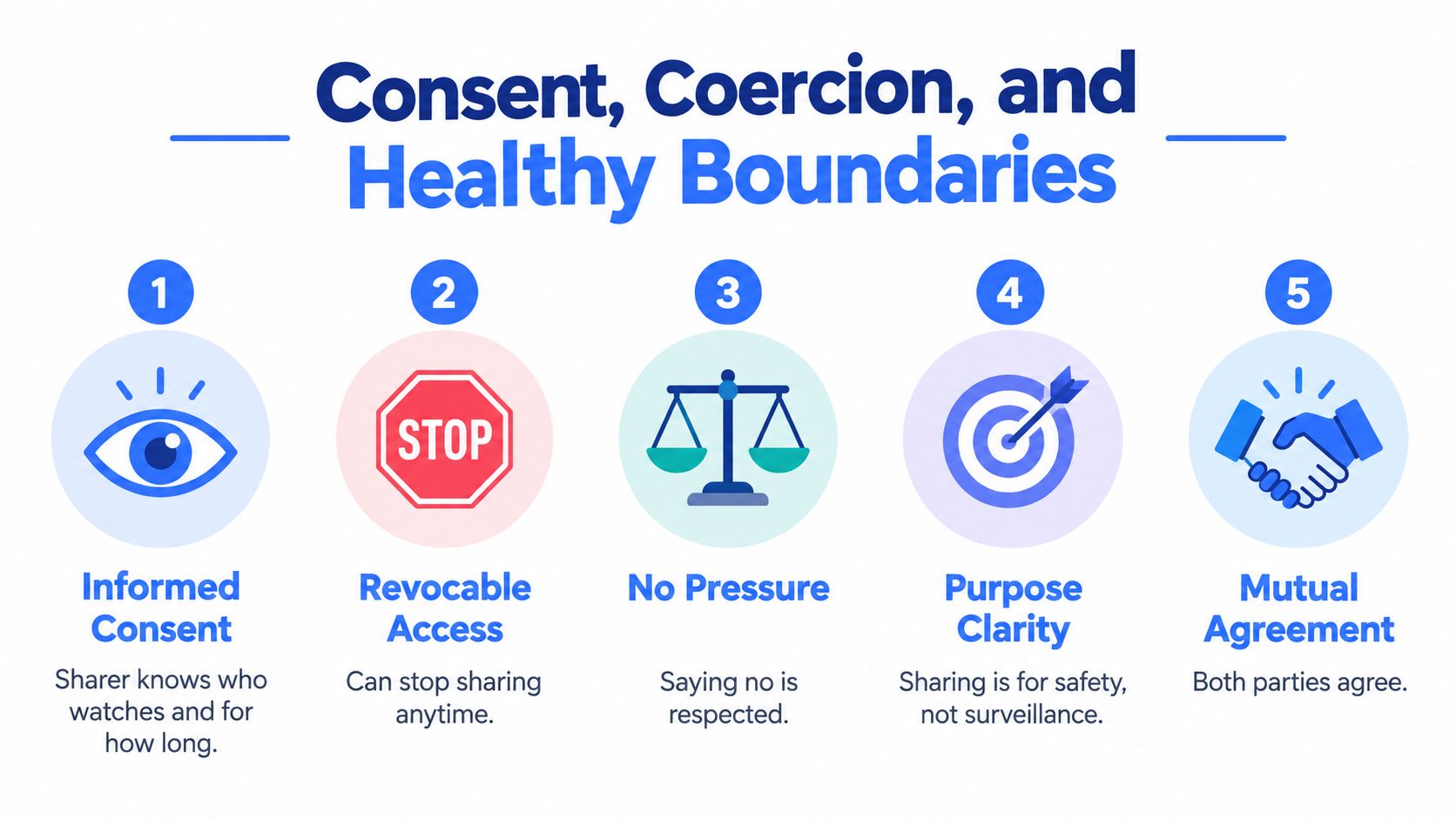
Live location should never be proof of love, loyalty, innocence, or obedience. Informed consent means the sharer knows who can watch, how long access lasts, what information appears, and how to revoke access mid-session. If someone can’t say no without punishment, the arrangement isn’t voluntary.
Research summarized by GCN reported that adults who share live location shared with an average of 3.86 people, and identified motives beyond safety, including practicality, casual use, and relationship management. The same coverage warned that silent location sharing can crowd out direct communication. GCN’s coverage of live-location sharing behavior highlights why audience size and purpose belong in the conversation.
The risk becomes sharper in intimate relationships. Independent coverage of Australian eSafety Commission findings reported that nearly one in five young adults considered partner tracking normal, while more than 13% of 2,000 adults said it was reasonable for a partner to monitor them through location-sharing apps. The coverage connected these tools with coercive-control risk. The reported findings and coercion concerns should change how families and couples frame always-on tracking.
Run this quick test before accepting a request:
- Choice: Did I decide to share, or am I trying to avoid an argument?
- Control: Can I stop sharing without retaliation?
- Audience: Who else can open the map or receive the link?
- Purpose: Is this for a defined safety need, or permanent surveillance?
- Exit: Does access expire automatically?
Sharing routes for a partner to “prove” trustworthiness, tracking an adult child without mutual agreement, or broadcasting a passenger’s route to third parties all cross the line from coordination toward surveillance. A safer response is direct: “I’m comfortable sharing for this trip with these people until I arrive. I’m not comfortable with permanent tracking, and I need you to respect that.”
Pairing Live Location with Live Video and Emergency Response
A map answers where. Video and audio can help answer what is happening. Treat live share location as one layer in a safety stack, not as a substitute for communication, recording, or emergency response.
For a routine trip, location plus a small Squad may be enough. A high-risk journey can add live video through a supported FaceTime workflow on compatible Apple devices, a private YouTube Live link on Android, or a dedicated safety app. Streaming camera, GPS, and cellular data together can put sustained pressure on battery and connectivity, so use live video when visual context changes the response. Otherwise, a short recorded clip may preserve useful context without keeping a live camera running.
Emergency preparation should be explicit. Configure Critical Alerts, complete Medical ID details, and know how your chosen service handles a 911 escalation. Some systems can route incident context and coordinates through RapidSOS-capable workflows, but an app remains an additional layer, not a replacement for calling emergency services when you can safely do so. For schools and campus teams, the school safety active shooter guide offers broader emergency-planning context beyond personal location sharing.
| Trip Risk Level | Live Location | Live Video / Recording | Emergency Escalation |
|---|---|---|---|
| Routine trip | Share with a defined Squad and set an end time | Usually unnecessary | Contact the watcher if plans change |
| Elevated-risk trip | Show route and freshness status | Add live video or recording when visual context matters | Prepare Critical Alerts and a clear escalation contact |
| Active incident | Keep location available if the device can transmit | Stream or record if doing so won’t increase danger | Use SOS or call 911, with available context sent through the chosen service |
A service such as 3rd-i real-time safety monitoring combines live video, audio, and location for selected contacts or Safety Agents, with escalation to 911 through RapidSOS. Use that type of service when human monitoring and incident context are part of the plan, not merely because a moving map looks reassuring.
Pre-Trip Checklist for the Next Time You Go Live
Run this sequence before you leave. Don’t wait until the car is moving or the sidewalk feels unsafe.
- Choose the app: Pick the platform your watcher can open immediately.
- Start the session: Confirm that sharing is active and the displayed position is fresh, not a leftover pin.
- Verify the Squad: Ask the selected watchers to confirm they received the alert and know your destination and expected arrival.
- Set the audience: Remove non-essential viewers, reduce precision where appropriate, or use a privacy mode when a person doesn’t need the route.
- Test urgent contact: Confirm Critical Alerts and the Emergency Entry Pin work as intended.
- Protect battery: Charge the phone well before departure or carry a battery pack. Continuous location, radio, and camera use can drain power faster.
- Prepare connectivity: Enable Wi-Fi Calling where available and save offline route information for weak-signal areas.
- Set an expiry: Choose a session duration and auto-expire point. Don’t leave a trip share running indefinitely.
- Plan failure recovery: Decide what happens if updates stop. Text the Squad, switch to another app, call a watcher, or escalate based on the agreed risk.
The non-negotiables are a defined audience, a visible freshness signal, a working contact path, enough battery, and an end time. Offline maps and a battery pack are practical additions, especially when the route crosses weak-signal areas. The problem isn’t a dot that pauses briefly. It’s a missing update with no agreed response.
After arrival, complete the second half of the checklist:
- Stop sharing: Confirm the session ended or the timer expired.
- Notify the Squad: Send a simple arrival message so nobody keeps watching unnecessarily.
- Review access: Remove temporary recipients and links that no longer serve a purpose.
- Report failures: Tell the group if the map went stale, alerts failed, or the app stopped in the background.
- Adjust next time: Change the duration, watcher list, permissions, or backup plan based on what happened.
3rd-i offers Go Live streaming for video, audio, and location, plus selected-contact and Safety Agent monitoring, SOS workflows, Emergency for a Friend, Ghost mode, and an Emergency Entry Pin. If your safety plan needs more than a map pin, visit 3rd-i to review how its live monitoring and emergency escalation tools fit your next late walk, rideshare, or lone-working trip.