
How to Live Stream Video to Cloud Storage Without Gaps
Your stream looks live. The preview is moving, a watcher can see it, and nothing has warned you otherwise. Then you open the recording later and find it ends early, skips the important minute, or never existed as a playable file at all.
That failure is common because teams treat live viewing and recording as the same job. They aren’t. To live stream video to cloud storage reliably, you need two paths, a low latency path for watchers and a durable recording path that proves every segment reached storage. Build them separately and most gaps become visible, fixable events instead of silent losses.
Table of Contents
- Choose Your Ingest Protocol and Storage Target
- How to Build the Upload Pipeline Step by Step
- Matching Retention Tiers to Incident Value
- Securing Uploads and Keeping Segments Intact
- Keeping Recordings When the Uplink Fails
- Connecting Streams to Apps and Monitoring Services
- Confirm Your Retention Policy Before Going Live
Choose Your Ingest Protocol and Storage Target
A phone on a steady Wi-Fi connection can send segments straight to object storage. The same design may fail on cellular if the uplink drops packets or the app cannot retry uploads reliably. Choose the ingest protocol for the connection and the recording path you need, not just the encoder’s default.
| Protocol | Approximate latency, configuration-dependent | Loss tolerance | Best use | Recording built in |
|---|---|---|---|---|
| RTMP | About 2–5 seconds, depending on setup | Low; packet loss can interrupt delivery | Legacy encoders and broad compatibility | No; requires a server or cloud relay |
| SRT | About 1–3 seconds with a tuned buffer | High; can retransmit lost packets | Unstable cellular uplinks | No; requires a receiving server |
| WebRTC | Under 1 second in suitable configurations | Medium; can adapt bitrate | Watcher audio and two-way talk | No; requires a media server to record |
| HLS or CMAF | Depends on segment length and player configuration | Segments can be cached and retried | Delivering to many viewers | Only when a packager or origin writes segments to storage |
| Native mobile SDK upload | Depends on segment length and upload design | An upload queue can absorb temporary gaps | Phone-to-cloud delivery without a relay | Only when the app writes segments to storage |
Two paths, two decisions
The live viewing protocol does not determine whether a durable recording exists. WebRTC can support low-latency conversation, but a media server must write the recording somewhere. HLS or CMAF segments become retrievable files only if the packager or origin stores them. Approximate latency varies with buffers, segment size, network conditions, and player settings.
Choose the storage target based on the device’s uplink stability, whether you need server-side transcoding, and who will operate the relay:
- Direct to regional object storage: Choose this when the device can upload segments reliably and the app can manage retries, credentials, and its upload queue. It avoids maintaining a receiving server, but puts more responsibility in the mobile app.
- Through a receiving server: Choose this when you need server-side transcoding, protocol conversion, or centralized control, or when devices cannot safely handle cloud credentials. Confirm that a team can maintain the relay and respond when it fails. It adds an operational dependency, but gives you a controlled point to process incoming streams.
Treat evidence retrieval time as part of the storage decision. A lower-cost target may still be a poor fit if retrieving a recording during an incident takes too long. Choose a target and ingest route that match how quickly staff must find and play the footage, as well as the uplink and operating capacity available. A live video transmission system should make the recording destination explicit, rather than assuming that a stream sent for viewing is being retained.
Practical rule: For an unstable mobile uplink, consider SRT or a native SDK with a managed upload queue. Use RTMP when encoder compatibility requires it, and confirm which server or relay will create and store the recording.
How to Build the Upload Pipeline Step by Step
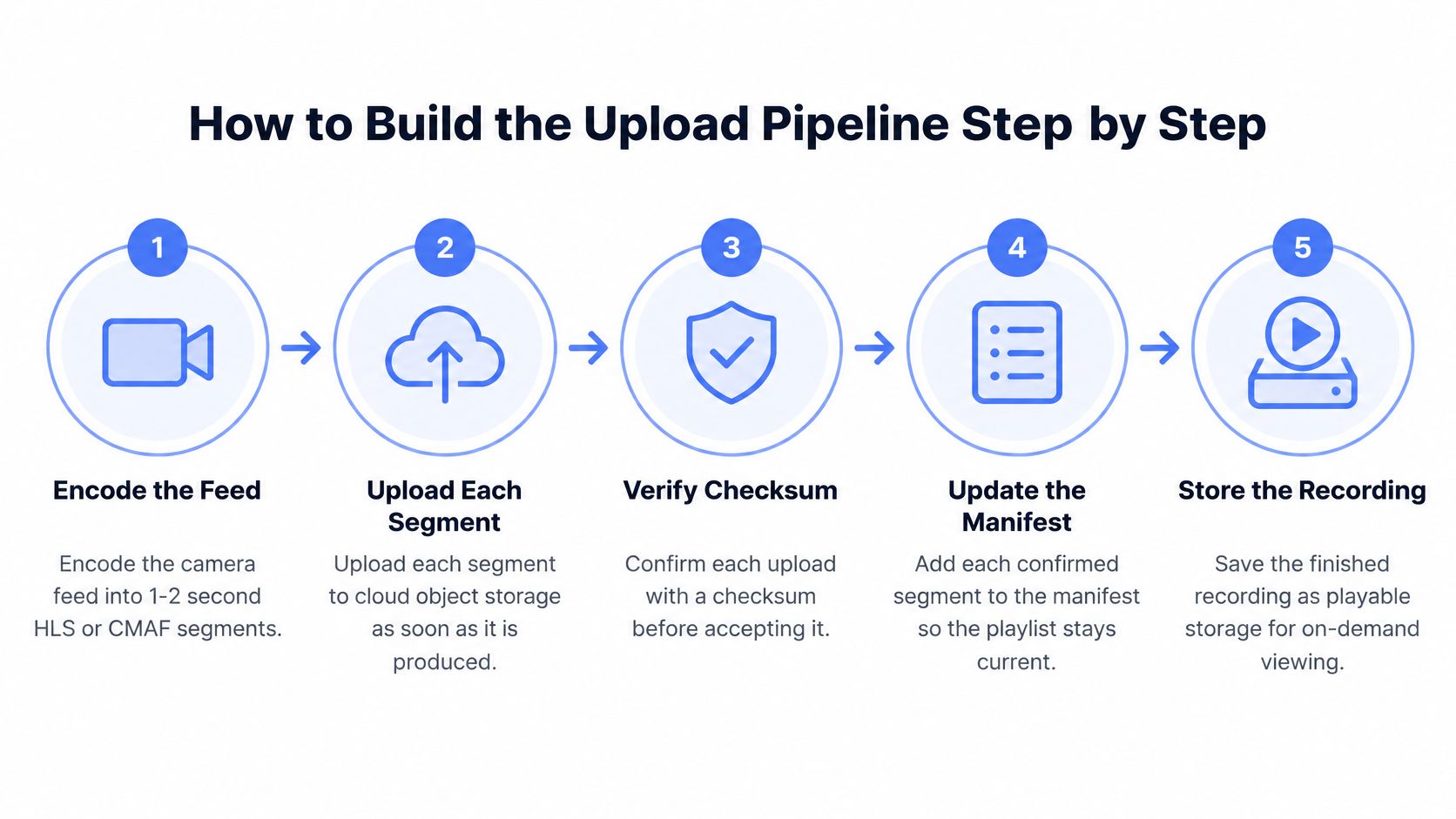
A live viewer should not wait for recording work to finish, and a durable recording should not rely on the player staying healthy. Build those as separate paths: the viewing path serves current media, while the recording path confirms segments are stored and recoverable. AWS guidance on live streaming with Amazon S3 as origin provides background on using S3 in a live-streaming setup.
The six steps
-
Encode into short segments. Split the camera feed into 1-2 second HLS or CMAF segments. Shorter segments help limit live latency and reduce how much footage is affected by a failed upload. Long segments may cut request volume, but viewers can fall further behind real time. For lower latency, CMAF chunked transfer can expose bytes before a full segment is complete.
-
Upload to the nearest region. Write each segment to nearby object storage as soon as it is produced. Every extra round trip costs time on an already constrained uplink. Send segments in batches only if the device has a designed local buffer to hold them first.
-
Publish the manifest after confirmation. Add a segment to the playlist only after storage confirms the media object exists. Otherwise, players may request a link to a missing segment and fail unpredictably. Keep the order explicit: confirm the write, then publish the manifest.
-
Transcode and index asynchronously. Generate additional renditions, thumbnails, transcripts, and search indexes outside the live path. Processing delays should not interrupt viewing or put the original recording at risk. Separate ingest from processing queues so a stalled transcode cannot block incoming media.
-
Add a manifest watchdog. Alert when the manifest or segments stop updating within the expected window. A stale manifest can keep returning HTTP 200 responses while the player repeats old segments and then stops. Health checks may still report success. Detect missing updates, return an explicit failure signal, and switch to a redundant ingest or origin rather than serving old content without any warning.
-
Send client telemetry continuously. Have the app and player report startup delay, live-edge latency, rebuffer ratio, upload failures, and manifest age. These signals help distinguish storage delays from network trouble or an encoder that is stopping.
What healthy looks like
A healthy pipeline keeps manifest age within a few seconds, references no unconfirmed segments in the playlist, and drains the upload queue between segments. The viewing path stays responsive while the recording path confirms durable writes.
Test the failure behavior early. If long-tail storage latency rises above roughly two seconds, retries and request hedging for writes can help keep confirmations moving. On the viewer side, testing around 10 seconds of playback buffer can reduce stalls at the cost of added latency.
If the queue keeps growing, the uplink cannot carry the current bitrate. Retries cannot make that workload fit.
Matching Retention Tiers to Incident Value
A responder needs a clip from yesterday’s outage while the team is still investigating. Keep that footage immediately playable, and manage the live viewing path separately from the durable recording path: low viewing latency does not require every saved recording to remain in the most expensive storage tier.
For example, storing 500 GiB for 30 days in Standard storage at $0.02 per GiB-month costs about $10 per month. The same volume in Archive at $0.0012 per GiB-month costs about $0.60 per month before retrieval fees. Archive’s trade-off is its 365-day minimum storage duration and fees when data is retrieved. Google Cloud Storage objects remain readable in milliseconds, so Archive is not a slow-access tier. The choice depends on how often evidence will be accessed and whether the minimum duration fits your retention needs.
| Storage tier | Price per GiB-month | Best fit for recordings | Trade-off |
|---|---|---|---|
| Standard | $0.02 | Recent incidents that need to be immediately playable | No minimum storage duration, highest monthly rate |
| Nearline | $0.01 | Flagged events likely to be reviewed within a month | 30-day minimum storage, retrieval fee applies |
| Coldline | $0.004 | Evidence kept for compliance and rarely opened | 90-day minimum storage, retrieval fee applies |
| Archive | $0.0012 | Legal-hold copies expected to remain stored for at least a year | 365-day minimum storage, retrieval fees apply |
These are Google Cloud list prices: Standard starts at $0.02/GiB-month, Nearline at $0.01, Coldline at $0.004, and Archive at $0.0012. Retrieval and transfer can add costs, according to Google Cloud’s storage pricing overview. Compare the full workload rather than price per gigabyte alone, since providers can meter storage and related services differently.
Define three retention classes
Assign a class when each recording is created. That makes its retention behavior clear while the incident is still understood.
- Recent incidents: Keep in Standard while immediate review is likely.
- Flagged events: Retain in Nearline or Coldline after someone marks the footage for longer-term review.
- Routine footage: Delete promptly. Uneventful video still costs money to retain, even in a lower-priced tier.
Set lifecycle rules to match those classes. Move recordings from Standard to Nearline after 30 days, from Nearline to Coldline when the review window closes, and into Archive only for legal-hold copies that meet its 365-day minimum. Keep clips that responders may need promptly in Standard or Nearline, where their retrieval costs and minimum durations fit the expected access pattern.
Price the whole evidence lifecycle
Storage is only one line item. Bandwidth, API requests, transcoding, transcription, AI summaries, audit logs, and legal holds can all add cost. Live-stream bills may also include recording storage and transcoding. A low storage rate alone cannot show what it costs to preserve and retrieve usable evidence.
Moving footage into a cheaper tier can reduce storage charges, but retrieval fees and retention rules still affect its value. Price the evidence lifecycle, including how quickly responders need access.
Compare total evidence cost and retrieval performance, not monthly storage rates.
Securing Uploads and Keeping Segments Intact
A mobile stream can fail near the end of an upload, leaving a partial file that cannot be played. For incident recordings, store short, independently addressable segments rather than relying on one growing object or a single upload session. The live viewing path and the durable recording path should be treated as separate systems: viewers need timely playback, while stored segments need integrity checks and a clear audit trail.
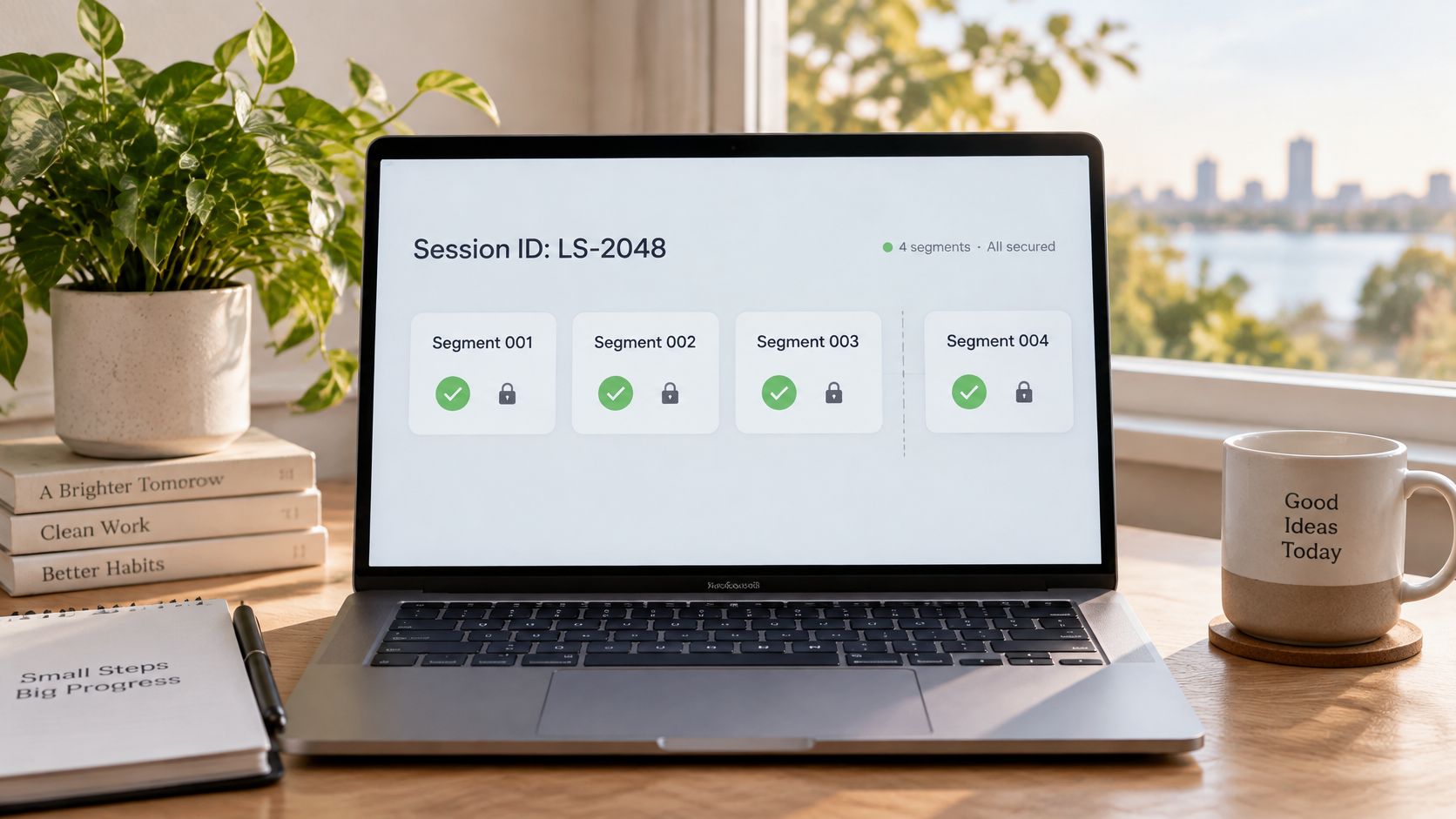
Create a recording session ID when streaming starts, then associate each segment with it. As a design recommendation, record timestamps, sequence numbers, codec metadata, a checksum, encryption status, and the applicable retention policy for each segment. General media workload best practices for cloud object storage can inform storage choices, but this metadata schema is an implementation decision. If segment 412 is corrupt, the sequence and timestamps identify the affected interval, so you can replace that segment instead of uploading the entire recording again.
Retries, ledgers, and multipart uploads
Use exponential backoff and jitter for transient failures. This spaces retries and prevents queued segments from overwhelming a recovering connection. Keep an upload ledger on the device that records confirmed and pending segments. After a radio change, process suspension, or app termination, the app can resume from that record rather than guessing which uploads reached storage.
For large finalized assets, use multipart upload. Split the file into parts, save each returned part identifier, retry failed parts, and complete the object only after every part validates. A 3 GB clip with one dropped part can then retry that part alone, reducing transfer time and the risk that a user abandons the upload.
Security basics that aren’t optional
- TLS in transit and encryption at rest: Protect segments in transit and in storage from access without authorization.
- Short-lived signed access: Give responders time-limited links rather than permanent URLs.
- Access logs: Record who opened each recording and when, preserving an audit trail across staff changes.
Ramp load and clean up after yourself
Avoid sending a new bucket a sudden burst of traffic. As an illustrative load-test starting point, try 1,000 writes per second and 5,000 reads per second, then double request rates every 20 minutes. Verify those rates and ramp intervals against your storage provider’s documentation before relying on them; they are test parameters, not universal limits. A typical phone-to-cloud deployment may operate below them, while a wider incident can create a sharp rise in requests.
Alert on abandoned multipart sessions, checksum mismatches, segment gaps, clock drift, and growing retry queues. Configure lifecycle rules to abort incomplete multipart uploads automatically, so orphaned parts do not accumulate storage charges unnoticed. A retry queue without a bound can also hide failure: the app appears to keep working while recordings remain unconfirmed.
Keeping Recordings When the Uplink Fails
A phone can keep sending live video until it enters a dead zone, switches networks, or loses cellular capacity. At that point, the viewer’s live feed and the cloud recording become separate problems. Decide what the app preserves, what it reports, and how it resumes before shipping.
For a personal-safety service, prioritize audio and location first, then encrypted local video buffering. Resume uploads from the last confirmed sequence number, and label missing intervals clearly. Lower video quality as needed to preserve continuity. If video cannot be sent or saved, an explicit gap is more useful than a recording that hides what went missing.
Mobile live-streaming quality depends on available bandwidth and upload capacity, and added network hops can increase delay. The research on mobile live streaming quality discusses challenges in maintaining quality on mobile connections. Design the live viewing path for timely delivery, and the recording path for confirmed, durable storage. A stream that viewers can see may still be missing segments in the cloud.
Five design choices that hold up
- Adaptive bitrate: Lower the rendition before the connection stalls. A blurry, current image is more useful than a sharp, frozen one.
- Preflight connectivity check: Test the uplink before recording starts, then tell the user what quality to expect.
- Encrypted local buffer: Keep unsent segments encrypted on the device until the connection returns. Set limits so the buffer cannot consume unbounded device storage.
- Resumable uploads keyed to sequence numbers: Continue from the last confirmed segment. Do not rely on a client’s memory of what uploaded.
- Visible last-received timestamp: Show watchers when data last arrived. Silence should not be mistaken for a current feed.
Report live availability separately from eventual cloud persistence. In a multiple-camera streaming setup, each feed can lose connectivity or fail to save independently. A live stream that has not yet been confirmed in storage is not a completed recording. Starting a stream does not prove that the evidence was captured continuously.
| Symptom | Likely cause | Fix |
|---|---|---|
| Viewers see a frozen frame while the player still reports success | Stale manifest, segments stopped updating | Monitor manifest age and fail over to the redundant pipeline |
| Recording has a hole after a dead zone | Upload ledger did not resume, sequence numbers skipped | Resume from the last confirmed sequence number and label the gap |
| Live latency climbs past 10 seconds | Bitrate exceeds available uplink capacity | Lower the rendition and keep audio and location flowing |
| Large clip stalls near the end of upload | Single upload session has no part-level retry | Use multipart upload and retry only failed parts |
| Storage writes slow past 2 seconds | Long-tail storage latency | Use hedged writes, then retry based on confirmation of the write result |
Price evidence retrieval speed alongside storage cost. A responder who needs a particular moment should be able to find its timestamp and identify gaps without waiting for an entire recording to download. Keep segment sequence numbers and gap labels available to the retrieval path.
A recording that says the signal was lost from 00:14:20 to 00:17:05 is more useful to a responder than one that quietly stitches two pieces together. Label the gap. Don’t hide it.
Connecting Streams to Apps and Monitoring Services
Once segments land reliably, wire the events around them. Four integration points cover most of what a team really builds:
- Segment-confirmed webhook: Fire an event when each segment is confirmed, carrying the session ID, sequence number, and checksum. Downstream systems can then index, alert, or start processing without polling the bucket.
- Manifest URL: Publish one stable playlist address that viewers and monitors read. Keep it behind the same signed-access controls as the segments themselves.
- Telemetry feed: Send startup delay, live-edge latency, rebuffer ratio, upload failures, and manifest age into your alerting tool, with thresholds that page a human when manifest age climbs.
- Recording event log: Keep an audit record of session start, segment confirmations, gaps, finalization, and every access.
Where a human needs to be in the loop
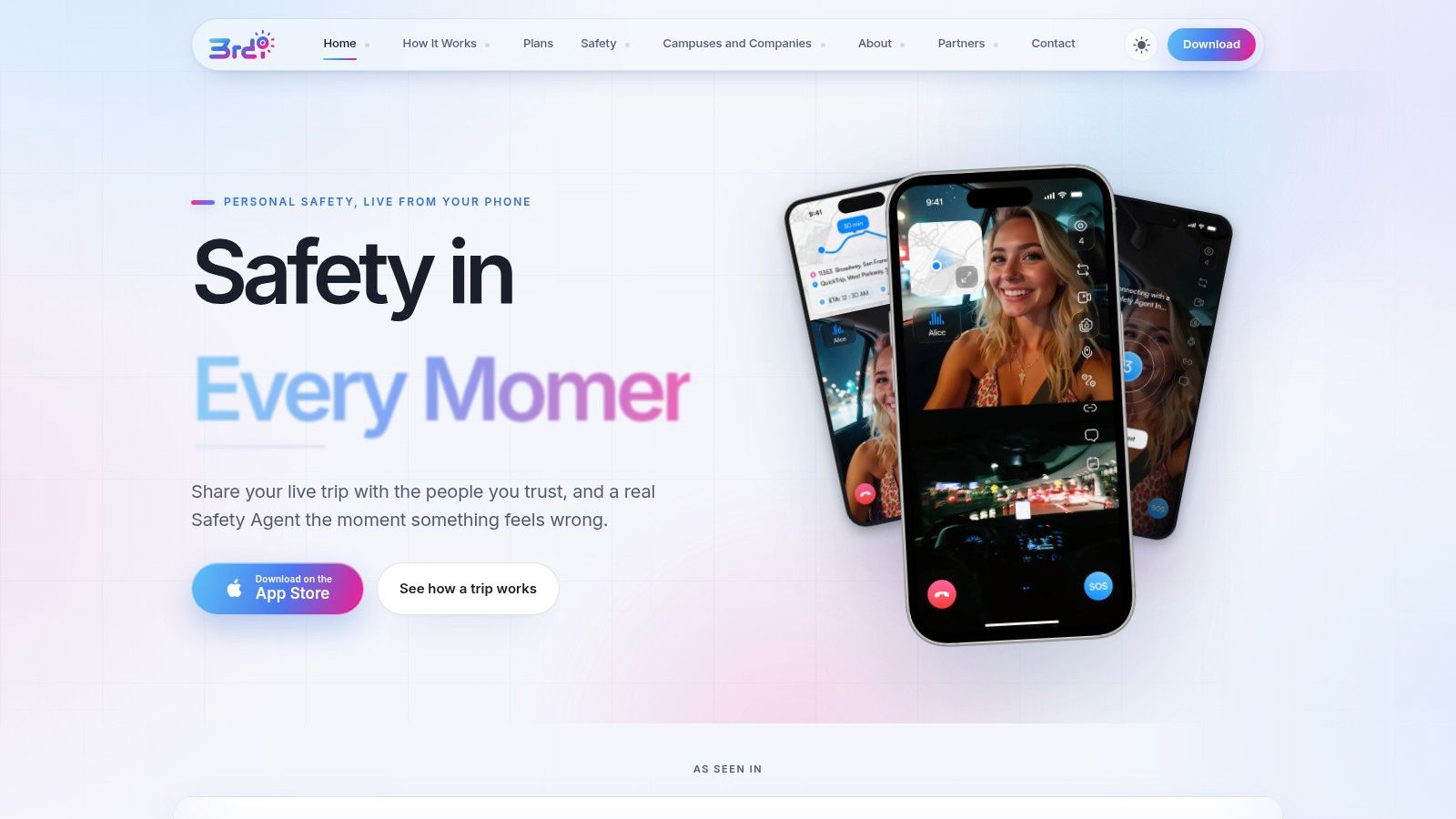
Storage and webhooks don’t watch anyone. Where a person must see the stream and act, a managed monitoring service fills the gap between your pipeline and a response. This is the layer live remote video monitoring is built for.
One option is 3rd-i, which suits individuals, families, campuses, or employers who share live video, audio, and location with selected contacts. Trained Safety Agents can call or chat, view both cameras, and escalate to 911 through RapidSOS with the stream and location attached. Its Go Live feature streams video, audio, and route in real time, and recordings are transcribed and summarized for post-incident documentation.
Be direct about limits when you evaluate any service like this. The app is not a substitute for calling emergency services. Consumer and campus plans also meter streaming and recording minutes, so your minute budget must cover recording time, not just live viewing. Test that budget against a realistic worst-case incident, not an average day.
Confirm Your Retention Policy Before Going Live
Run this checklist once, before the first real stream, and write the answers down where your team can find them during an incident.
- Name one retention class per event type. Incident, flagged, and routine, each tied to a specific storage tier and deletion window.
- Set your maximum acceptable gap. For example, any hole over 60 seconds means the recording is labeled incomplete rather than presented as continuous.
- Run the airplane-mode and dead-zone drill. Stream, cut connectivity mid-session, restore it, then confirm the upload ledger resumes and the gap label appears in the saved file.
- Define recording access. Decide who can open a recording, how long signed access lasts, and where the access log is kept.
- Total your minutes. Add up the drill’s streaming and recording minutes, including pooled family or campus minutes, and choose the plan tier that covers them with headroom.
Your next step is one test stream with recording on. Confirm the transcript and summary arrive, confirm the recording plays from cloud storage, and only then rely on the setup when it counts.
If you need the live path and the recording path handled together, with trained Safety Agents watching and RapidSOS escalation to 911 when a stream turns serious, look at what 3rd-i offers for individuals, families, campuses, and employers. Run a recorded test stream first, check the transcript and playback yourself, and make sure your minute plan covers the incident you’re planning for.