
7 Best Live Video Streaming Platforms for Safety
The usual advice about the best live video streaming platforms puts resolution, audience size, and broadcast features first. For personal safety, that’s the wrong starting point. A rider who wants a trusted contact to follow a late-night journey needs something different from someone sharing visual evidence with emergency services after an incident.
Live streaming for safety isn’t one-size-fits-all. Continuous oversight, SOS-triggered support, incident documentation, and direct responder communication are different jobs. A service can handle one well without offering the others, and an emergency recording feature shouldn’t be mistaken for a live feed that family members can watch.
Evaluate latency, recording, security, human monitoring, emergency escalation, integrations, and platform availability against the situation you face. Ask who receives the video, whether anyone is responsible for responding, and what happens when the connection drops. Don’t treat an advertised streaming feature as proof of dependable intervention.
Practical rule: Choose the response workflow first and the camera features second. A clear picture isn’t enough if nobody knows they’re supposed to act.
The options below serve distinct safety needs. Some provide live video, some connect users with trained responders, and others preserve recordings for later review.
Table of Contents
- 1. 3rd-i
- 2. bSafe
- 3. MyGuardian
- 4. Google Personal Safety / Emergency Live Video
- 5. Apple Emergency SOS Live Video
- 6. Noonlight
- 7. Pixel Personal Safety Emergency Recording and Sharing
- Best Live Video Streaming: 7-Option Comparison Matrix
- Choose the Platform That Matches the Safety Moment
1. 3rd-i
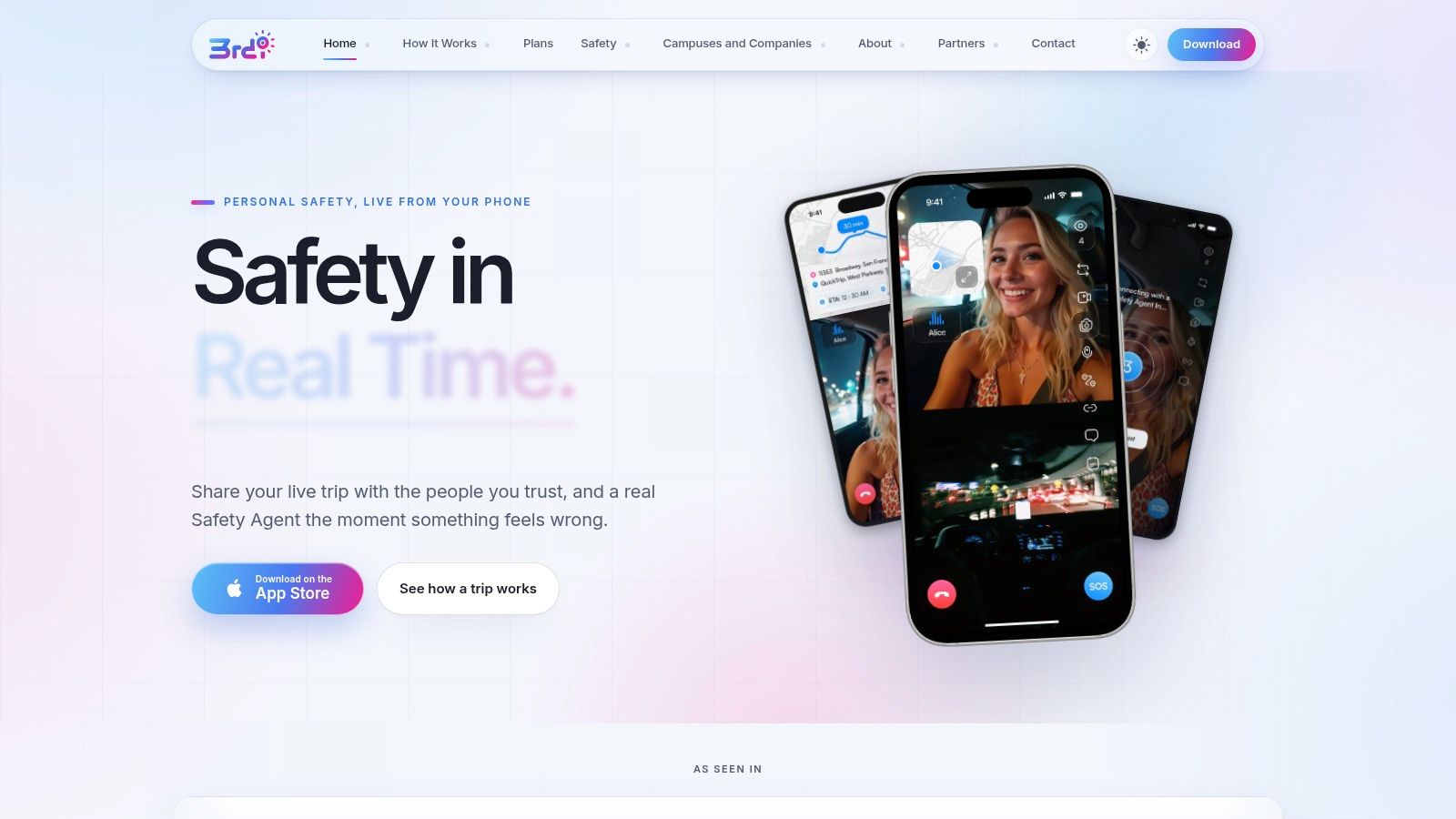
Choose 3rd-i for continuous journey oversight, particularly late walks, rideshares, and lone-worker trips. Its defining distinction is the combination of live video, audio, and route information, rather than a location pin that leaves contacts guessing about what’s happening around you.
According to 3rd-i’s product information, selected contacts can follow a journey and send quick nudges, while users can reach a trained Safety Agent who can escalate emergencies to 911. The company also describes dual-camera streaming, Picture-in-Picture, Lock Screen widgets, and automatic recordings with transcription and AI summaries.
Where it fits best
The live video streaming app suits people who want visibility before an incident triggers an SOS. For a student walking home or an employee leaving a late shift, sharing the route and surrounding context is more relevant than starting a recording only after something goes wrong.
- Main advantage: Chosen contacts and human monitoring support the same journey, with quick nudges that reduce the need for typing while moving.
- Documentation: Automatic recording and transcription support later review, although users should confirm retention and export arrangements.
- Privacy: Ghost mode and other controls deserve a hands-on test so users understand when they’re visible and who can watch.
The trade-off is subscription cost and device dependence. The listed app is for iOS, so confirm Android availability before choosing it for a mixed-device household or workforce.
Test camera permissions, location access, and mobile connectivity before relying on the service. Advice about top routers for smooth streaming can inform home-network preparation, but it doesn’t establish performance during a moving trip. Keep a direct emergency-calling option available.
2. bSafe
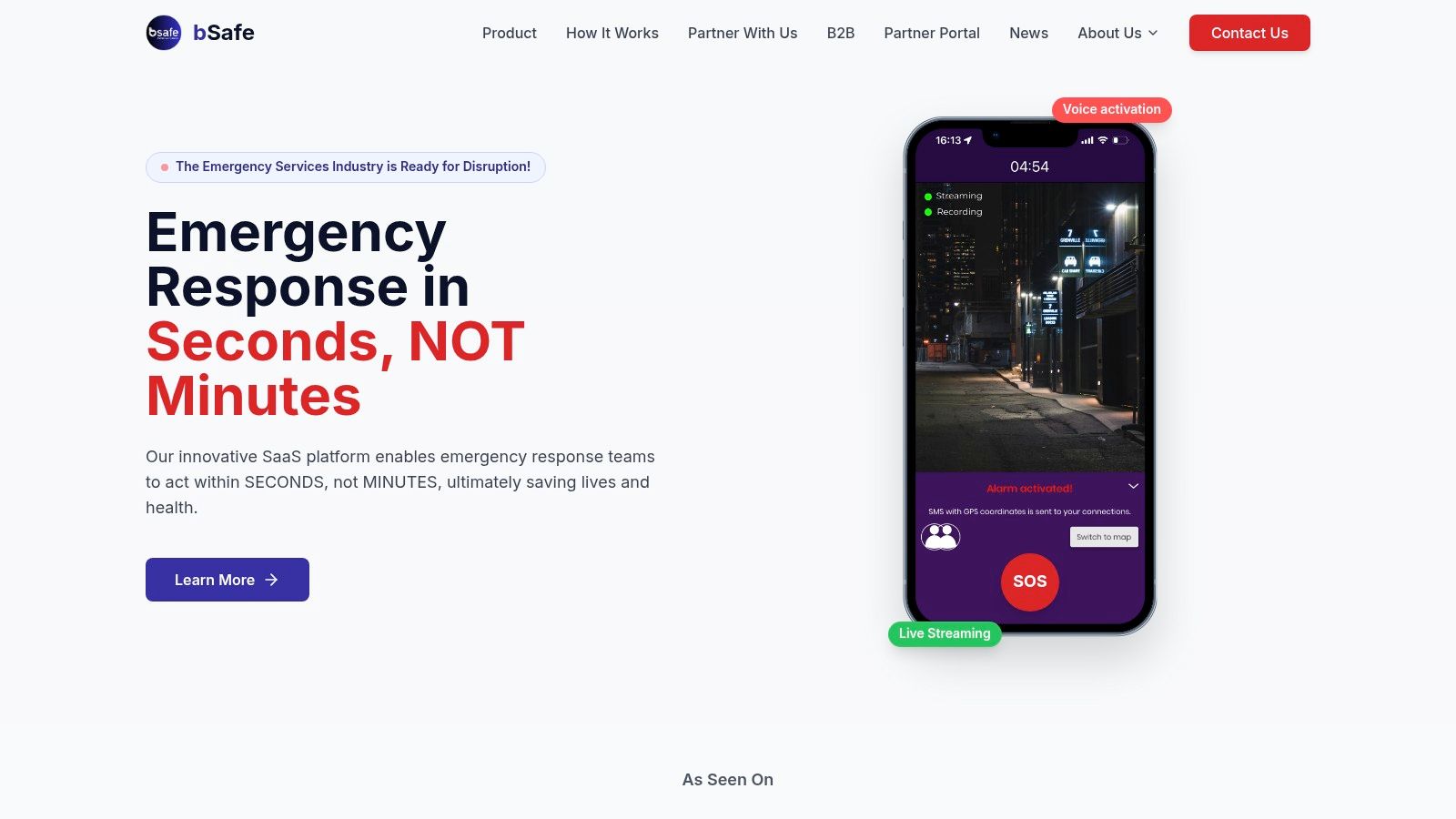
An SOS-first workflow makes sense when you don’t want someone watching an entire journey. Choose bSafe for alert-triggered guardian support, where live audio and video provide context after you signal that help may be needed.
The bSafe provider website describes SOS alerts, voice activation, location tracking, recording, and live audio and video streaming to guardians or professional monitoring centers. It also describes API and SDK options for organizations that want to integrate safety functions into their own systems.
An SOS-triggered stream and a continuously watched journey are different commitments. Decide which one you need before comparing feature lists.
What to establish before using it
Guardian readiness matters as much as alert delivery. For a commuter who wants a partner alerted during a concerning encounter, agree beforehand whether the partner should call, review the stream, or contact emergency services. Don’t leave that decision until an alert arrives.
- Strong fit: People who prefer on-demand sharing with selected guardians rather than routine live oversight.
- Organizational fit: Teams considering an integration should establish exactly which alerting, streaming, and monitoring functions their deployment includes.
- Key limitation: Confirm regional availability, pricing, and professional-monitoring coverage. Don’t assume every advertised capability is included in every plan.
The SOS model also changes what you should test. Practice activation in a safe setting, check the permissions required for voice and camera access, and have a guardian confirm what they receive.
Don’t select bSafe as a substitute for continuous trip monitoring without verifying that workflow. Its strongest role in this comparison is bringing people into an emerging situation through an alert, with video adding context rather than serving as an always-running journey feed.
3. MyGuardian
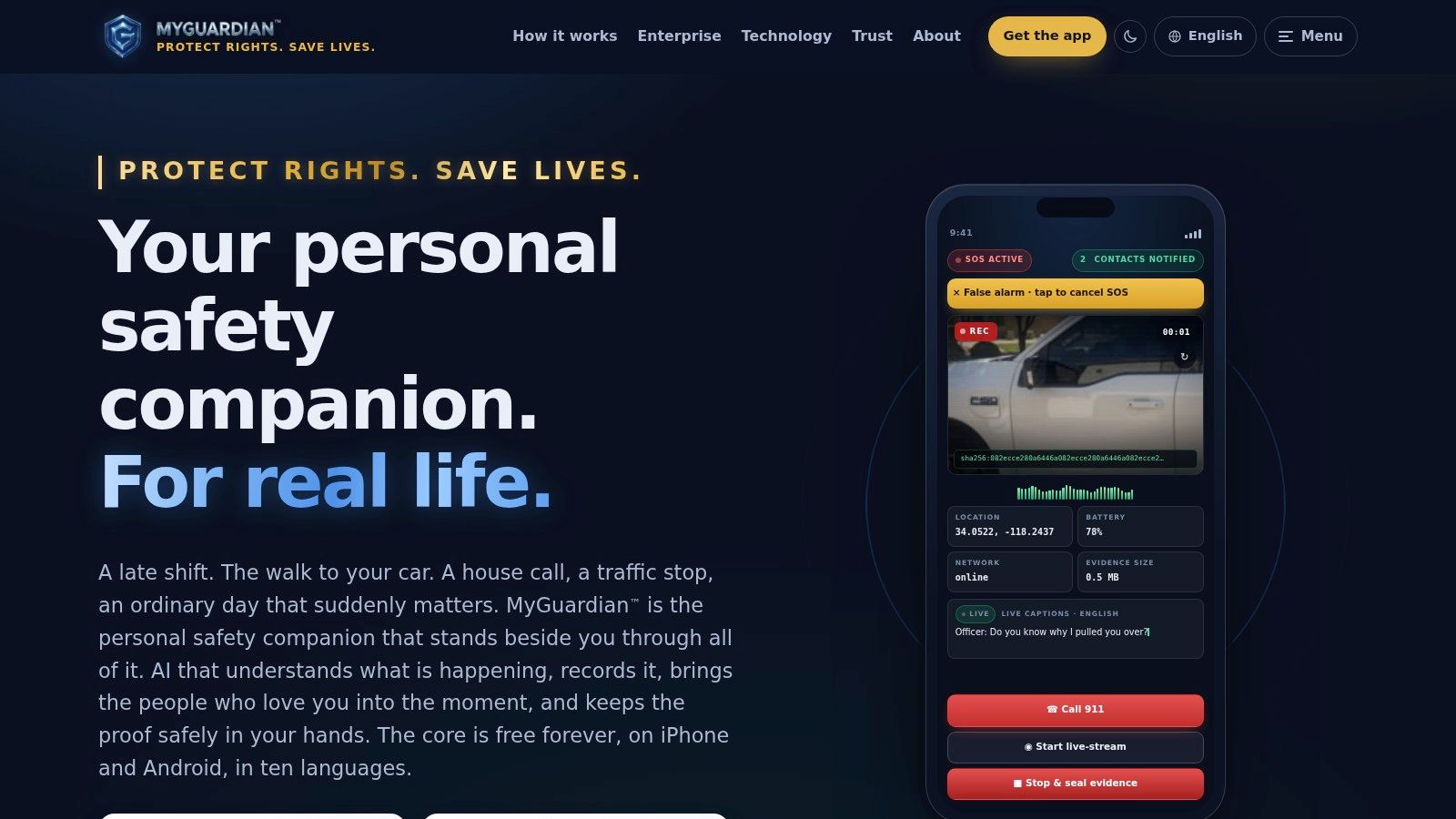
MyGuardian is the documentation-focused choice for someone who wants SOS-triggered live sharing alongside a retained incident record. That combination is useful when the immediate concern is making others aware while also preserving material for later review.
According to MyGuardian’s product descriptions, SOS mode combines audio and video capture, transcription, live streaming to selected contacts, and GPS sharing. The company describes recordings as timestamped, location-bound, hashed, and saved to the user’s Google Drive, with apps for iPhone and Android and free core SOS access.
Keep live assistance separate from evidence storage
The storage arrangement is a meaningful distinction for users who prioritize access to their recordings. Still, a saved file isn’t a response service, and technical recording features shouldn’t be treated as a guarantee of legal admissibility or protection.
- Live context: Selected contacts can receive a stream and location information during SOS activation.
- Follow-up material: Recording and transcription features support reviewing what happened afterward.
- User responsibility: Camera, microphone, location, and contacts permissions need deliberate setup, not hurried approval during an incident.
Choose MyGuardian when documentation is central to your decision, then establish a separate plan for who will respond. A trusted contact needs to know whether they’re expected to watch, call you, or seek emergency assistance.
The company states that the app isn’t a safety device or a substitute for emergency services. Take that distinction seriously: use it to share and preserve context, not as a promise that someone will intervene.
Before adopting it, test access to the saved files, review Google Drive sharing settings, and decide who should retain copies. Ask about deletion and export controls, especially if recordings could include private conversations or sensitive surroundings.
4. Google Personal Safety / Emergency Live Video
Start with Google’s built-in safety options if your priority is emergency assistance on a compatible phone. Emergency SOS, contact sharing, Safety Check, recording, and responder video serve related purposes, but they aren’t interchangeable.
Google’s Personal Safety information describes device-level emergency tools, including calling for help, sharing emergency information, and recording on supported devices. Separately, Emergency Live Video is described as rolling out in the United States on supported Android devices, subject to emergency-service support.
Choose it for responder context, not a watched commute
The distinction is the audience. Emergency Live Video supports responder communication, while a continuous journey service lets chosen watchers follow an unfolding trip. Comparing that with real-time safety monitoring helps clarify whether you need incident response or ongoing oversight.
- Built-in advantage: Compatible users may already have useful safety functions without a separate safety-app subscription.
- Contact support: Emergency sharing and Safety Check can support location-based check-ins without implying that contacts receive live video.
- Availability constraint: Device, region, and local emergency-service support determine what you can use.
For someone who primarily wants a way to communicate during an emergency, these tools are a sensible starting point. For a parent expecting to watch a student’s walk home, they aren’t equivalent to a contact-facing live journey feed.
Review the settings on the actual phone rather than relying on the Android label alone. Some capabilities are Pixel-specific, and a compatible device doesn’t establish that local responders support every video feature.
Set up the built-in functions you can use, then add a separate monitoring service only if your scenario requires it. Don’t assume an emergency recording, a location share, and a responder stream reach the same people.
5. Apple Emergency SOS Live Video
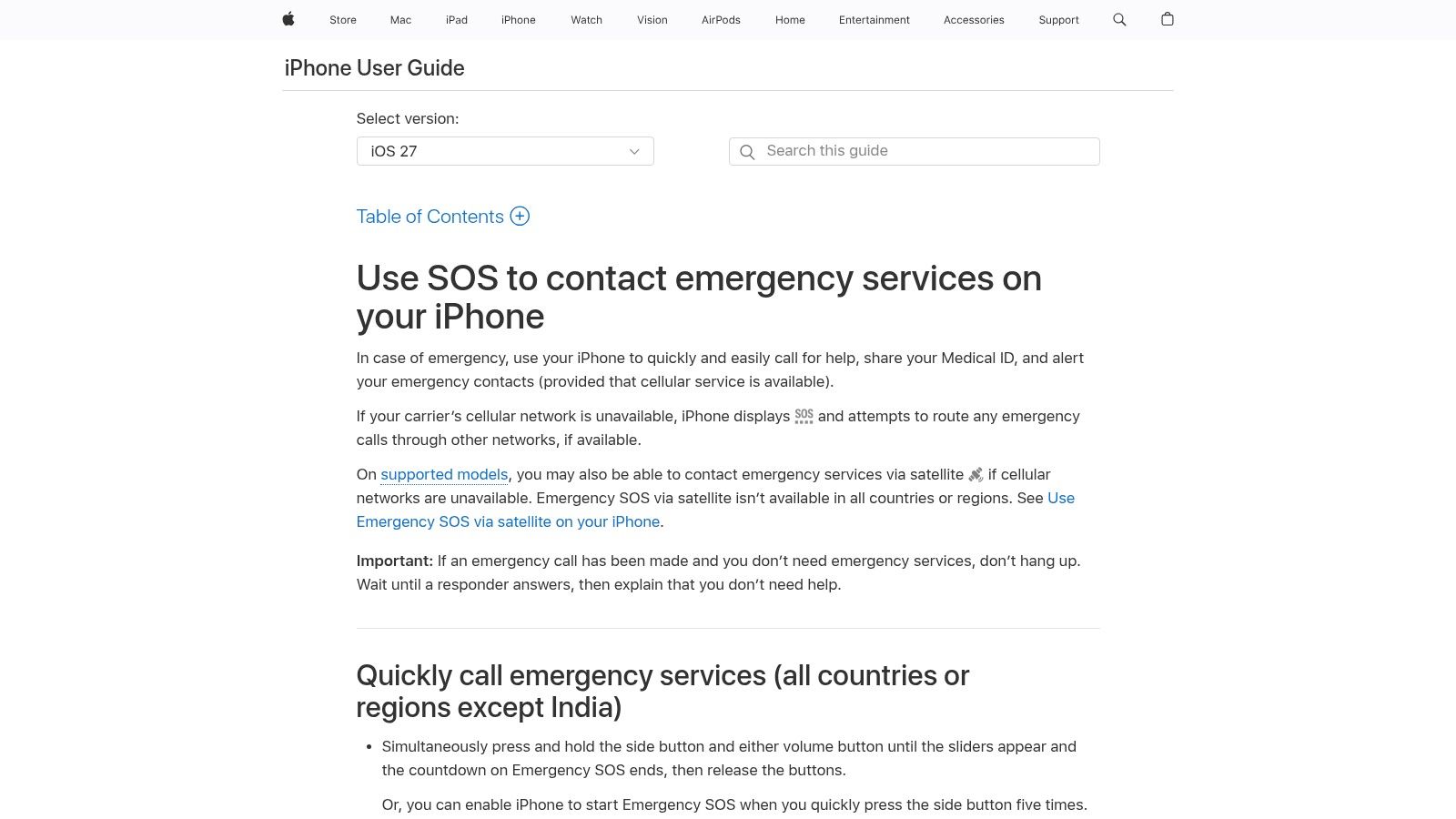
During an emergency-services call, visual context may be more useful than a verbal description alone. Choose Apple Emergency SOS Live Video for direct responder communication on a supported iPhone, not for routine family monitoring.
Apple’s emergency-services guidance describes sharing live video or existing photos and videos when emergency services request them during a call. Users can pause or resume live sharing, and Apple notes that emergency services may retain the video while it isn’t saved to the user’s device.
Privacy decision: Sharing video with emergency services and keeping your own recording are separate choices. Don’t assume a responder-facing stream creates a personal copy.
Understand the request-based workflow
This isn’t a broadcast you start for friends to follow. It belongs within an emergency-services interaction, which makes it different from an emergency SOS app designed around contacts or monitoring agents.
Its strongest advantage is directness: supported users can provide visual information within the emergency call rather than coordinating a separate audience. The ability to pause or stop sharing also matters when the camera could expose private surroundings.
The limitation is equally clear. You need an emergency call, a request from emergency services, and a supported device and situation. Don’t plan a late-night journey around the expectation that a family member can watch through this feature.
Review Apple’s current compatibility guidance before depending on it. If keeping incident documentation is important, plan that separately rather than assuming the live session will be available afterward.
Treat this as an emergency communication capability, not a monitoring subscription or evidence archive. That narrower role makes it a strong fit when responders need to see what you’re describing.
6. Noonlight
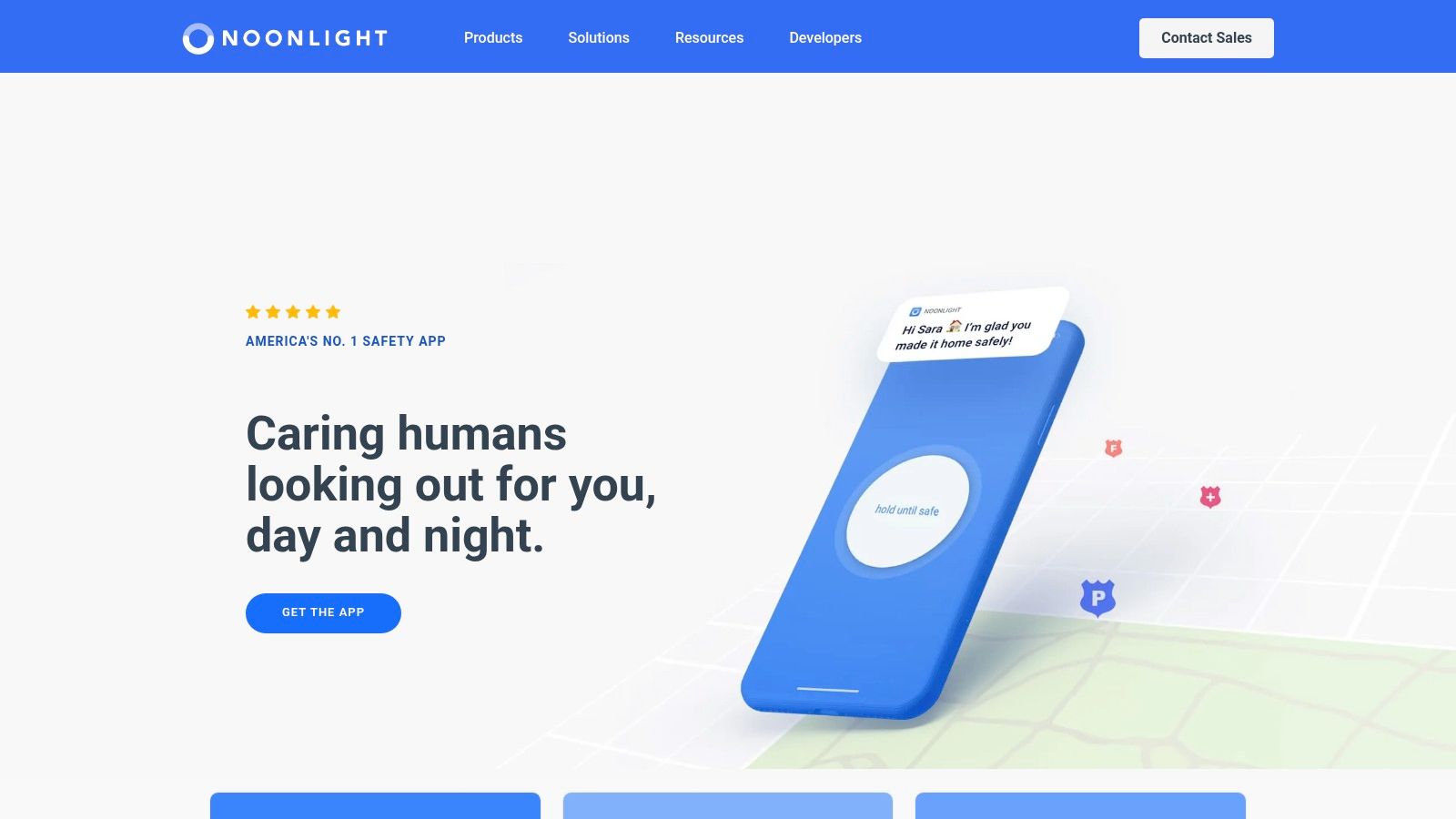
Noonlight belongs on the response shortlist, not the live-video shortlist. Choose it when access to trained human assistance matters more than giving someone a camera view of your surroundings.
The Noonlight app page describes a safety button, a PIN-based cancellation process, and operator contact with emergency-service notification if needed. It also lists Safety Network check-ins, location-related features, free basic access, and paid iPhone options such as a widget, Apple Watch app, and rideshare account syncing.
Prioritize the human-response workflow
A person who wants help available during an uncomfortable walk may prefer a focused alarm process over managing a stream. That’s a valid safety choice, but it isn’t live video streaming. Don’t choose Noonlight expecting contacts or operators to watch a continuous journey feed.
- Main strength: Trained response is central to the described service rather than something a family member must organize.
- Practical fit: The safety-button workflow suits users who want an alternative to composing a message when they feel uneasy.
- Important boundary: Some features require payment or a particular device, and previously listed integrations may no longer be available.
Before relying on it, learn the alarm and cancellation process and review what happens if an operator can’t reach you. Use the provider’s instructions for familiarization rather than creating an unnecessary emergency activation.
For employers or families, confirm the current integration list before designing a safety procedure around it. A rideshare connection or wearable feature should be verified in the intended account and device configuration.
Pick Noonlight for professional-response access without making live video a requirement. If someone must see the route and surroundings throughout a trip, select a service built for that purpose instead.
7. Pixel Personal Safety Emergency Recording and Sharing
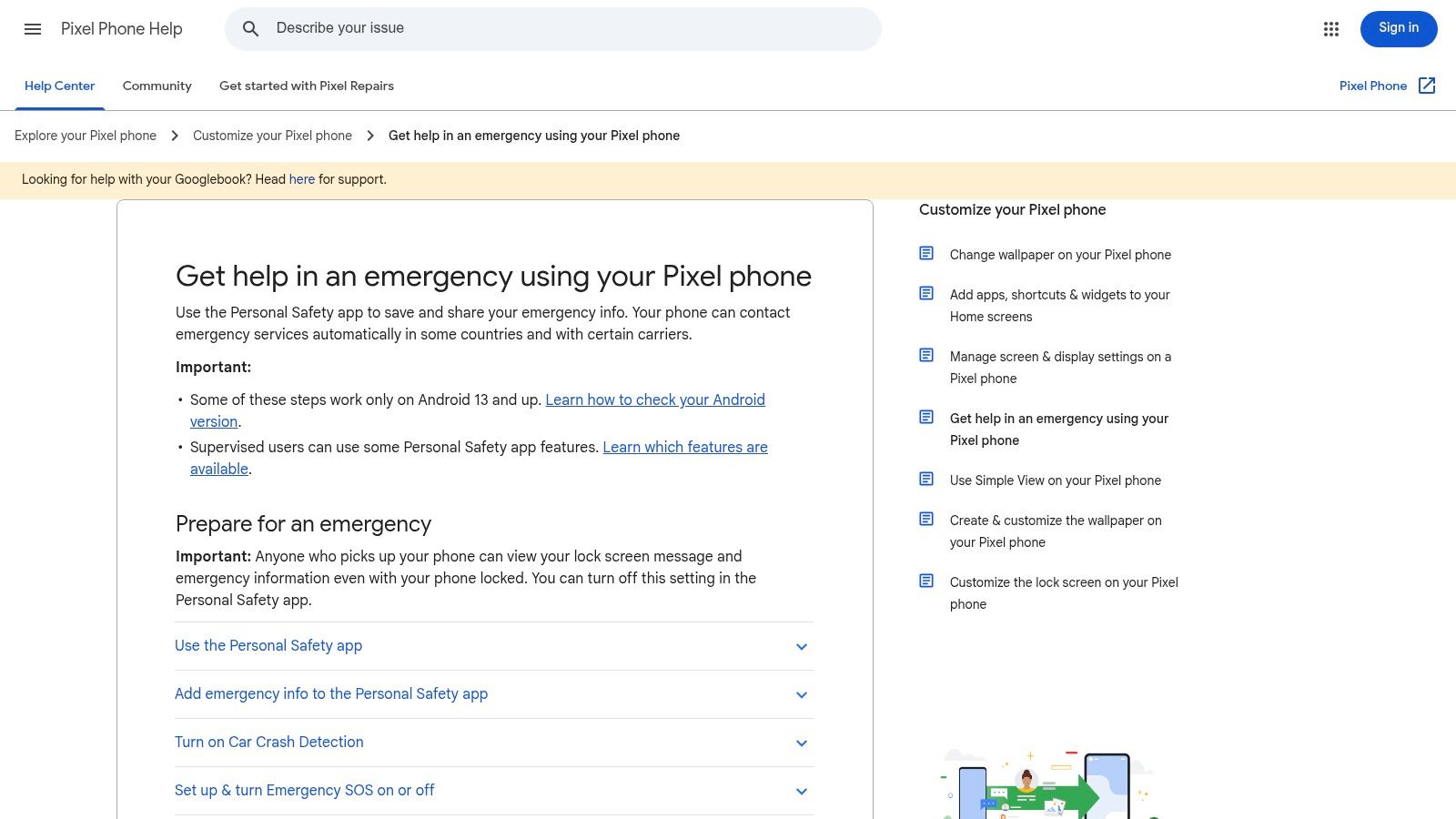
For Pixel owners who prioritize incident documentation, start with Personal Safety’s emergency recording and sharing features. This is a different workflow from Google’s responder-facing live video: the purpose here is capturing video and making the recording available to emergency contacts.
Google’s Pixel emergency-feature instructions explain emergency recording, automatic sharing through a recording link, emergency sharing, and Safety Check. Google also notes that opening another app that uses the camera pauses emergency recording, an important limitation to understand before an incident.
Recording isn’t continuous live oversight
A contact receiving a recording link isn’t necessarily watching events as they happen. Choose this option for capture and follow-up, not for a promise that someone can continuously observe a walk or rideshare.
The built-in approach is practical for compatible Pixel owners who don’t need a separate monitoring subscription. Emergency sharing and Safety Check provide additional location-based tools, but they should be assessed separately from video capture.
- Documentation benefit: The emergency workflow can preserve video and share access with selected contacts.
- Delivery limitation: Uploading and access depend on the connection, so don’t assume a recording is immediately available.
- Camera conflict: Another camera-using app can interrupt recording, so learn which actions affect capture.
Test the documented sharing workflow safely and confirm that contacts understand what a received link means. They should know whether to review the recording, try to reach you, or seek help based on the circumstances.
This option and Google’s earlier entry aren’t independent platform alternatives. They represent different safety functions within Google’s device ecosystem: one emphasizes emergency communication and the other recording and sharing. Choose the function that matches the need, and don’t count either as a substitute for continuous contact monitoring.
Best Live Video Streaming: 7-Option Comparison Matrix
| Option | 🔄 Setup / Process Complexity | ⚡ Resource Requirements | 📊 Expected Outcome | ⭐ Ideal Use Case | 💡 Key Advantage / Consideration |
|---|---|---|---|---|---|
| 3rd-i | Start a trip stream; contacts can follow and send nudges, with Safety Agent access for SOS | iOS app, permissions, network, paid service | Live video, audio, and route shared with contacts; company says agents can escalate emergencies | Monitored walks, rideshares, or lone-worker trips | Combines live journey sharing with human monitoring; confirm platform availability |
| bSafe | Trigger SOS to share audio/video with guardians or monitoring centers | App permissions, network; feature availability and pricing may vary | SOS alerts with live context and location features | Users who want an alert-first app with video context | Supports consumer and organizational use; not necessarily continuous trip monitoring |
| MyGuardian | Activate SOS to stream, record, transcribe, and share location with up to five contacts | iOS or Android, camera, microphone, location, and contacts permissions; core SOS described as free | Live sharing plus a transcript and company-described, cloud-saved incident record | Users who value documentation alongside emergency sharing | Combines evidence features with live sharing; not a substitute for emergency services |
| Google Personal Safety / Emergency Live Video | Use built-in emergency tools; live video is shared with responders in supported situations | Compatible Android device; availability, connectivity, and local responder support vary | SOS, contact sharing, Safety Check, and potentially live video for responders | Android users seeking built-in emergency response features | May require no separate subscription; responder video is not a trip stream for contacts |
| Apple Emergency SOS Live Video | During an emergency call, share video when emergency services request it | iPhone 14 or later; emergency call and feature availability required | Responders can receive live visual context; sharing can be paused or resumed | Supported iPhone users needing to show responders an emergency scene | Built in; not intended for continuous trip monitoring, and video is not saved to the device |
| Noonlight | Trigger the safety button and enter a PIN to cancel; an operator may follow up | App and network; some features require a paid plan or iPhone | Human response and possible emergency-service notification; no core live video | Users who want a panic-button flow and trained response | Human response is central; not a live-video streaming service |
| Pixel Personal Safety Emergency Recording and Sharing | Activate emergency features to record and share a video link with contacts | Pixel phone, permissions, and network for upload; no separate subscription for documented features | Incident recording and sharing, plus location-based tools; not continuous live streaming | Pixel owners seeking an emergency recording and contact sharing | Integrated with Pixel; recording may pause if another app uses the camera |
Choose the Platform That Matches the Safety Moment
The best live video streaming choice depends on what you need another person to do. For late walks, rideshares, and lone work, choose continuous journey monitoring when someone needs to follow both movement and surroundings. Choose an SOS-triggered platform when you want guardian or professional involvement on demand, rather than throughout the trip.
For compatible phones, built-in emergency sharing is a practical starting point for responder communication. Recording-oriented tools serve a separate purpose: preserving context for review after an incident. Don’t buy a monitoring subscription when you only need documentation, and don’t rely on documentation when you need someone ready to respond.
Test the workflow, not just the camera
Run a safe rehearsal with the people who would receive your alerts. Check permissions, watcher access, low-bandwidth behavior, recording retention, regional emergency support, and privacy controls. Ask what viewers see when the connection fails and whether they can distinguish a frozen image from a live feed.
- For individuals and families: Agree who watches, who follows up on a missed response, and when to call emergency services.
- For campuses and employers: Verify device coverage, staff responsibilities, integrations, and access rules before issuing accounts.
- For every user: Review recording access, deletion, exports, and whether sensitive audio or surroundings can be excluded.
Privacy deserves the same attention as picture quality. Research on livestreaming consent identifies underdeveloped consent mechanisms and unexpected exposure affecting streamers and bystanders. Favor controlled access and understandable recording policies over unnecessary visual coverage.
Keep unrelated purchasing decisions separate. A resource such as the Premier Broadband app builder shouldn’t be treated as evidence of emergency monitoring or dispatch capability.
Make the decision before the stressful moment. Set up the appropriate tool, rehearse its real workflow, and confirm what it cannot do. When immediate danger requires emergency assistance, call local emergency services directly rather than assuming a stream, recording, or notification has summoned help.
3rd-i offers live video, audio, and route sharing with selected contacts and trained Safety Agents, plus SOS escalation and automatic recording. If you need oversight during late walks, rideshares, or lone-worker trips, visit 3rd-i to review its monitoring features, device support, and plans before testing a journey with your trusted contacts.