
Emergency SOS Settings for Faster Help
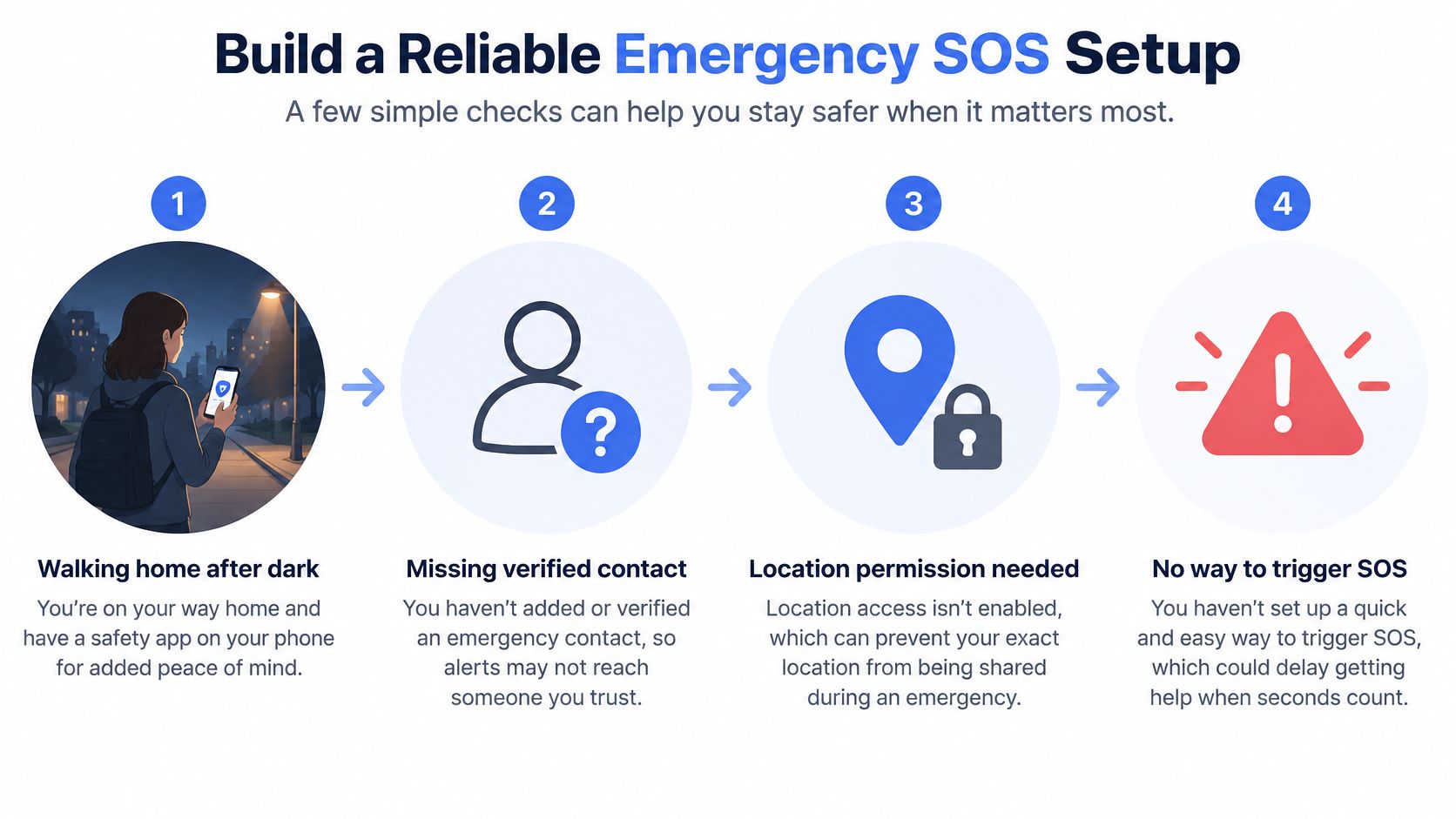
You’re walking home after dark, phone in hand, with a safety app already installed. But you haven’t checked whether your emergency contact accepted the invitation, whether location sharing works with the screen locked, or whether anyone could find the entrance to your building. Emergency SOS settings need verification, not just activation.
Table of Contents
- Build a Reliable Emergency SOS Setup
- Understand the Emergency SOS Layers
- Configure Device and App Emergency Settings
- Add Location Context and an Emergency Entry Pin
- Choose the Best Activation Preset
- Test SOS Under Realistic Conditions
- Apply Best Practices by Safety Situation
Build a Reliable Emergency SOS Setup
Consider arriving at an apartment complex late at night. Your phone shows the right street, but you’re beside a rear entrance that isn’t visible from the road. A saved contact and an enabled SOS switch won’t, by themselves, tell someone where to meet you or what action to take.
A reliable setup connects activation, emergency calling, contact alerts, location context, and responder guidance. Each part needs an observable result. You should know what starts when you trigger SOS, who receives information, and which actions contact emergency services.
Use this setup flow as a reminder to check the connections between those parts.
Define what a successful setup means
Start with outcomes rather than a collection of enabled switches:
- Accessible activation: You can reach the intended control without searching through unfamiliar menus.
- Appropriate calling: You understand whether the action calls emergency services, alerts contacts, or connects to a monitoring service.
- Usable information: Authorized recipients can see current location details and understand what help you need.
- Controlled verification: You can check the workflow without unintentionally requesting an emergency response.
An SOS app is not a substitute for contacting emergency services directly when immediate professional help is required.
Ask contacts to participate before relying on them. Explain what an alert means, how they should respond, and what to do if you don’t answer. A contact who understands their role is more useful than a name stored without discussion.
For individuals, families, students, employers, and campus teams, the practical standard is the same: configure deliberately, verify safely, and document anything that remains untested.
Understand the Emergency SOS Layers
Fast activation and accurate location are different requirements. A phone may initiate a call successfully while leaving a dispatcher uncertain about the caller’s position inside a building.
A dispatcher survey found that 76% of calls came from wireless phones, with 64% of those wireless calls originating indoors; 97% of responding call centers had received a wireless call during the previous year in which the caller couldn’t describe their location, according to the survey of dispatchers and public-safety answering-point managers. That’s a reason to provide complementary context, not a reason to distrust emergency calling.
The layers below perform different jobs.
Separate the call from the supporting information
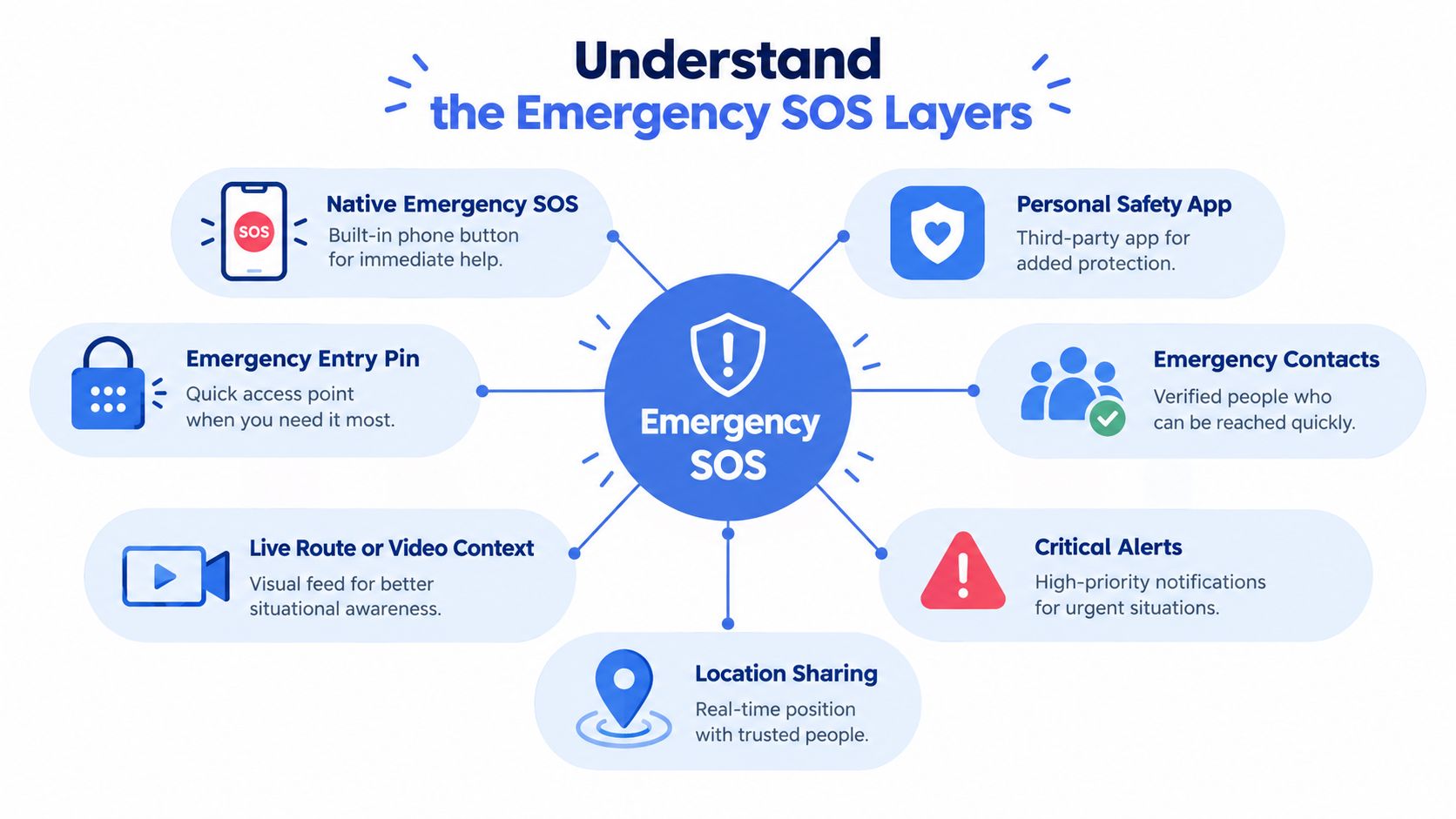
Native Emergency SOS is the device-level emergency function. A personal safety app adds a separate workflow, potentially involving selected watchers or trained monitoring staff. Neither should be mistaken for the other.
Emergency contacts are people who may receive alerts or view a session. Critical Alerts, where supported and authorized, are intended to reach them through Do Not Disturb. Location sharing supplies position information, while live route, video, and audio can help an authorized viewer understand what’s happening.
An Emergency Entry Pin serves another purpose: identifying a useful access point rather than merely placing someone on a map.
- Watching isn’t dispatch: A friend viewing your route hasn’t necessarily contacted emergency services.
- Monitoring isn’t native calling: A Safety Agent workflow can include escalation to emergency dispatch through RapidSOS, but it remains separate from your phone’s emergency call.
- Context isn’t certainty: A stream or map doesn’t guarantee uninterrupted delivery or immediate acknowledgment.
Review the personal safety monitoring workflow with the people who may use it alongside you.
Your preset decision starts with a practical question: how much interaction can you safely manage during an emergency?
Configure Device and App Emergency Settings
Open your phone’s Safety & emergency settings, or search Settings for Emergency SOS. Read the labels on the actual device rather than following another person’s button sequence from memory. On iPhone, the switches live in Settings > Emergency SOS; our guide to Emergency SOS on iPhone covers Call with Hold, Call with 5 Presses and how to cancel a false alarm.
Add emergency contacts and confirm their details with them. On supported Android devices, Google documents a choice between touch-and-hold confirmation and automatic emergency actions after a five-second countdown, along with emergency information sharing in its official emergency setup instructions. Don’t assume another phone offers the same controls.
Configure the native function first
Inspect the destination emergency number and every enabled action. Identify the cancellation procedure before attempting any demonstration, and use only a documented practice mode or an approved test process.
Then review your emergency contact list. Ask each person to confirm their availability and preferred response. Keep native emergency contacts and app watchers distinct if they’re managed in different places.
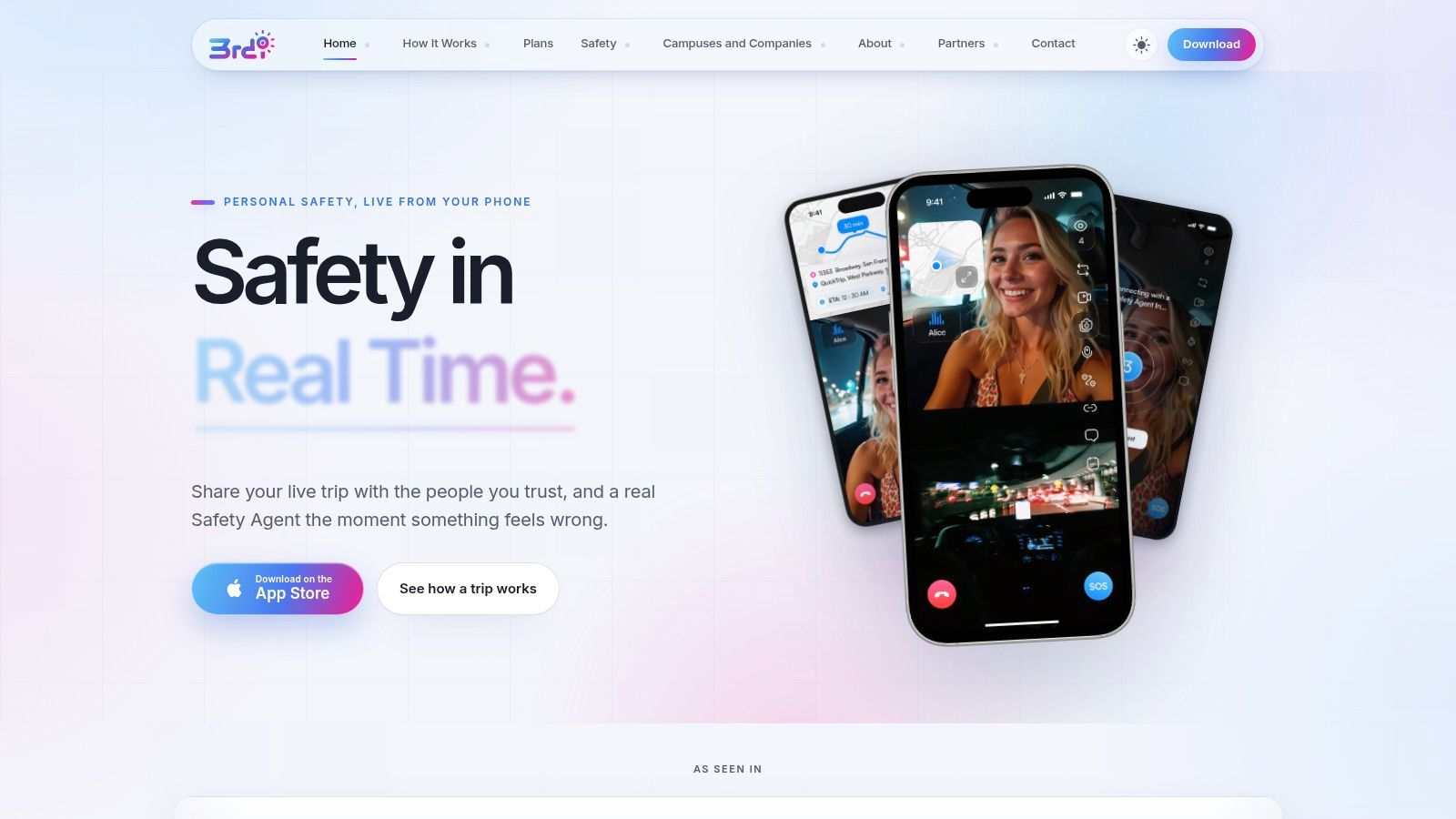
Use the app interface to check permissions and recipients, not just to confirm that an SOS button exists.
Configure the supporting app deliberately
For an app offering these controls, review them according to their purpose:
- Permissions and recipients: Inspect location, camera, microphone, and notification access. Select watchers intentionally rather than inviting everyone in your address book.
- Monitoring actions: Learn the distinction between Go Live, SOS to a Safety Agent, and Emergency for a Friend. Check how to end each action.
- Contact interaction: Show watchers how route viewing, approved audio access, and one-tap nudges work before a real concern arises.
- Access and attention: Configure Lock Screen widgets and Critical Alerts where supported. Recipients should inspect their own notification permissions too.
- Privacy and records: Review movement-detection hours, Ghost mode, automatic recording, transcription, and AI summaries where available. Decide who should access those materials.
Configuration rule: Enable a feature only after you understand who receives its information and what action follows.
If you’re considering a wearable as an additional access point, you can browse smart watches in UAE through Godukkan while comparing hardware. Verify emergency-feature compatibility separately with the device manufacturer; a product listing isn’t evidence that a particular emergency workflow will work.
Finish configuration by recording unresolved questions. A missing permission or unclear escalation path is a reason to investigate, not to assume the app will compensate automatically.
Add Location Context and an Emergency Entry Pin
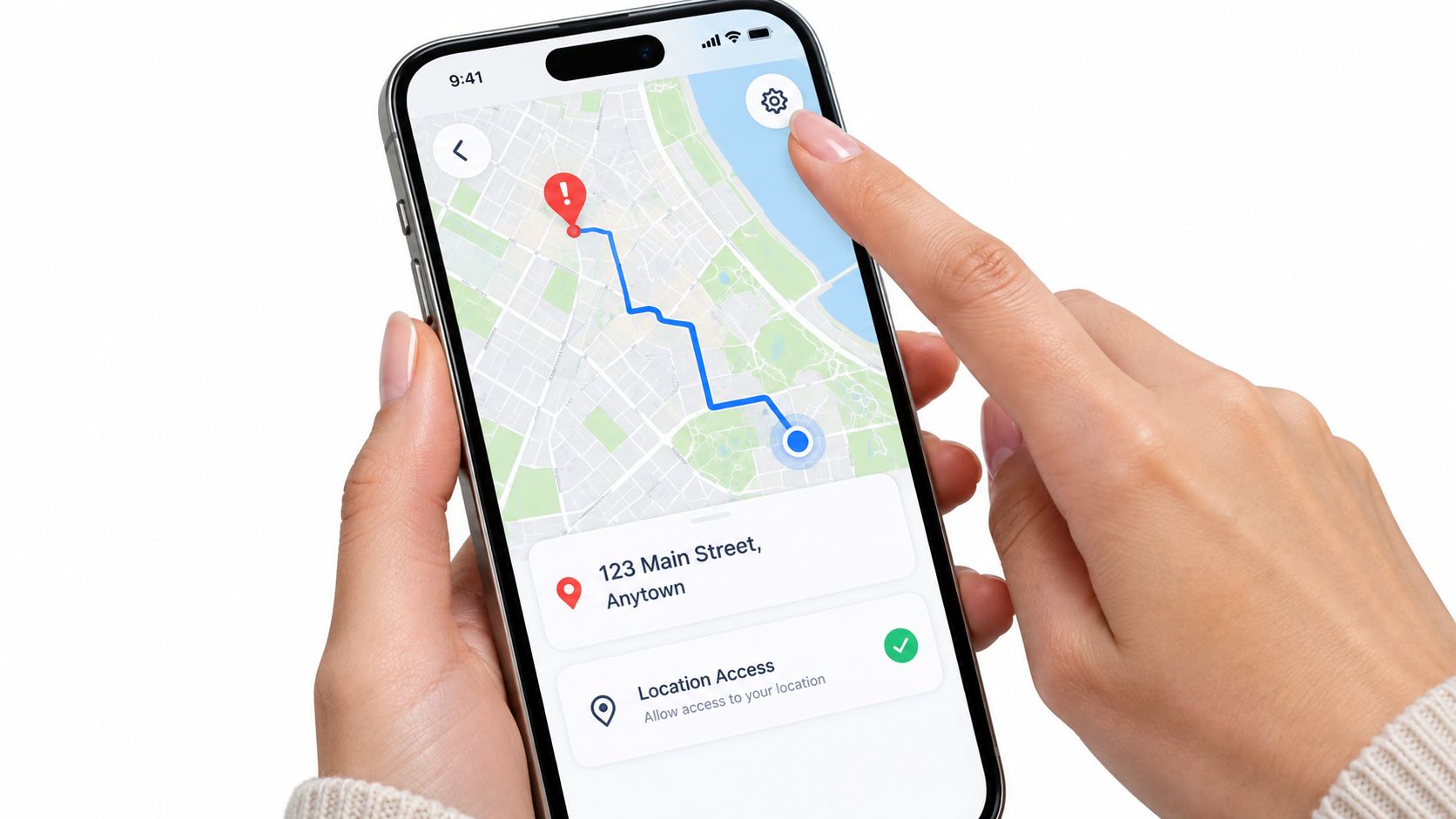
A map point and an entrance instruction answer different questions. The point suggests where you are; the instruction helps someone approach the correct door, building, or floor.
Location estimates vary in both accuracy and delivery time. EENA’s review reported handset-derived estimates ranging from 3 to 348 meters, with 36% to 79% within 30 meters and 62% to 99% arriving at the public-safety answering point within 30 seconds, as documented in its caller-location information recommendations. Treat the displayed position as useful information, not a precise guarantee.
Compare coordinates with practical access guidance
| Information | What to check |
|---|---|
| Current position | Does the displayed location match where you are now? |
| Route | Can an authorized viewer distinguish your current position from earlier movement? |
| Building details | Are the building name, floor, and room understandable? |
| Entrance guidance | Does the selected entrance match your present location and available access? |
An Emergency Entry Pin can guide responders toward the closest entrance, but that entrance must be appropriate for the situation. A nearby door that’s locked, restricted, or inaccessible isn’t a useful instruction without clarification.
For an apartment complex, describe the building and approach rather than relying on the postal address alone. On a campus, distinguish the named building from a similarly named department. At work, use entrance descriptions that an outside responder could understand.
Keep the context current and private
Check the pin after moving home, changing workplaces, or entering another building. Review the location accuracy guidance alongside the device’s permission settings, and inspect whether the app shows a current position during movement.
- Replace stale details: Remove an old entrance instruction rather than leaving competing directions.
- Limit access: Share building and room information only with authorized recipients.
- Describe uncertainty: If you don’t know the entrance or floor, say so rather than adding a confident guess.
Avoid putting access codes or sensitive household details into publicly visible notes.
Choose the Best Activation Preset
Choose the preset you can operate reliably, not the one that sounds fastest in a menu. The relevant trade-off is accidental activation versus interaction burden.
Touch-and-hold confirmation adds a deliberate action. That can suit someone who’s concerned about unintended triggers and can reliably complete the confirmation. Automatic activation reduces the required interaction after triggering, but demands a clear understanding of cancellation and device behavior.
Emergency SOS activation presets
| Preset | Interaction burden | Main trade-off | Best fit |
|---|---|---|---|
| Touch-and-hold confirmation | Requires a deliberate confirmation gesture | Helps limit unintended activation, but adds an action during distress | People who can reliably interact with the confirmation screen |
| Automatic activation after the countdown | Requires less follow-up interaction | Can proceed without confirmation, increasing the importance of avoiding accidental triggers | People whose needs and supervised testing favor reduced interaction |
The Android confirmation and countdown options are documented in the setup guidance cited earlier. Availability still needs checking on your own device.
Make the decision from observed behavior
For a household, compare how each person handles their phone. Someone who struggles with a confirmation gesture shouldn’t inherit another family member’s preference. For workplace devices, follow an agreed policy that accounts for how phones are carried during normal tasks.
A Lock Screen widget can provide a shorter route to app-based SOS or Go Live where supported. It doesn’t replace familiarity with native Emergency SOS or prove that downstream alerts will arrive.
Use these decision criteria during a safe demonstration:
- Locked access: Can you locate and operate the intended control without first navigating unrelated screens?
- Cancellation confidence: Do you know how to stop an unintended activation before escalation?
- Practical handling: Can you complete the action in the way you normally carry and hold the phone?
- Observed result: Does the demonstrated behavior match your expectation?
The right preset is the one you can use intentionally and verify safely, not a universal recommendation for everyone.
If neither preset feels dependable, seek device-specific guidance before relying on it. Don’t rehearse by repeatedly approaching a live emergency-call threshold.
Test SOS Under Realistic Conditions
Arrange a supervised check with your contacts and, where relevant, the monitoring provider. Tell everyone when testing starts and ends, and use the provider’s documented demonstration or test process.
Never place an emergency call merely to see whether it connects. If a local emergency authority offers a coordinated test procedure, follow its instructions. Otherwise, leave the live call path marked as untested rather than treating a contact notification as proof of dispatch connectivity.
Run separate, controlled scenarios
Check normal cellular coverage, weak coverage, and a locked phone as distinct conditions. Also inspect behavior with Do Not Disturb enabled, using authorized test notifications where available.
Record observations rather than writing “works” beside the entire setup:
- Activation: Note the time required to reach the intended action using the safe test method.
- Contact delivery: Record who received the notification and whether they acknowledged it.
- Location: Ask the recipient to describe the position and entrance information they see.
- Restrictions: Note battery-saving settings, connectivity problems, and denied permissions.
- App actions: Check Go Live, SOS, and Emergency for a Friend only through the service’s approved testing process.
Have recipients inspect their own phones. An alert arriving without sound isn’t the same result as an authorized Critical Alert behaving as intended through Do Not Disturb. Silent mode and Do Not Disturb quiet ordinary notifications, while the Clock alarm and approved Critical Alerts are exempt, which is why your alarm still goes off on silent when a routine app alert does not.
Diagnose the failed connection
If a contact receives nothing, inspect the selected recipient, notification permission, connectivity, and battery restrictions. If video appears but location doesn’t, inspect location access separately. If an entrance pin is missing, check whether it was saved and shared with the intended audience.
Unsupported regional emergency numbers and carrier behavior can also affect emergency workflows. A successful app session doesn’t establish that every emergency-calling function will behave identically in another jurisdiction.
Practical response training belongs beside technical preparation. Readers planning hands-on first-aid preparation can find a CPR course near Penrith through TP Training and assess the course against their needs.
Apply a pass-or-fail checklist
- Pass on access: The intended user can find and operate the tested controls.
- Pass on delivery: Intended recipients receive and acknowledge the permitted test.
- Pass on context: Current location and usable entrance guidance are visible.
- Fail on assumptions: Missing notifications, stale details, or unknown behavior require follow-up.
- Retest after changes: Repeat relevant checks after an app, phone, carrier, or location-permission change.
Keep a short record of the configuration, observed results, and unresolved limits. Don’t label a partially tested setup fully verified.
Apply Best Practices by Safety Situation
A useful safety arrangement matches the person’s activity and the availability of the people supporting them. A late walk, a family check-in, and a lone-working shift need different agreements about who watches and when they act.
For an individual walking alone, prepare before leaving: charge the phone, select available contacts, review the destination entrance, and use the tested access method. Avoid changing unfamiliar settings while already concerned about your surroundings.
Agree on responsibilities before starting
Families and students can use selected watchers, route viewing, and nudges to support check-ins without requiring continuous texting. Agree on what a missed response means and who takes responsibility for following up. An available alert doesn’t mean someone has seen it.
Employers and campuses should assign coverage around shifts and lone-working tasks. Where a service provides centrally issued seats and pooled minutes, identify who manages access, monitors usage, and covers handovers. Tailor monitoring arrangements to late walks, night shifts, rideshares, and travel rather than assuming one arrangement suits every activity.
Respond to symptoms, not assumptions
- No acknowledgment: Contact the assigned watcher or backup using the agreed method. Don’t assume silence confirms safety.
- Missing updates: Inspect connectivity and battery restrictions when it’s safe to do so.
- Wrong location: Check permissions and replace outdated entrance details.
- Unexpected visibility: Review watcher access and privacy controls after the immediate situation is resolved.
- Immediate danger: Use the device’s native emergency calling function or another available means of contacting emergency services rather than troubleshooting an app.
Keep charged devices available and avoid untested configuration changes before a shift or journey. Review watcher access when relationships, roles, or responsibilities change.
A monitored app can add context and coordination. When immediate professional help is required, contact emergency services directly.
3rd-i offers live video, audio, and location sharing with selected contacts and trained Safety Agents, with emergency escalation through RapidSOS. See how 3rd-i works to review its monitoring options, then arrange a controlled setup check covering activation, contact alerts, location context, and Lock Screen access before relying on the workflow.