
SOS Button Phone: iPhone and Android Emergency Features
You’re walking to your car after a late shift, phone half buried in a coat pocket, bag over one shoulder, keys in the other hand. If someone followed you or you fell and couldn’t get up, could you wake the screen, open the dialer and explain where you are? That’s the gap an SOS button phone feature is meant to close. The press itself is only the first half. What matters is whether a useful location, callback number and context truly reach someone who can act.
Table of Contents
- SOS Button Features on iPhone and Android
- How to Turn On and Test Emergency SOS
- What an SOS Press Sends to Responders
- Satellite and Offline SOS Channels
- Built-In SOS Versus a Monitoring Service
- Why Responders Still Miss Your Location
- Privacy and Accidental Activation Trade-Offs
- Pick the SOS Setup That Matches Your Risk
SOS Button Features on iPhone and Android
Current iPhones and Android phones already include a built-in emergency shortcut that connects to local emergency services. No special handset is needed. What separates one phone from another is the trigger gesture you perform without looking at the screen, and whose phone rings or buzzes afterward. Judging the button by the press alone misses the point. What matters is what reaches the other end: a live voice line, a satellite text, or a location ping to someone you trust.
Built-in SOS triggers and recipients by phone
| Phone and OS | Default trigger | What it does | Who gets notified |
|---|---|---|---|
| iPhone with Emergency SOS | Hold side button and a volume button, or press side button five times when enabled | Calls the local emergency number | Emergency contacts receive location updates after the call |
| iPhone 14 or later | Same trigger, used when there is no cellular signal | Sends an emergency text by satellite where available | Emergency services; contacts chosen in Apple settings |
| Google Pixel | Press the power button five times | Calls the local emergency number | Emergency contacts, if they are set up |
| Samsung Galaxy | Press the side key three times | Calls the local emergency number | Emergency contacts, if they are set up |
| Other Android models | Power button five times or a volume key shortcut set in Settings | Calls the local emergency number, with location sharing on some models | Emergency contacts added under Safety and emergency |
Three common misunderstandings
First, on a normal cellular connection the shortcut starts with a voice call rather than a silent alert, though an iPhone 14 or later with no signal sends an emergency text by satellite instead. If you’re hoping it fires off a message without anyone noticing, you’ll be caught out when the speaker connects and a call taker starts talking.
Second, the contact alert is secondary. Your sister, partner or roommate usually gets a message and location updates after the emergency call, not instead of it. They can’t dispatch help from that message alone, so a press that reaches them but no call taker delivers only half the outcome.
Third, the gesture isn’t universal. An iPhone owner learns to hold the side button and a volume button until a countdown appears, or press the side button five times when Call with Side Button is on. A Pixel owner presses the power button five times. A Samsung owner learns a three-press side key pattern. Practicing someone else’s gesture doesn’t help you.
Carrier, country and model can also change which number is dialed and whether the shortcut is on by default. Find your row in the table, open that setting on your own phone today and confirm the trigger you would use under stress.
How to Turn On and Test Emergency SOS
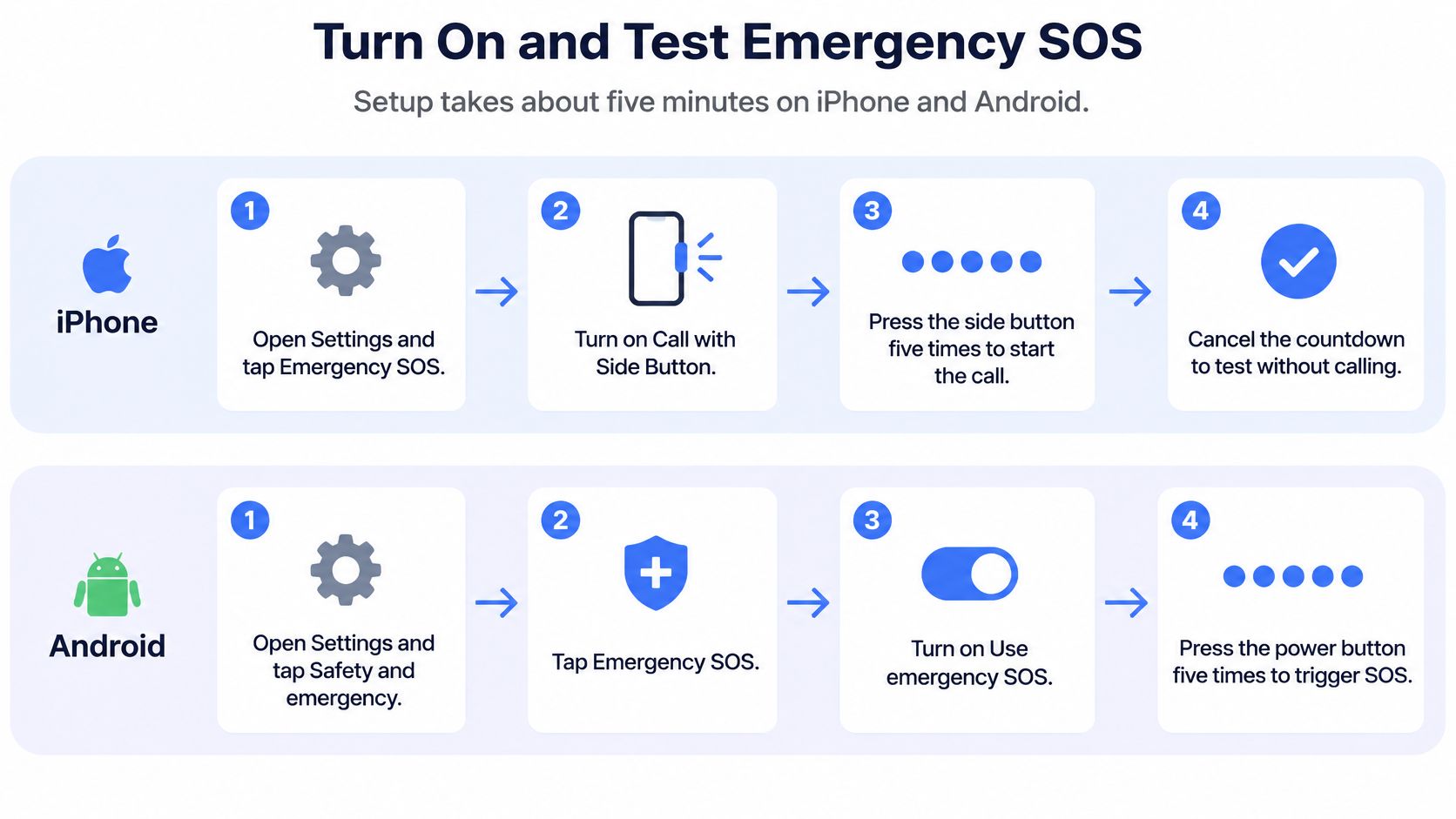
Setup takes about five minutes. Do it once, test the gesture, and recheck after major system updates because defaults can change.
iPhone setup
- Open Settings and tap Emergency SOS. This is the step where you confirm how the call starts.
- Turn on Call with Side Button. Five quick presses will then start the call without you looking at the screen.
- Open the Health app, tap your photo, then Medical ID. Add allergies, medications, conditions and emergency contacts so responders aren’t guessing.
- Confirm the emergency number shown for your country. A phone bought abroad may not match where you live now.
Pixel, Samsung and other Android setup
- Pixel and many Android models. Open Settings, go to Safety and emergency, turn on the emergency shortcut and confirm the power-button gesture.
- Samsung Galaxy. Open Settings, go to Advanced features, tap Emergency SOS, turn on the side-key trigger and confirm the three-press gesture.
- Add emergency contacts. Include current mobile numbers and choose whether contacts receive location updates after a call. Keeping well maintained emergency contact lists matters because an old number alerts nobody.
- Add medical details if your menu offers them. Blood type alone isn’t very useful. Allergies and daily medications change treatment.
Testing rule: Don’t dial the real emergency number to check the button. Trigger the gesture, watch for the countdown, then cancel before the call connects.
Try the test once with the phone in your pocket and once while walking. If you can’t hit it reliably, change the gesture setting now, not during an emergency. Finish by checking that Location Services is on for the phone. Without it, you’re sending a voice with no map.
What an SOS Press Sends to Responders
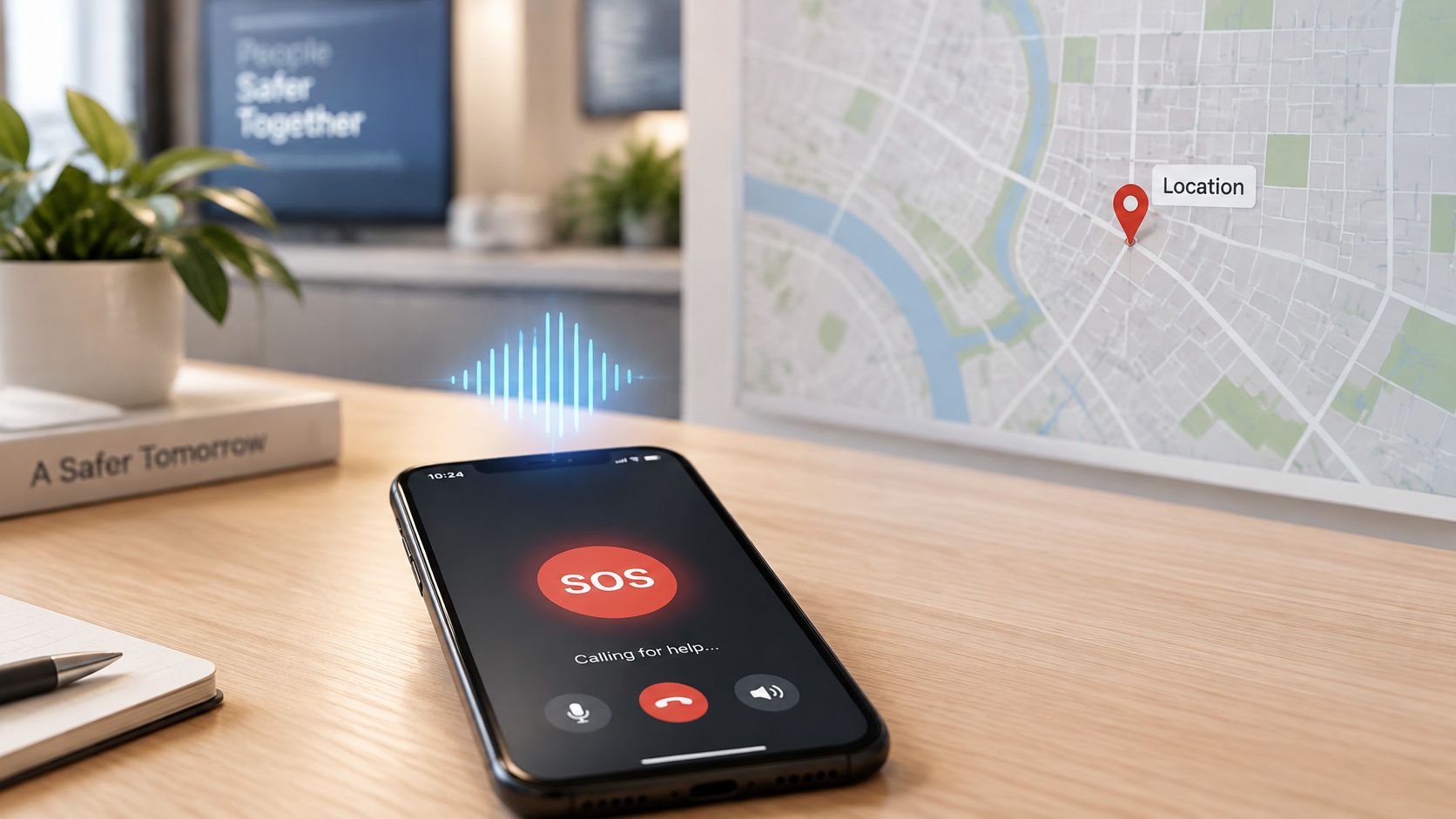
A built-in SOS press works like a regular emergency call with a pin dropped on the call taker’s map. The press is the easy half. What helps responders is what arrives after it: a connection, a usable location radius and the context you added beforehand.
The screen and map view below matter more than the gesture itself, because the gesture only starts the delivery.
What arrives, in order
First comes the call itself, with a callback number. Under the FCC Enhanced 911 framework, Phase I requires carriers to provide a wireless 911 caller’s telephone number and the cell site or base station handling the call, while Phase II requires latitude and longitude meeting accuracy standards generally ranging from 50 to 300 meters, depending on the technology used.
That 50 to 300 meter detail is the part people feel on scene. A responder may get a strong pin on an open street, or a wider circle around an apartment block, trailhead or office floor. More 911 location data now comes from the handset itself rather than carrier towers alone, which is why the phone’s location setting matters alongside the carrier network.
Third, Medical ID details can be shared during an iPhone emergency call if you’ve filled them in. Fourth, emergency contacts can receive location updates after the call and again when your location changes. Those updates help family stay oriented; they are not a dispatch channel.
The short video below walks through that relay from handset to call taker, so you can see where each piece enters.
A standard built-in SOS call carries no live video, live audio feed, route history or recording by default. If you need someone to see what is happening while you cannot describe it, that capability comes from a monitoring service, not the phone’s shortcut. Judge the button by the package it delivers: signal to place the call, location good enough to search, and medical or contact context ready before the worst moment.
Satellite and Offline SOS Channels
Satellite SOS is a text-based fallback, not a voice call and not instant dispatch. That single distinction prevents the most dangerous misunderstanding about off-grid help.
Emergency communication channels compared
| Channel | What it needs | Typical speed | Live voice |
|---|---|---|---|
| Cellular emergency call | Signal from any available carrier network | Immediate once connected | Yes, two-way |
| Wi-Fi calling | Wi-Fi connection and carrier support | Immediate when connected | Yes, two-way |
| Satellite SOS on iPhone 14 or later | Clear view of sky and horizon, phone aligned to satellite | Seconds to a few minutes per message | No, text only |
| Live monitoring stream | Mobile data and the monitoring app open | Slower on weak mobile data | Yes, through the agent |
Why satellite feels slow
Apple’s Emergency SOS via satellite support page states that the feature requires an iPhone 14 or later, an unobstructed view of the sky and horizon, and user alignment with the satellite. Apple also states that each message may take from a few seconds to a few minutes to transmit, with buildings, terrain and foliage increasing delays.
That delay changes what you should send first. Put location, callback details and incident type in the first short message. Don’t start with a long explanation or wait to send a photo. If the connection drops, responders still have the essentials.
Move clear of tree cover and building overhangs, hold the phone still where the on-screen guidance points it, and expect a text exchange, not a conversation.
Say you’re hiking and twist an ankle in a wooded hollow with no bars. You may need to shuffle to a clearing, keep aligning the phone, and answer short prompts over several minutes. That’s still valuable, but it isn’t a substitute for cellular calling when signal returns. Android satellite messaging exists only on some newer models, so check your device’s emergency settings before you rely on it on a trip.
Built-In SOS Versus a Monitoring Service
A built-in SOS press starts the emergency call; a monitoring service changes what can arrive with that call. Pressing SOS is only half the job. The better test is what responders actually receive: accurate location, a live route, audio or video, and enough context to act when you cannot explain.
Built-in SOS works like a direct phone line to emergency call takers. A monitoring service works more like a witness who stays on the walk with you, can call or chat, and can phone for help with details already in hand. Both have a place, and they solve different problems.
Built-in SOS and a monitoring service on the same criteria
| Criterion | Built-in phone SOS | Monitoring service such as 3rd-i |
|---|---|---|
| Who answers | Local emergency call center | Trained Safety Agent who can call, chat and escalate to 911 |
| Route visibility | Last location sent to contacts | Live route shown to selected contacts with a visible watcher count |
| Video and audio | None | Front and rear camera streaming, with watcher audio on approval |
| Recording | None by default | Automatic recording with transcription and AI summaries |
| Escalation path | Carrier to public safety answering point | Agent escalates through RapidSOS with stream, location and context |
| Cost | Included with the phone | Consumer plans metered by streaming and recording minutes; campus and company seats |
| Setup | Built into the phone | Install the app and add contacts and watchers |
Features that change real situations
- Go Live streaming: Video, audio and route move together, so a watcher sees the unlit underpass, not just a dot near it.
- Squad viewing: Selected contacts see your live route with a visible watcher count, so you know someone is watching.
- One-tap nudges: A contact can send “You good?” and you can answer with one tap instead of typing while walking.
- Critical Alerts: Urgent alerts can reach contacts through Do Not Disturb, which matters at night.
- Emergency for a Friend: Someone watching can trigger help for you if you stop responding.
A monitoring app such as 3rd-i adds trained Safety Agents who watch the stream and can escalate to 911 through RapidSOS with your location and context, which helps when you can’t speak clearly or don’t know the local address.
A monitoring app is not a substitute for calling emergency services. It’s a layer that adds witnesses and context around that call.
If your risk is mostly an everyday medical emergency at home, built-in SOS plus a completed Medical ID may be enough. If your risk involves being followed, working alone at night or traveling through unfamiliar areas, the live witness is the part worth paying for. Choose by delivery: a button that only starts a call, or a setup that also sends route, cameras and a trained human who can pass that context to dispatch.
Why Responders Still Miss Your Location
Your phone’s blue dot can look confident while dispatch receives something far less usable. A dot on a street map doesn’t tell a crew which floor, entrance or stairwell to use, and indoors the signal behind that dot often gets weaker or coarser.
The EENA 112 Recommendations Report reports that network-based location reached public-safety answering points in more than 97% of emergency calls in 2023, yet Advanced Mobile Location (AML) data was received in only about 40% of calls in some countries, and accurate location was transmitted in only roughly 50–80% of emergency communications. Presence of some location isn’t the same as accuracy.
Failures that stop responders finding you
| Failure | Why it happens | Fix |
|---|---|---|
| Indoors in a multistory building | Weak GPS and coarse network position; floor unknown | Name the floor, entrance and landmark in the first words of the call |
| Location permission off | Phone cannot send a position | Keep Location Services on and check after each update |
| Battery low | Call drops or phone shuts down | Charge before long walks and carry a power bank |
| Caller cannot speak | Call taker has no context | Use a monitoring service with a live stream or a shared route |
| Caller moving quickly | Coordinates go stale between updates | Keep location updating and give direction and the next landmark |
| Poor cellular reception | Call fails or is delayed | Use Wi-Fi calling, or satellite SOS where supported |
Multistory buildings are the hardest case because horizontal accuracy still leaves responders guessing vertically. Resources on precision indoor navigation without GPS show why entrance level guidance and step by step indoor directions matter when satellite signals fade inside concrete and steel.
Follow practical steps to improve location accuracy before you need them, then do one simple test. Stand in your usual building and on your regular walking route, open your map, and note how far the dot sits from where you are. Share the true entrance and floor details with your contacts.
Your most reliable fix is still verbal. Start calls with building, entrance, floor and nearest landmark, in that order.
Privacy and Accidental Activation Trade-Offs
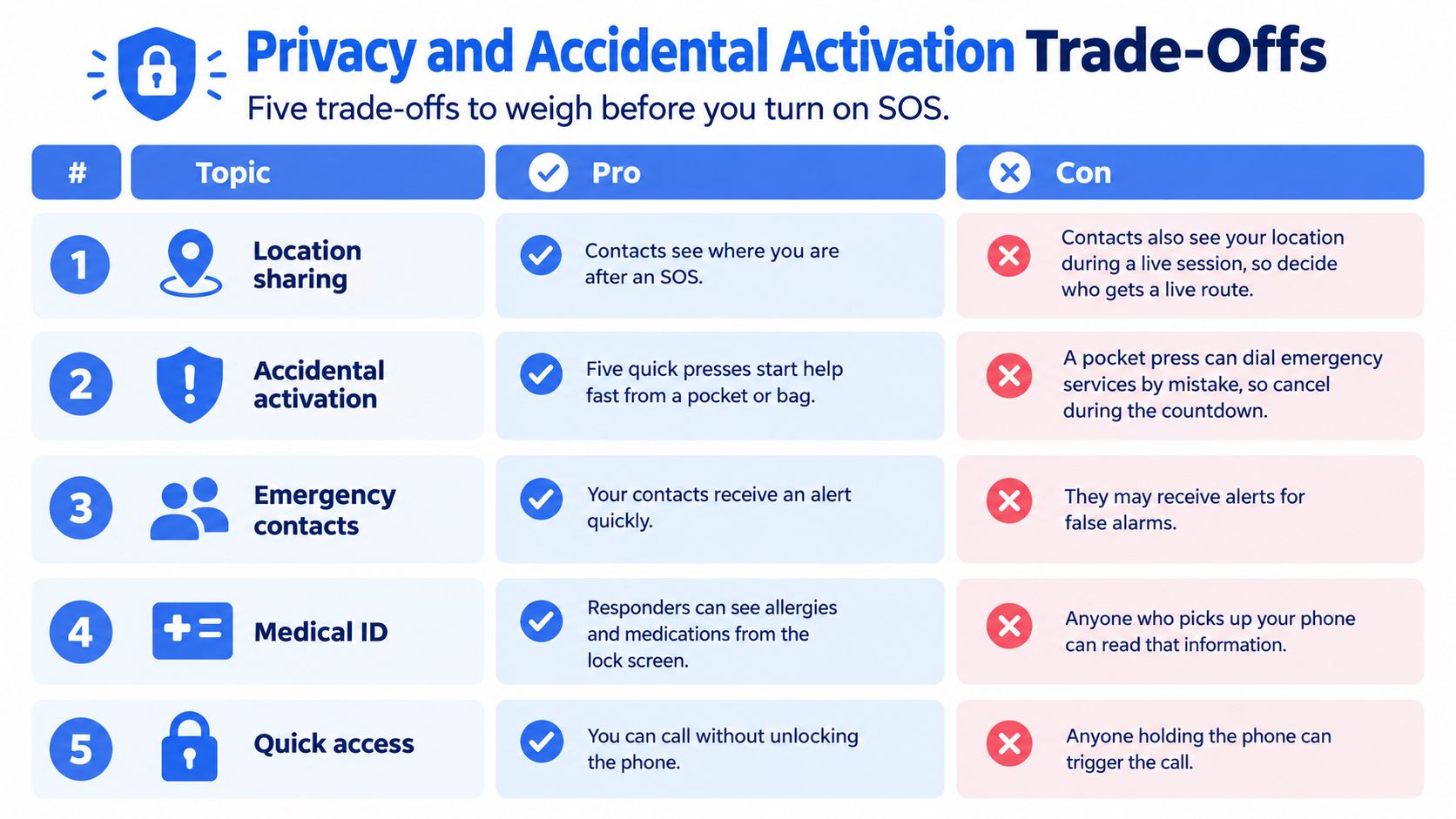
Every safety gain here exposes something. The goal isn’t maximum sharing or maximum privacy. It’s choosing, in advance, who sees what and for how long.
Location and recordings
Location sharing lets contacts see where you are after an SOS and during a live session. Give a live route only to people you’d trust with your home address and daily patterns. Two or three people is usually enough.
Recordings are personal data, and recorded audio and video can capture bystanders who never agreed to be filmed. Recording rules for conversations vary by place, so check how long any service keeps recordings, transcriptions and AI summaries, and delete what you don’t need.
Ghost mode and Medical ID
Ghost mode takes you off the map temporarily. It protects a private trip, but contacts may read silence as a problem or assume you’re unreachable, so tell them before you turn it on.
Medical ID on the lock screen helps responders treat you when you can’t get past the passcode screen. Anyone holding your phone can also read those allergies and conditions. Include what changes emergency care, and leave out detail that only your own clinician needs.
Accidental presses
The countdown exists so a pocket press can be cancelled. If a call does connect, stay on the line and explain it was accidental. Don’t hang up without a word, because the call taker may treat an open, unanswered line as a real emergency. False emergency calls can carry penalties in many jurisdictions.
A workable rule set: Share live location with two or three named people, review saved recordings monthly, and turn off monitoring features you aren’t actively using.
Pick the SOS Setup That Matches Your Risk
Everyday phone user. Keep built-in SOS on, complete Medical ID, and add at least two emergency contacts with current numbers. For many users, that covers falls, crashes and sudden illness at no extra cost.
Late walks, commutes and rideshares. Add a monitoring service with a live route and one or two watchers. A live stream covers the case where you can’t speak or can’t safely hold the phone to your ear, and a watcher can describe your direction if you keep moving.
Families. Set up shared check-ins and route visibility for children or relatives who travel alone. Agree in advance who watches, who calls first, and what silence means, so three people don’t all assume someone else acted.
Lone workers, campuses and employers. Look at centrally issued seats and pooled minutes for shift based and traveling staff. A monitoring plan supplements the built-in call. It never replaces it.
Your four checks this week
- Trigger and cancel. Run the gesture and cancel the countdown so your hands know the motion.
- Verify contacts. Call or text each contact and confirm the number saved in the phone is current.
- Confirm location. Check Location Services is on and test your map dot at home and work.
- Estimate minutes. Compare your likely monthly streaming and recording time against a plan’s per-minute cost before you commit.
If late walks, rideshares or lone shifts are part of your routine, 3rd-i adds live video, audio and route streaming to selected contacts and trained Safety Agents who can escalate to 911 through RapidSOS with that context in hand. Set up your phone’s built-in SOS first, then visit the site to see whether a monitored layer fits the situations where a button press alone wouldn’t tell responders enough.