
Emergency Response App Guide: Features, Limits and Choices
You’re leaving work after dark, waiting for a rideshare, or checking whether someone got home. Your phone is already in your hand. Sending a message is easy, but if something goes wrong, who will notice, understand what’s happening, and request help?
An emergency response app can connect those actions, but only if each person and system in the response chain does their part. The useful question isn’t just whether an app has an SOS button. It’s what happens after you press it, including when your signal drops or you can’t speak.
Table of Contents
- Core Features of an Emergency Response App
- How an SOS Alert Reaches Emergency Dispatch
- Why Live Location Matters More Than a Single GPS Pin
- Failure Points You Should Plan Around
- Accessibility Needs Most Apps Overlook
- Rolling Out an App for Campuses and Employers
- Choose and Test Your App Before You Need It
Core Features of an Emergency Response App
An emergency response app is a phone app that lets a user raise an alert in one tap, share live video, audio, and location with chosen contacts, and get help from a trained agent or 911.
That describes a full-featured service, not every product in the category. Some apps only notify friends; others connect users to a monitoring team that can coordinate emergency escalation. Compare functions rather than branded feature names, especially when an app uses the same word for routine trip sharing and an emergency request.
Core features of an emergency response app
| Capability | What It Does | Who Watches | Typical Use |
|---|---|---|---|
| SOS alert | Sends an alert with location in one tap | Safety Agent or emergency dispatcher | Feeling threatened or hurt |
| Live video and audio | Streams what the user sees and hears | Selected contacts and Safety Agent | Late walks and rideshares |
| Live route sharing | Shows the moving route on a map | Contacts and Safety Agent | Commutes and trips |
| Human monitoring | Agent can call, chat, and view both cameras | Trained Safety Agent | Lone work and travel |
| 911 escalation | Passes stream, location, and context to emergency services | Public safety dispatch through RapidSOS | Serious incidents needing police, fire, or medical help |
| Check-in nudges | Sends brief prompts and one-tap replies | Contacts | Routine check-ins |
| Recording and transcription | Saves the stream with a transcript and summary | Authorized users reviewing the incident | Post-incident documentation |
These capabilities describe our service model. Don’t assume another app includes every row, or that a selected contact has the same responsibilities as a trained Safety Agent.
Say you’re walking home and notice someone following you. With one tap in our app, your livestream, audio, and location reach a trained safety dispatcher, and text communication starts. Your squad can also watch the whole trip from their phones, with a Safety Agent and emergency dispatch one tap away.
Practical distinction: A friend watching your trip provides personal oversight. A Safety Agent handles assessment and escalation. Neither role is the same as public safety dispatch assigning responders.
Before starting a trip, understand what your plan meters. Our consumer plans use streaming and recording minutes, while Safety Agent monitoring is included; a watchable trip and an available monitoring service aren’t interchangeable allowances.
The strongest reason to combine these features is continuity: someone can see the situation develop rather than receiving an isolated message afterward. That matters particularly during late walks, rideshares, and lone work, when the person who needs help may be moving or away from immediate support.
How an SOS Alert Reaches Emergency Dispatch
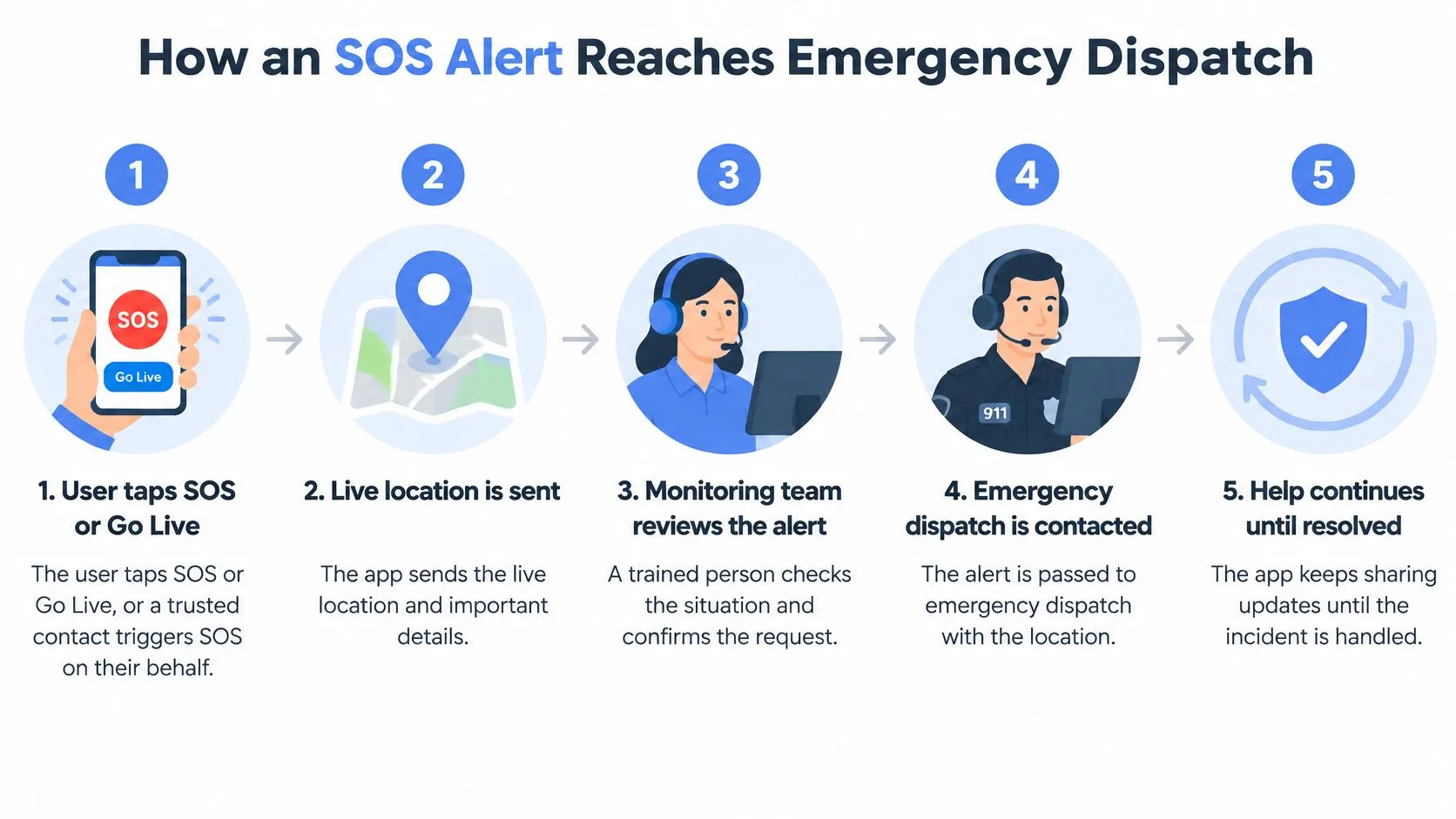
An alert sent isn’t the same as help dispatched. Between those events, someone must receive the information, assess the situation, contact public safety, and communicate the outcome.
Our guide to active 911 calls provides additional context for understanding emergency coordination. In our service, an SOS connects you to a real person, with 911 behind them.
Follow the handoffs
-
Start the appropriate session. Tap Go Live for trip sharing or SOS when you need emergency assistance; an Emergency Contact can also trigger SOS on your behalf. From a locked phone, a live SOS can start with as few as two taps, so configure the available shortcut before you need it.
-
Send context without composing a report. The app shares your livestream, audio, and location with a trained Safety Agent, and text communication starts. If you can safely respond, provide the immediate problem and confirm your address or surroundings.
-
Let the agent assess what’s happening. The agent can call or chat and view both cameras to understand the situation. You don’t need to keep filming if doing so exposes you to additional danger; prioritize moving to safety and communicating through the safest available channel.
-
Escalate to public safety when needed. Pressing SOS, or an Emergency Contact triggering it for you, sends your stream and location straight to 911 through a Safety Agent, with emergency data delivered through RapidSOS. Give concise updates about injuries, hazards, or movement rather than assuming the initial information is still sufficient.
-
Bring emergency contacts into the response. Connected contacts receive a critical alert that overrides silent mode and Do Not Disturb, sounds like an amber alert, and displays your location. Those siren notifications require contacts to be app friends with Critical Alerts allowed, so complete that setup in advance.
-
Preserve the incident record. Recordings, transcripts, and summaries support follow-up after the immediate danger passes. Treat the transcript as something to check against the recording, particularly for names, addresses, and unclear speech.
The diagram summarizes the main operational handoffs.
Expect acknowledgment, not just animation
For organizational buyers, the MR2 Solutions provider scorecard offers a useful parallel from security operations: evaluate the people and escalation process behind a monitoring service, not merely its dashboard. It isn’t a certification of emergency-app performance.
After SOS, expect a real person and a clear status update distinguishing agent contact from emergency escalation. The app supports dispatch; it doesn’t replace calling 911 directly. Don’t delay an available emergency call while trying to troubleshoot an app session.
Why Live Location Matters More Than a Single GPS Pin
A map pin answers where a phone was when its position was calculated. It doesn’t necessarily show where its owner is now, which entrance they used, or whether they’re upstairs.
Location has long been a technical challenge for wireless emergency calling. The FCC’s wireless emergency-location document notes that legacy GPS-based location determination can take 20–30 seconds, while effective emergency routing may require a calculation within five seconds.
How a phone combines location clues
Device-based hybrid location combines signals such as GPS, Wi-Fi, Bluetooth, and motion sensors. Think of it as checking several clues against each other rather than trusting a single measurement.
A comparative study published in the Annals of Emergency Dispatch & Response tested 15 smartphone 911 calls and found that RapidSOS-integrated hybrid location produced a dispatchable location for 14 calls, with a mean error of 16 meters. That’s a small test, not a guarantee for every phone, building, or emergency app.
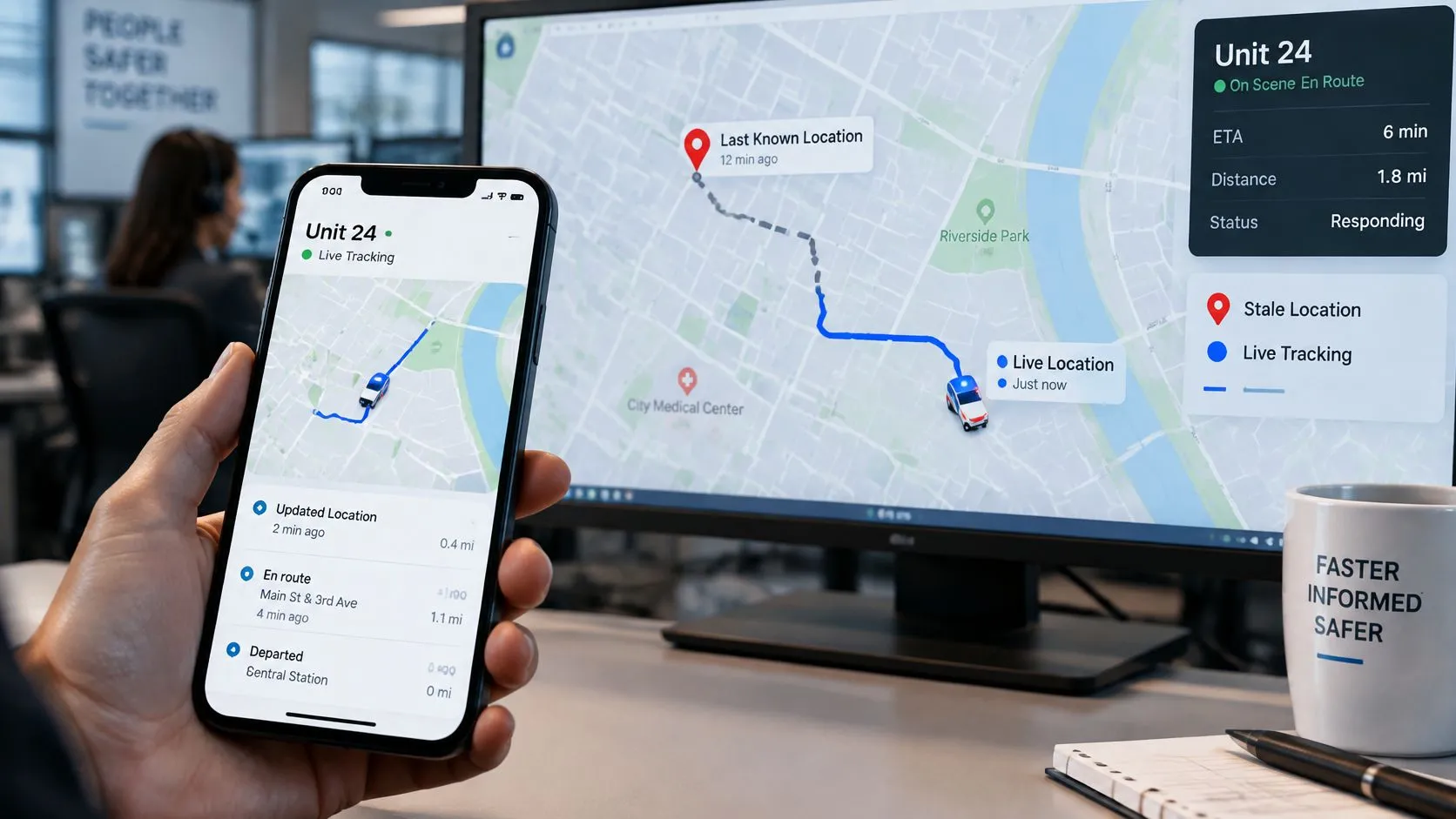
For a person moving through a campus or leaving a rideshare, refreshed information adds something a static pin cannot: the direction of travel. Indoors, however, even a useful horizontal position can leave responders needing the building entrance and floor.
A tracking view can bring movement and incident context together.
Add details a coordinate can’t explain
Our live location sharing app guide describes the trip-sharing use case. When preparing your own emergency information, include:
- Entrance information: Identify the accessible door, gate, or side of the building.
- Floor and room details: Add the information someone needs after reaching the address.
- Emergency Entry Pin: Position our entrance marker where responders should approach.
- Route direction: Make it clear whether you’re approaching, leaving, or passing a landmark.
- Timestamped updates: Check when the displayed position was last refreshed.
A precisely drawn pin can still represent an old location.
Ask whether the app displays the time of the last location fix. Freshness and accuracy are separate questions, and a watcher needs both to interpret a moving person’s position responsibly.
Failure Points You Should Plan Around
Your app depends on a powered phone, usable communications, location information, and an operational dispatch path. Any of those can fail, even while the screen still looks reassuring.
The Federal Register’s wireless E911 location discussion describes a Michigan State University finding that, under weak-cellular but strong-Wi-Fi conditions, as many as 90% of emergency wireless calls failed to connect within 120 seconds, compared with 5.85 seconds for ordinary calls under the same conditions. This concerns emergency calling under those conditions, not a measured failure rate for personal safety apps.
The lesson is narrower and more useful than assuming all Wi-Fi connections are unsafe: a working ordinary call doesn’t prove the emergency route will work identically.
Failure points and the safeguard to check
| Failure Point | What Happens | Safeguard to Check |
|---|---|---|
| Weak cellular, strong Wi-Fi | Emergency calls may fail despite a usable Wi-Fi connection | Confirm which app functions use data and how emergency escalation is acknowledged |
| Stale location | An old point can misdirect watchers | Look for timestamped, refreshed location updates |
| Stream stops | Watchers see a frozen frame or nothing | Establish whether an agent receives a disconnection alert |
| Battery drain | Streaming ends when the phone dies | Carry a charged power bank and use available low-battery reminders |
| No internet | Stream and chat cannot reach the agent | Try a voice call to 911 and a text to a contact if those channels remain available |
| Outside service area | Dispatch features may be unavailable | Check geographic coverage before relying on the service |
A data connection, a voice connection, and an SMS route aren’t interchangeable. A text might get through when a stream won’t, but no fallback works without an available path. Don’t describe an app as offline-capable unless you know exactly which functions remain usable.
Our RapidSOS-powered SOS and dispatch features are currently available only in the United States and may not be available in every area or at every time. They aren’t a substitute for dialing 911 or the local emergency equivalent.
Agree on the response to silence
Before a trip, tell your contact what to do if the stream ends unexpectedly. They should try to reach you, check the last timestamp and known destination, and act on the circumstances rather than treating a frozen image as proof you’re safe.
Fallback rule: Decide what a lost connection means before anyone has to interpret it under stress.
Keep a voice call to 911 available when possible, prepare a concise text with your location for a trusted contact, and agree on an alternative meeting point. If communications disappear completely, follow the physical safety plan you chose for that route or workplace rather than waiting indefinitely for an app to reconnect.
Accessibility Needs Most Apps Overlook
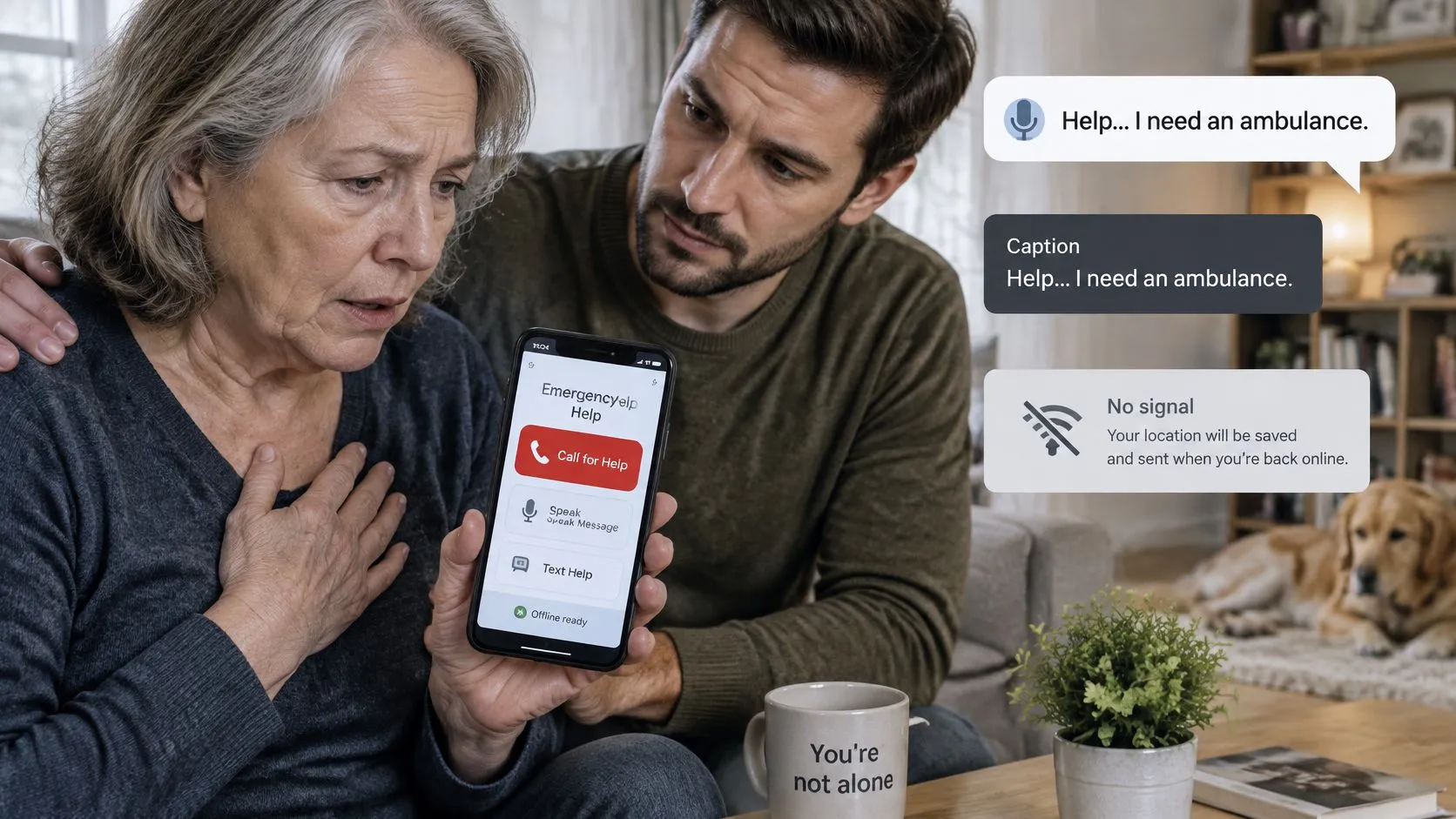
What happens when the person in danger can’t speak, read small text, tap precisely, or stay online? An SOS button alone doesn’t answer that question.
A 2025 mixed-methods study in Universal Access in the Information Society, involving 65 people with disabilities, identified the need for synchronized voice, real-time text, and video, assistive-technology interoperability, adjustable contrast and text size, simplified navigation, and offline functionality. It also identified sign language, lip reading, and pictograms as relevant communication modes.
Video isn’t the same as access
Live video can help explain a situation, but it may be unusable in darkness or unsafe to activate openly. A responder who doesn’t understand the user’s communication method may still need an interpreter or an alternative channel.
Accessibility also matters during temporary impairment. Someone with an injured hand may struggle with a precise gesture; someone who’s disoriented may have trouble navigating a crowded screen.
Consider the person’s abilities and surroundings, not just the presence of a camera.
Questions to resolve before relying on an app
- Without speech: Can the user communicate by text? Our users can text a Safety Agent during a live trip when something feels wrong.
- With a screen reader: Can the user identify the SOS control, understand its state, and read incoming updates?
- With enlarged text: Do essential controls remain visible without awkward scrolling or overlapping labels?
- With limited movement: Can the user activate help using a manageable gesture or their usual assistive device?
- Without connectivity: Which information remains available locally, and how does the user know an alert hasn’t been delivered?
Text communication is useful, but it doesn’t establish complete accessibility. Nor should access to a camera be treated as proof that sign-language communication is supported.
Test with the person’s own phone, accessibility settings, and assistive technology in a provider-approved demonstration or test mode. Have them complete the task themselves, including understanding the acknowledgment, rather than letting a helper demonstrate it for them. A successful test means the user can both request help and understand what happens next.
Rolling Out an App for Campuses and Employers
A 2024 occupational-safety briefing cited by NIOSH estimated that 53 million people in the United States, Canada, and Europe work alone, representing approximately 15% of the overall workforce. Lone work isn’t a niche exception, and a rollout needs more than an installation announcement.
We support institutional and enterprise deployments through Organization groups, with designated administrators accessing a dedicated Security Center panel. Our campus safety app overview provides context for applying that model to student and staff travel.
Give every group an operating plan
-
Map the actual exposure. Separate late walks, night shifts, lone work, and rideshares. A technician entering an isolated building needs a different check-in arrangement from a student crossing a staffed campus.
-
Allocate seats and pooled minutes. Identify who needs access and which activities require streaming. Assign responsibility for monitoring usage so a shared allowance doesn’t become an unmanaged operational limit.
-
Maintain emergency contacts. Have users keep their first-to-call people written down and current. Our emergency contact list and in-case-of-emergency resources support that preparation, but the organization still needs an owner for keeping its internal response numbers accurate.
-
Teach the activation decision. Explain when to share a routine trip, request a Safety Agent, or call emergency services directly. Use realistic scenarios rather than asking users merely to acknowledge a policy.
-
Run a controlled pilot. Arrange testing with a sample group, including alert permissions and Do Not Disturb behavior. Use an approved test procedure rather than sending an unannounced emergency request.
-
Review incidents under a written policy. Define who examines recordings, how users report mistakes, and how findings change procedures. Avoid turning an emergency safety tool into unexplained routine employee surveillance.
Explain the information flow plainly
Starting or using SOS authorizes sharing information with RapidSOS and responding public safety agencies to facilitate emergency assistance. Describe the operational flow explicitly: location, live video, audio, and incident information, including the transcript where shared, can support the response. Don’t imply that every recipient necessarily views every format during every incident.
The policy should state how long recordings are retained, which administrators can view them, and how monitoring of non-emergency trips is switched off. Those details must match the organization’s actual configuration and agreements, not assumptions about the Security Center.
Tailor coverage to each group’s real risks. An app should support a named response procedure, not become a substitute for staffing, supervision, or safer working arrangements.
Choose and Test Your App Before You Need It
Choose an emergency response app that a trained person monitors, that can reach emergency help where you’ll use it, and that matches your actual journeys. A feature list is only useful when you can turn it into a working routine.
Review the settings on the phone you’ll carry, not just a provider’s demonstration screen.
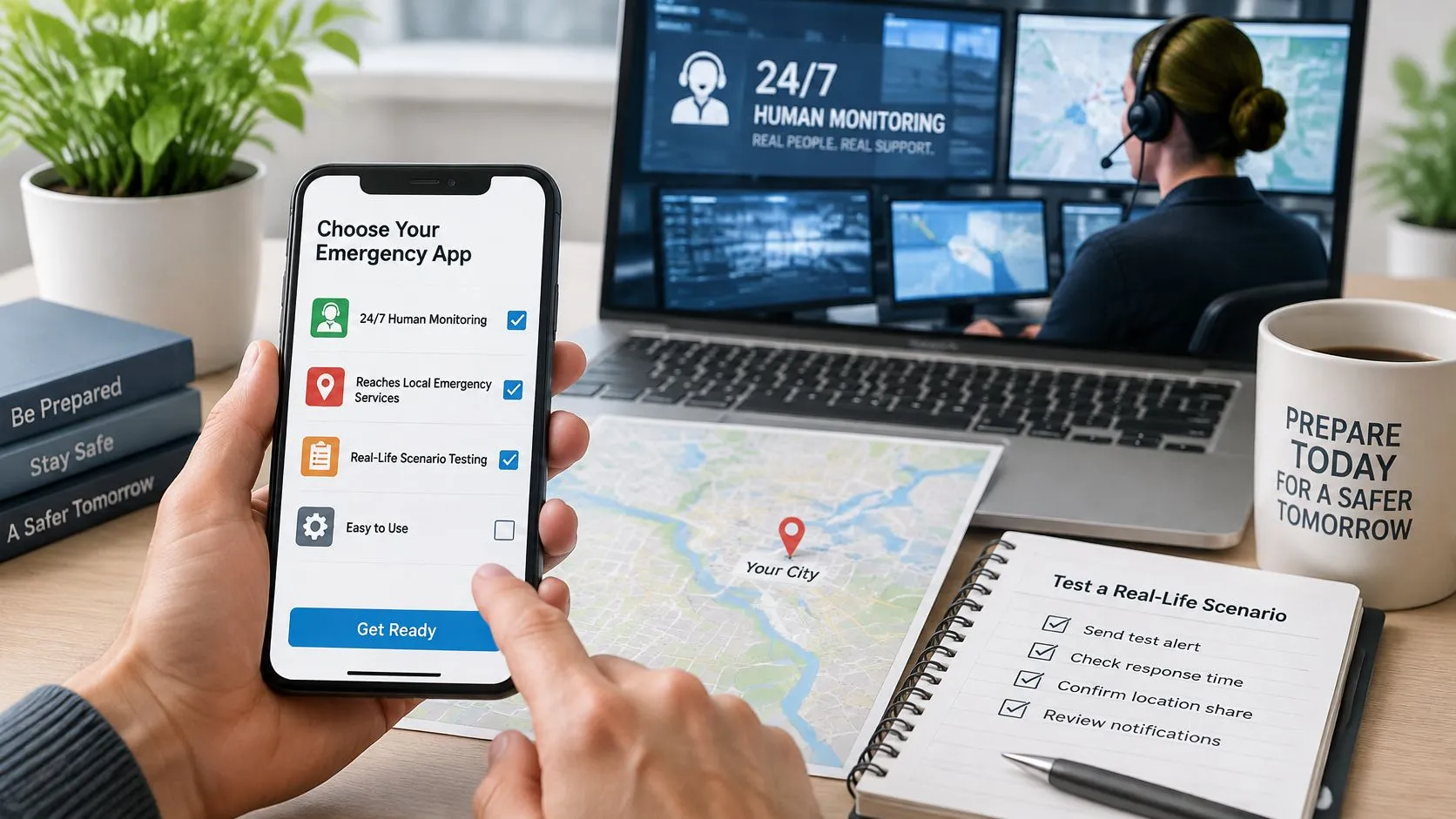
Selection criteria for an emergency response app
| Criterion | What to Check | Why It Matters |
|---|---|---|
| Human monitoring | Whether a trained agent watches and escalates | Automated alerts can miss context |
| 911 path | How dispatch is reached and in which areas | Geographic availability affects usefulness |
| Contacts | Whether contacts need the app and critical-alert permissions | Silent phones can miss alerts |
| Recording | Whether streams include saved transcripts or summaries | Preserves material for follow-up |
| Cost model | Whether monitoring is included and how minutes are metered | Streaming allowances can be exhausted |
| Accessibility | Whether communication works without voice or with a screen reader | Users may be unable to speak or navigate conventionally |
For example, every 3rd-i plan includes Safety Agent monitoring and 911 escalation; plans differ in streaming and recording minutes and the number of people covered. Compare the allowance against your intended routine, not just the plan name.
Benefits to weigh
- Human assessment: An agent can interpret context and coordinate escalation.
- Shared oversight: Route and video let selected people follow the same trip.
- Urgent notification: Configured critical alerts can interrupt Do Not Disturb.
- Documentation: Saved material can support incident follow-up.
Limits to accept
- Connectivity and power: Signal and battery remain essential.
- Service area: Dispatch availability has geographic limits.
- Usage allowance: Streaming minutes can run out mid-trip.
Complete a controlled rehearsal
The principles behind real-device testing with 99tests are relevant here: verify behavior on the actual handset, rather than assuming a demonstration predicts your setup.
Install the app, add trusted contacts, and arrange a rehearsal they’ve agreed to. Use the provider’s approved test procedure, confirm that stream and location appear, verify notification behavior, and write down your direct-call backup plan. Don’t trigger a live emergency escalation to experiment.
Use the walkthrough below alongside the hands-on setup.
Finish by having your contact explain what they’ll do if they receive an alert or lose your stream. The app supports an emergency response, but it doesn’t replace a direct 911 call.
3rd-i offers live video, audio, and location sharing with selected contacts, plus trained Safety Agents who can escalate emergencies through RapidSOS. Visit 3rd-i to review the plans and service coverage, then configure your contacts and arrange an approved test before your next late walk, rideshare, or lone shift.