
10 Best Tracker Apps Free in 2026: Compared by Use Case
It’s late, and your teenager is walking home while you watch the clock. Or a colleague has finished a late shift and is taking a rideshare across town. You want visibility, but “free tracker apps” don’t all solve the same problem. One may keep a family map running, another may share a route for one trip, and a third may help recover a lost phone rather than track a person.
Choosing the wrong category creates a false sense of security. A map can show a delayed location, but it may not provide an SOS channel, human monitoring, or emergency escalation. This list sorts ten options by the safety job they perform: ongoing family visibility, platform-native safeguards, short-term location sharing, and SOS response. Each entry covers the useful features, free-tier limits, privacy trade-offs, and platform fit.
Table of Contents
- 1. Life360
- 2. iSharing
- 3. GeoZilla
- 4. Apple Find My
- 5. Google Family Link
- 6. Google Find My Device
- 7. Google Maps Location Sharing
- 8. WhatsApp Live Location
- 9. Glympse
- 10. Noonlight
- Top 10 Free Tracker Apps Comparison
- Matching a Free Tracker App to the Safety Job You Need
1. Life360
Life360 is the most natural starting point for families that want a dedicated, ongoing location map. Its Circles let household members share locations, check in, and use basic place alerts across iOS and Android. The limitation is clear from the start: advanced driving, history, and assistance features sit in optional paid tiers, and the exact plan mix can vary by region.
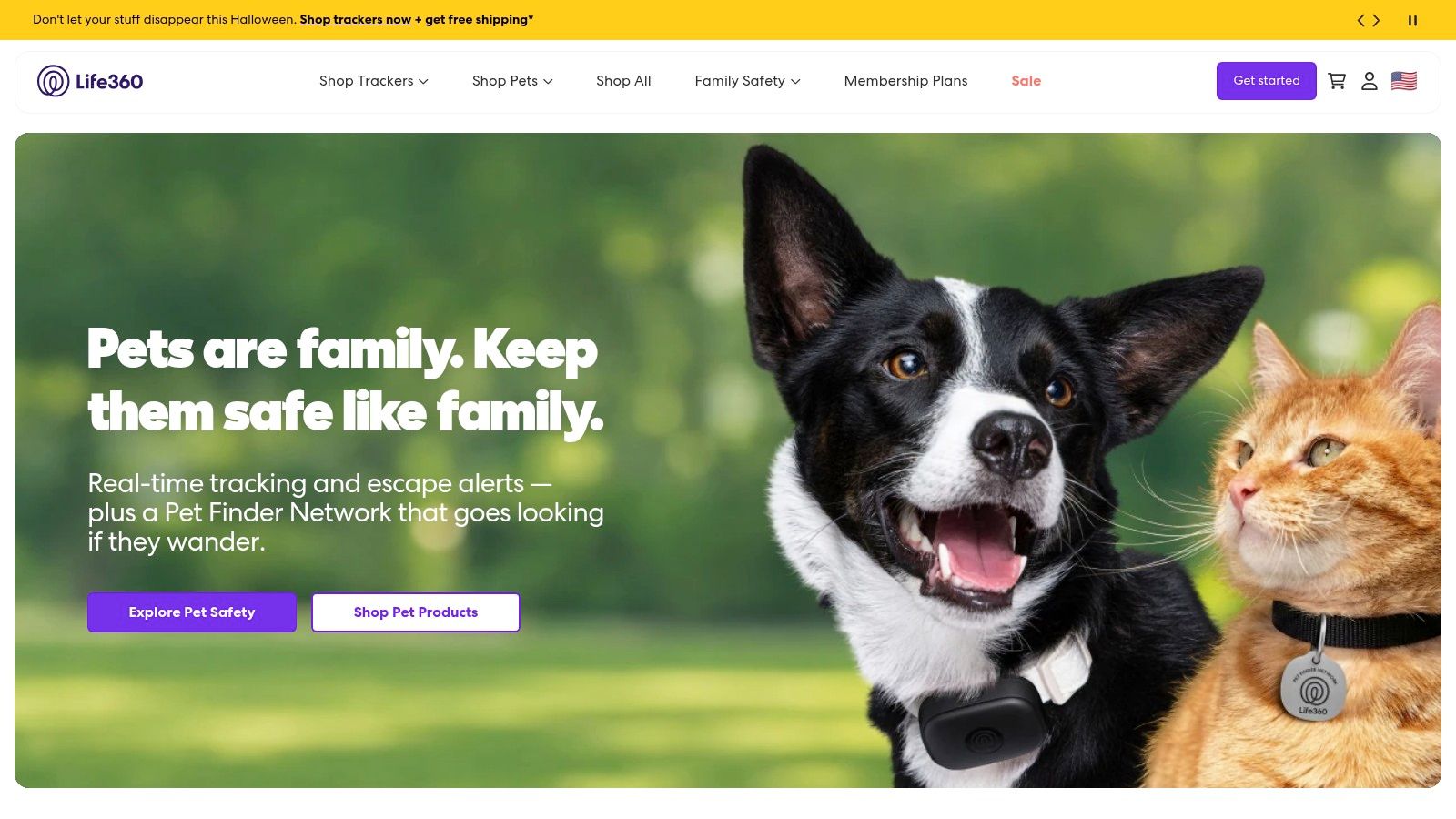
Setup is straightforward. Create a family group, invite members, configure the places that matter, and check whether background location permissions remain active. That makes Life360 more useful for regular household coordination than for a single walk home. If the family only needs occasional sharing, a permanent map may collect more location history than necessary.
The free tier works best as a basic visibility layer. You get a family map, check-ins, and essential place alerts, while paid upgrades add more detailed driving and assistance functions. Review the app’s retention and sharing settings before inviting people, especially teenagers who may not understand how continuously visible location can become.
For a deeper look at household use cases, see this guide to family tracking apps.
Verdict: Choose Life360 when your household wants a familiar, cross-platform family map and may later need paid driving or assistance features. Don’t choose it as a substitute for live human monitoring or emergency dispatch.
2. iSharing
iSharing is a useful alternative when a family or friend group needs a large shared map without committing immediately to a premium plan. Its free tier supports real-time location sharing and up to 50 friends, according to the supplied product information. That makes it practical for extended families, travel groups, or a community that wants shared visibility.
The trade-off is a more obvious freemium experience. Ads and upgrade prompts appear on the free plan, while additional alerts, driving reports, and longer location history require a subscription. A large contact limit sounds useful, but it also increases the risk of oversharing. Invite only people who need access, and remove old contacts after a trip or shared event ends.
The app supports both iOS and Android, so it fits mixed-device households. Place alerts are available, but the free version limits them. Test the alert behavior before relying on it for a school pickup or late commute. An alert that arrives late, or stops after a permission change, can create more confidence than the underlying system deserves.
Practical rule: A large friend list is not a safety feature by itself. Keep the recipient list narrow enough that everyone can explain why they have access.
Verdict: Pick iSharing when broad, cross-platform group sharing matters more than an ad-free interface or deep free history. It’s less suitable when you need discreet, one-trip sharing with automatic expiry.
3. GeoZilla
GeoZilla focuses on family circles, live location, place alerts, and location history. It’s free to download on iOS and Android, but the free tier is deliberately narrower than the premium offering. History is limited, and advanced functions such as unlimited alerts, extra circles, and some driving protection features require a subscription.
The app’s strength is its simple family-locator model. A household can create circles for parents, children, relatives, or other trusted groups, then use the map for everyday coordination. That works well when the same people need visibility repeatedly. It’s less compelling for a one-off meeting where a temporary link would avoid creating a lasting group structure.
What the free tier actually supports
Use the free version for a basic map and selected place alerts. Before relying on it, check how many alerts you can configure and how far back the location history remains available. Those limits matter if you expect to investigate a missed arrival later rather than watch a current journey.
Privacy needs attention here because circles can become permanent by accident. Remove former partners, old caregivers, or temporary trip participants. Also confirm that each person understands who can see their location and whether sharing can be paused.
GeoZilla’s premium path may make sense for families that need more alerts, longer history, or additional protection features. But paying for more history doesn’t automatically make the tracking more accurate or turn a location dot into proof that someone is safe.
Verdict: GeoZilla is a reasonable dedicated family map for households that want a clean circle-based setup. Choose another option if your main requirement is short-lived sharing with no ongoing family group.
4. Apple Find My
Apple Find My is the strongest choice for an iPhone-only household that wants location sharing without adding another dedicated tracker app. It can share live location with selected contacts, provide arrival and departure notifications, find Apple devices, and work with Apple Watch when the watch is away from the iPhone.
The main limitation is also the deciding one. Find My is built for Apple devices, not mixed iOS and Android households. It doesn’t provide staffed monitoring, professional dispatch, or a human safety agent who watches a journey.
Why platform integration matters
Find My benefits from tight integration with iOS, watchOS, Apple accounts, and system-level privacy controls. A user can pause sharing, choose specific contacts, and use time-bounded sharing in situations where permanent visibility would be excessive. That makes it a better fit than a family map for people who want control over each individual sharing relationship.
Use arrival and departure notifications for routines such as school, work, or home. Don’t treat them as a guaranteed safety check. A dead battery, missing permission, poor signal, or disabled location service can prevent an update.
Apple’s privacy controls are valuable, but they don’t remove the need for consent. Don’t add someone’s device or share their location without explaining what will be visible and for how long.
Verdict: Choose Find My for Apple-only households that want integrated location sharing and device recovery. It’s not the right tool for Android users, continuous professional monitoring, or emergency escalation.
5. Google Family Link
Google Family Link is designed for guardianship, not general adult-to-adult tracking. It can show a child’s device location, send arrival and departure notifications, and combine location visibility with permissions and screen-time controls. The child needs a managed Google account and compatible device, so the setup is more structured than a casual location share.
That structure is useful for parents who want one place to manage device access and safety settings. Location is only one part of the service. A guardian can also review app permissions and other account controls, which makes Family Link more appropriate for supervised devices than for two adults who want to share routes.
Where Family Link fits
Use it when the child’s phone is already part of a managed Google account and the family uses Android or Google services. Explain the controls to the child instead of presenting the app as invisible surveillance. Consent and age-appropriate communication matter, particularly as children become more independent.
Family Link isn’t a substitute for a dedicated family map. Its location functions are tied to the supervised device and account. It also won’t provide a live watcher, emergency call handling, or professional escalation when a child doesn’t arrive.
Check the device’s battery, location permission, and background settings before relying on arrival alerts. A notification can only be useful if the phone is powered on, connected, and allowed to report its location.
Verdict: Pick Family Link for child supervision inside the Google ecosystem. Choose a different category for adult family sharing, temporary trips, or emergency response.
6. Google Find My Device
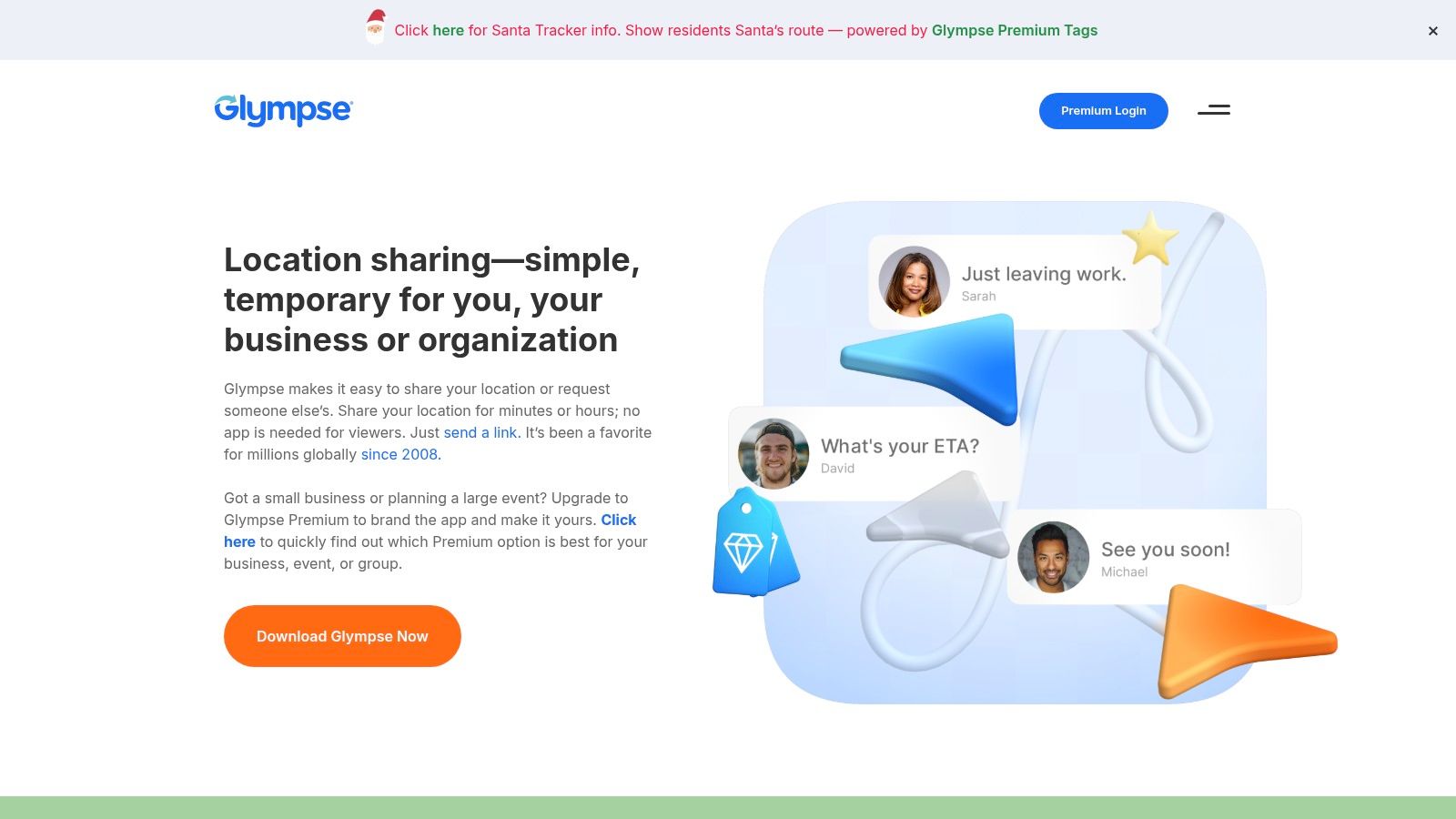
Google Find My Device solves a different problem: recovering a lost or stolen Android phone. It can locate, ring, lock, or erase the device, show its last known location, display a lock-screen message, and use a crowdsourced network for offline finding.
That makes it a valuable safety net, but it isn’t a people-tracking app. It doesn’t create a family map, invite watchers, or provide ongoing live visibility into someone’s commute. Confusing device recovery with personal safety is one of the easiest mistakes in this category.
Use it before the phone goes missing
Turn on the relevant account and device settings before an incident. Confirm that the phone can be located, locked, and erased, and add a lock-screen message that helps an honest finder return it. Test the account access from another device so you’re not discovering the setup problem during a stressful search.
Device recovery also has a privacy boundary. The account holder should understand who can access the device’s location tools. Keep account credentials protected, and remove old devices from the account when they’re no longer yours.
For a broader look at remote recovery and safety functions, see this remote finder app guide.
Verdict: Use Google Find My Device to recover an Android phone and protect its data. Don’t use it as a replacement for a family locator, trip-sharing tool, or SOS service.
7. Google Maps Location Sharing
Google Maps is the practical choice for a short trip involving people who already use Google Maps. It supports real-time location sharing, adjustable durations, account-based sharing, and link-based sharing. It also works across iOS and Android, which avoids the platform problem that limits Apple Find My.
The best feature is the ability to set an end point for sharing. A late-shift worker can share a route for the commute, then stop sharing when they arrive. That’s safer than leaving a permanent family map active for a need that lasts only one evening.
Keep the share temporary
Choose recipients carefully. Account-based sharing is easier to manage than a public link, while a link may be convenient for a one-off situation. Either way, tell the recipient when the share should end and confirm that it has stopped afterward.
Google Maps has fewer family-management controls than dedicated services. It doesn’t provide a staffed monitoring team, an SOS workflow, or professional escalation. It also doesn’t automatically turn a missed arrival into an emergency response.
A shared map can still fail. Location may be delayed, approximate, or frozen when the phone loses connectivity, the battery runs low, or background permissions change. Treat the map as one signal, not proof of safety.
Verdict: Choose Google Maps for mixed-device, one-off route sharing. It’s a better fit than a permanent family app when the journey has a clear beginning and end.
8. WhatsApp Live Location
WhatsApp Live Location is useful when everyone involved already coordinates in WhatsApp. A person can share live location inside an individual or group chat for a selected period, stop sharing at any time, and keep the exchange in the same messaging thread. The service is cross-platform within WhatsApp, so it works well for mixed-device groups.
It’s not a family-safety suite. There are no automated place alerts, persistent family maps, staffed monitoring, or professional dispatch functions. If the group forgets to check the chat, the location share won’t create an escalation by itself.
The encrypted chat context is useful for privacy, but encryption doesn’t decide who should receive the location. A group can include people who don’t need to know where the traveler is. Use a direct chat for a private journey, and stop the share as soon as the practical need ends.
WhatsApp also depends on the usual phone conditions. Weak connectivity, battery-saving restrictions, disabled permissions, or a closed background process can interrupt updates. Ask the recipient to confirm that the live location is moving before the traveler continues.
For a focused explanation of temporary route sharing, see this guide to live location sharing.
Verdict: Pick WhatsApp Live Location when the group already uses WhatsApp and needs temporary visibility. Don’t rely on it for automated check-ins or emergency response.
9. Glympse
Glympse is built specifically for temporary location sharing. The sender shares a time-boxed location link, and the recipient can view it in a browser without installing the app. That makes it useful for meetups, commutes, rideshares, and other situations where asking someone to create an account adds friction.
The auto-expiry model is its main privacy advantage. A location share should not remain active indefinitely just because someone forgot to switch it off. Glympse also supports private groups and cross-platform use, which helps when the sender and viewer use different phones.
What Glympse doesn’t provide
Glympse isn’t a full family-safety system. It has limited history and lacks the automated alerts and household controls found in dedicated family trackers. It also doesn’t provide staffed monitoring or emergency dispatch.
Before sending the link, verify that it has the right expiry time and that you’re sending it to the intended person. A browser link is convenient, but convenience can make accidental forwarding easier. Don’t post a personal tracking link in a public group or open channel.
As with every location app, the recipient should understand that the dot may lag or stop when the phone loses signal. A short-term link reduces unnecessary retention, but it doesn’t eliminate operational failure.
Verdict: Choose Glympse when privacy through automatic expiry matters and the recipient shouldn’t need another app. Choose a family map for ongoing household visibility.
10. Noonlight
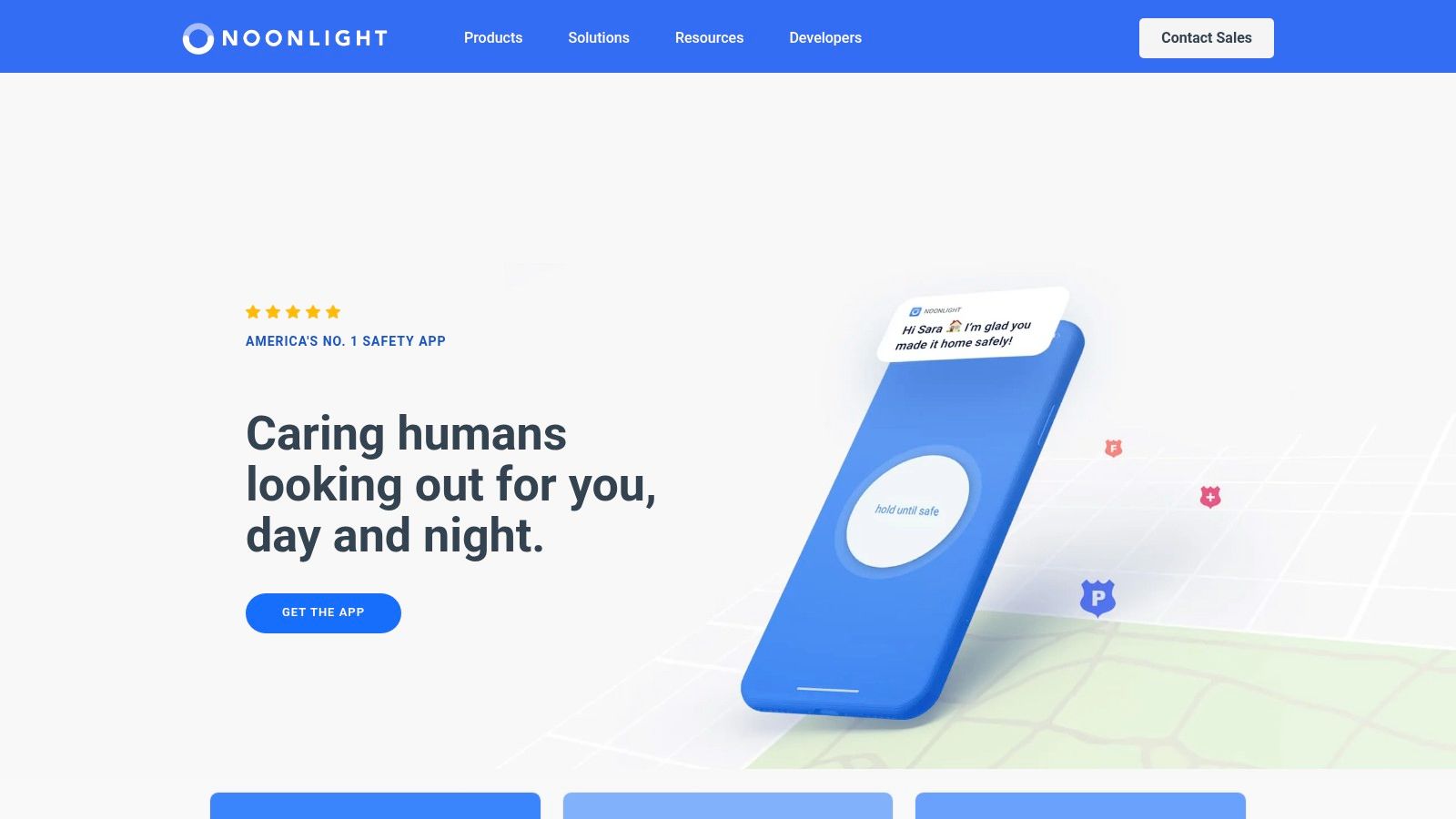
Noonlight is the emergency escalation option in this list. Its core Safety Button uses a hold-and-release action that can route context to responders and dispatch emergency help. Optional paid features add functions such as automatic crash response and wearable support.
The limitation is fundamental: Noonlight isn’t a continuous family-location map. It won’t give relatives a standing view of a teenager’s route or replace a shared map for everyday coordination. Its purpose is what happens when a user needs to signal that something is wrong.
Use the escalation workflow deliberately
The hold-release interaction is designed to reduce the need to type during a crisis. Users should still understand how the button works before they need it, what information the service can access, and what happens after release. Configure integrations and review the activity timeline in advance.
Privacy depends on the context sent to responders and the contacts connected to the account. Check those settings, especially if the app is installed for a student, employee, or family member. Paid features may be necessary for the specific workflow you want, so inspect the current plan rather than assuming every safety function is free.
No location app guarantees rescue. A phone may be offline, a user may be unable to interact with it, or local response conditions may limit what can happen. For immediate danger, follow the app’s instructions and call emergency services directly when possible.
Verdict: Choose Noonlight when the primary job is SOS escalation. Pair it with a location-sharing tool if trusted people also need to follow the journey.
Top 10 Free Tracker Apps Comparison
| App / Service | Core features | Monitoring & Emergency Escalation | UX / Quality | Target audience | Price & USP |
|---|---|---|---|---|---|
| Life360 | Family map, check‑ins, place alerts, driving history | No staffed 24/7 monitoring; SOS/assistance on paid tiers (varies) | ★★★★ (mature, widely adopted) | 👥 Families wanting simple location tracking | 💰 Free basic + paid tiers; ✨ Circles & driving tools |
| iSharing | Real‑time map, place alerts, supports many friends | No human monitoring; ads on free tier | ★★★ (functional free tier) | 👥 Friends/families needing large contact lists | 💰 Generous free plan; ✨ supports up to ~50 friends |
| GeoZilla | Family map, place alerts, location history | No human monitoring; premium for unlimited alerts/history | ★★★ (straightforward) | 👥 Families seeking a simple locator | 💰 Free + premium; ✨ extra alerts & circles on paid |
| Apple Find My | Live location sharing, arrival/departure alerts, device finding | No staffed monitoring or dispatch | ★★★★★ (seamless iOS/watchOS integration) | 👥 iPhone-only households | 💰 Free with Apple ID; ✨ tight platform integration & privacy 🏆 |
| Google Family Link | Child device location, arrival alerts, permissions, screen‑time | No staffed emergency dispatch | ★★★ (guardian-focused controls) | 👥 Parents/guardians supervising children | 💰 Free; ✨ parental controls integrated with Google |
| Google Find My Device | Locate, ring, lock or erase Android device, offline crowdsourced finding | No human monitoring; device recovery focus | ★★★★ (effective for device recovery) | 👥 Android users needing device security/recovery | 💰 Free; ✨ crowdsourced offline network |
| Google Maps Location Sharing | Ad‑hoc real‑time sharing, adjustable duration, share via link | No staffed monitoring or escalation | ★★★★ (widely available, simple UI) | 👥 Mixed-platform groups, one‑off shares | 💰 Free; ✨ timed shares & broad reach |
| WhatsApp Live Location | Time‑limited live location inside chats, pause/stop anytime | No human monitoring or dispatch | ★★★★ (ubiquitous chat context) | 👥 Groups already coordinating on WhatsApp | 💰 Free; ✨ end‑to‑end encryption, no extra app |
| Glympse | Time‑boxed auto‑expiring shares viewable by link, no account required | No human monitoring; privacy‑focused temporary sharing | ★★★★ (lightweight, private) | 👥 Meetups, commuters, one‑off tracking | 💰 Free; ✨ auto‑expire links, viewable in browser |
| Noonlight | SOS hold‑release, contextual data & timeline, integrations | Professional routing & operator-assisted dispatch available | ★★★★ (focused emergency escalation) | 👥 Individuals wanting fast SOS & dispatch | 💰 Core SOS free; premium features paid; 🏆 routed emergency response |
Matching a Free Tracker App to the Safety Job You Need
Start with the actual job, not the app store category. If you need ongoing household visibility, choose a family map such as Life360, iSharing, or GeoZilla. These tools are designed for recurring circles, place alerts, and regular check-ins. Their free tiers can be useful, but history, driving reports, alert depth, and assistance features may sit behind subscriptions.
For an Apple-only household, Apple Find My is usually the cleanest platform-native option. It avoids another app and gives users control over selected contacts, arrival notifications, and paused sharing. Google Family Link fits a different situation, supervised child devices and guardian controls. Google Find My Device belongs in a device-recovery plan, not a people-tracking plan.
Use Google Maps, WhatsApp Live Location, or Glympse for a short trip. These tools work well when a person needs to share a route for a commute, meetup, or rideshare and then end the share. Link-based or time-limited sharing reduces unnecessary exposure, but the sender still needs to check recipients, expiry, permissions, battery, and connectivity.
A location dot is not proof of safety. It can be delayed, approximate, or frozen.
An SOS tool serves another purpose. Noonlight can provide an escalation path, but it isn’t a replacement for a family map. If the need includes live human monitoring, video or audio context, and escalation to emergency dispatch, a free location-sharing app won’t cover the whole workflow. Our comparison of the best apps for tracking personal safety compares seven apps by the response model behind the map, not the map alone.
Privacy deserves the same attention as features. Pew Research Center reported that 54% of app users had declined to install an app after learning how much personal information it required, while 30% had uninstalled an app because of unwanted personal-data collection. The same Pew Research Center findings reported that 57% had either rejected or removed an app for privacy reasons. Treat those results as a design warning: explain who sees the location, how long history remains, whether data is shared, and how a user can delete it.
3rd-i sits in the gap between basic location sharing and a full emergency workflow. It streams live video, audio, and location to selected contacts and trained Safety Agents, with emergency escalation to 911 through RapidSOS. Its plans use streaming and recording minutes as the meter, so compare the allowance and monitoring terms with the journeys you need to cover.
For any app, run a simple test before relying on it. Start a session, lock the phone, move through a weak-signal area, check what the viewer sees, and stop sharing. Repeat after reducing the battery level and changing permissions. The best tool is not always the one with the shortest advertised refresh interval. It’s the one that fails visibly, preserves enough battery for a call, and gives everyone a clear escalation plan.
3rd-i streams live video, audio, and location to selected contacts and trained Safety Agents, with SOS escalation to 911 through RapidSOS. If your late walks, rideshares, or lone-work trips need more than a location dot, visit 3rd-i to review the app and its metered monitoring plans.