
What Is Ghost Mode? How It Hides Your Location Safely
Ghost mode is a privacy setting that hides your live location from the people watching a map while you keep using the app, and on Snapchat you can run it for 3 hours, 24 hours, or until you switch it off yourself. It doesn’t log you out, it doesn’t delete your account, and it doesn’t shut down location services on your phone.
The name comes from Snap Map, and it has since spread into personal safety apps, where the same switch is asked to do a harder job: keep a casual acquaintance from following your evening while leaving a trusted person able to check on you. What follows is the working definition, the behavior you can predict from each setting, and the situations where going dark costs more than it protects.
Table of Contents
- Why Your Location Ends Up on Other People’s Maps
- What Ghost Mode Is and What Changes on the Map
- How Ghost Mode Hides Your Location
- When to Hide Your Location and When to Stay Visible
- How to Turn Ghost Mode On and Off
- Set Ghost Mode on Your Terms
Why Your Location Ends Up on Other People’s Maps
It’s 11 p.m., you’re in the back of a rideshare, and the dot that represents you is sliding along a route on someone else’s screen. Maybe that someone is a friend confirming you got in. Maybe it’s an acquaintance you added two years ago and never thought about again. The map doesn’t sort them for you, because the map was built to broadcast.
That’s the default across social and safety apps alike: sharing is the state the product is designed around, and hiding is the extra step you have to remember. You set visibility once, at signup or when you first tapped allow, and it has been running ever since.
The practical version: visibility is what the app does for you. Hiding is what you have to ask for, and it stays until you ask again.
Ghost mode is that ask. It’s a temporary state, not an uninstall: you stay logged in, messages keep arriving, and the app keeps working. The term comes from Snapchat’s Snap Map and now appears in personal safety services such as 3rd-i, where the intent shifts. There, the point isn’t only to dodge an audience, it’s to leave the map while keeping the emergency path intact. If you want the mechanics of a route shared with chosen people, this guide to a live location sharing app explains how watchers and permissions fit together.
What’s ahead: the exact definition, a table of what changes when the setting is on, how the timers behave, the situations that justify hiding, the safety trade-off most explainers skip, and the taps that switch it on and off. You’ll finish able to decide when to disappear, and from whom.
What Ghost Mode Is and What Changes on the Map
You’re walking home and want one group of people to see your location, but not everyone who can open the map. Ghost Mode is a reversible boundary: it hides your live location from map viewers while letting you keep using the app. Whether the app still receives your location, and whether safety features keep working, depends on separate settings and the service you use.
| What happens | Ghost Mode Off | Ghost Mode On |
|---|---|---|
| Friends see your live location on the map | Yes | No |
| Selected contacts see your updates | Yes, if you chose them | No |
| The platform still receives your location | Yes | Yes |
| Publicly submitted content can still appear near you | Yes | Possibly |
| SOS and emergency features stay available | Yes | Yes, in safety apps designed for it |
The key difference is who can see you on the map. Ghost Mode does not necessarily stop the app from receiving your location, and it does not automatically turn off messaging or other app functions. Those controls may sit in different settings.
Turning off location access on your phone is a broader step. It can stop GPS from working for the app, which may also prevent location-based safety features from working as intended. Ghost Mode is narrower: it hides you from map viewers, while the effects on emergency tools depend on the app.
Where the term came from
Snapchat launched Snap Map on June 21, 2017, with Ghost Mode as the option to stay off the map. At launch, sharing could be set for all added-back friends, a selected group, or nobody, according to Snapchat’s Ghost Mode support page. The setting gave users a way to choose who could see their location.
Snapchat’s support page explains that, with Ghost Mode on, your location remains shared with Snapchat but is not visible to anyone else on the Map. That is selective visibility, not deletion of location data. Your account, content, and posting activity still exist, so being hidden on the map does not make you anonymous. Use the setting as a boundary you can change: hide from the audiences you choose, while checking that the safety path you rely on remains available.
How Ghost Mode Hides Your Location
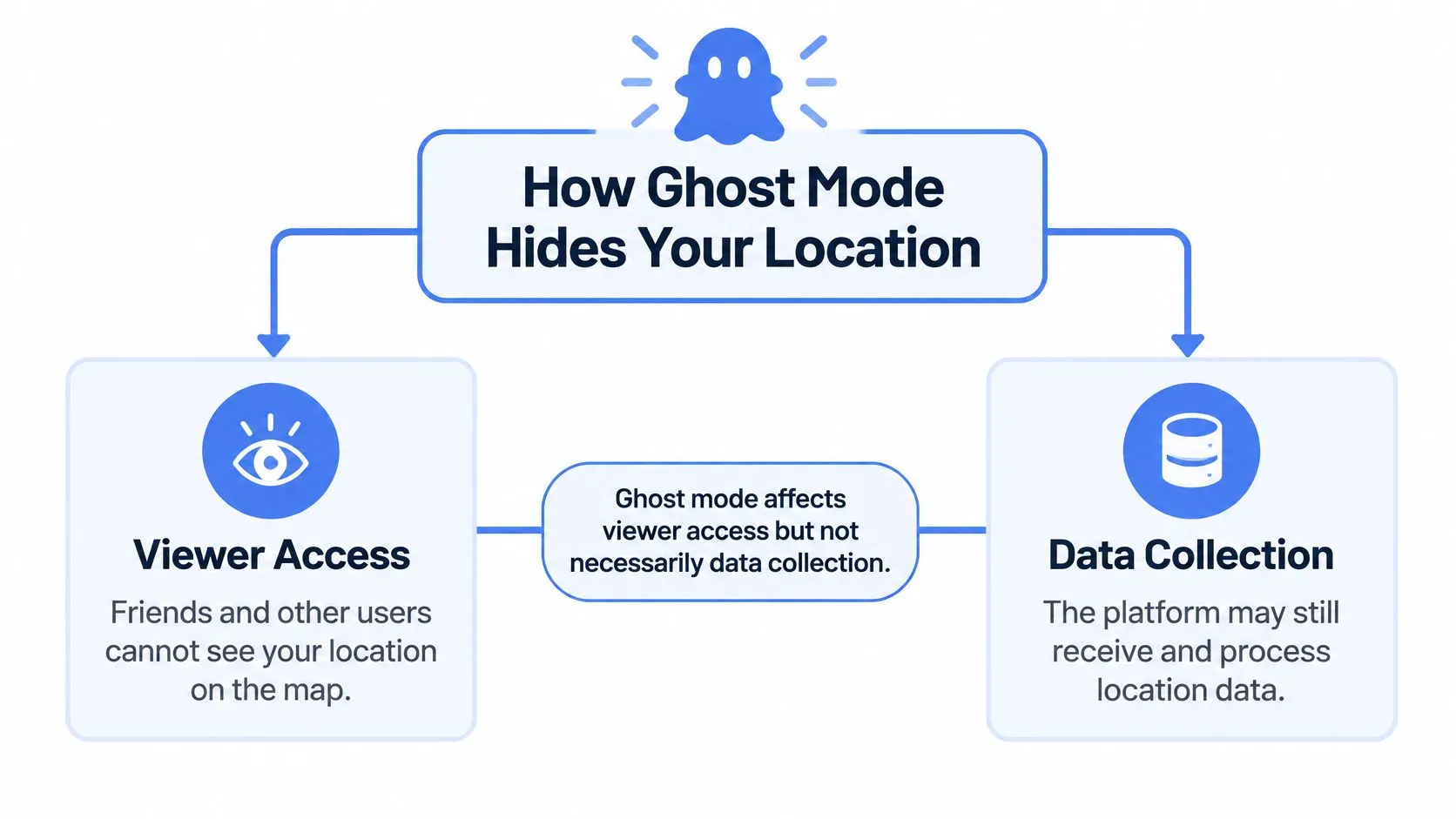
Ghost mode sits on top of two independent layers, and nearly every misunderstanding comes from mixing them up.
The layer that changes and the layer that doesn’t
The first layer is viewer access: who is allowed to render your position on their screen. The second is data collection: whether the app acquires, transmits and stores your coordinates at all. Snapchat’s Ghost Mode guidance describes exactly this split, suppressing your location from other authorized viewers while the service can keep receiving and processing it. One switch flips; the other doesn’t.
That distinction decides which setting you need. If your goal is “my classmates stop watching me,” viewer access is enough. If your goal is “the company stops knowing where I am,” you’re in phone-level permission territory, and the in-app toggle won’t get you there.
Timers decide how long hiding lasts
Hiding was never meant to be permanent. In an October 2017 iOS update, Snapchat added the ability to disable location sharing for 3 hours or 24 hours, alongside staying in Ghost Mode for a chosen period, as documented in this history of Snapchat location settings. The pattern has stuck for good reason: you pause for the length of an event, and visibility returns without rebuilding your contact list from scratch.
Foreground, background and the last known dot
Phone permissions decide whether updates keep flowing. With “only while using” selected, the map can hold your last known location after you close the app and stop refreshing it, whereas background access lets live updates continue reaching the people you chose, as Snapchat’s Snap Map privacy and safety reminder sets out. Neither behavior is “off.” One freezes a stale dot; the other keeps a current one moving.
What should keep running while you’re hidden: the check-in from a trusted contact, the recording, the escalation path to dispatch. Those work because precise location still reaches the people handling your emergency, which is the mechanism covered in this explanation of how 911 finds your location. A well-built tool pauses viewer access and nothing else, which is why the label on the setting has to name the exact audience it excludes.
One edge case worth knowing: publicly submitted content can still surface on a map even when your personal sharing is restricted. Hiding your dot is not the same as scrubbing your presence.
When to Hide Your Location and When to Stay Visible
Most guides treat hiding as cost-free. It isn’t. The person who loses most from a hidden dot is sometimes the one you’d want watching.
Start with the harm hiding prevents. A 2024 study of 1,500 continuous-location-sharing users, made up of 896 survey respondents and 23 interview participants, documented discomfort from overstepped boundaries, persistent unease and behavior that changed how people lived, published in the ACM proceedings on privacy and security. Being watched by the wrong person is a real cost, and it’s the reason the setting exists.
Then the cost on the other side. A live dot is the freshest signal a trusted person has. If it vanishes, they can’t see the route deviation, the missed turn, the car that stopped where it shouldn’t. Hiding from everyone during a late walk removes exactly the information that would bring help fastest.
Five moments when hiding earns its place
- First meetup from a dating app. Hide your route and your home area from the broad audience, and keep one friend visible. Three hours covers most first meetings.
- Late rideshare. Hide from acquaintances and the public map, stay visible to a squad or a monitoring service. Duration: the length of the ride, then restore.
- Walking home alone. Hide from classmates, coworkers, the wider map. Keep the people you live with watching. A 24-hour timer or an arrival-based stop works.
- Travel day. Pause for the day so distant contacts don’t narrate your trip, then restore on arrival so someone knows you landed.
- A deliberate break from sharing. Here the timer is the point. Twenty-four hours is a boundary, not a disappearance.
Snapchat’s own safety material makes the case in the other direction, noting that limited, trusted, time-bounded sharing helps when someone is traveling and wants others to know they arrived safely. The two positions aren’t in conflict. They describe different audiences.
| Situation | Hide from | Keep visible to | Suggested duration |
|---|---|---|---|
| Late-night rideshare | Acquaintances and the public map | Trusted squad or Safety Agent | Length of the ride |
| First meetup from a dating app | Everyone except one contact | One trusted friend | 3 hours |
| Walking home alone | Broad map audience | Household or close friend | 24 hours or until you arrive |
| Travel or vacation day | The full map | Family check-in contact | 24 hours |
| Deliberate break from sharing | Everyone | Re-enable manually | Until you switch it back |
The fix isn’t choosing between privacy and a safety net. It’s selective privacy: hide from the widest audience you want gone, keep at least one chosen contact or a trained responder visible, and let a timer restore you automatically. A friend tracker app built around this model lets you pick watchers per trip rather than applying one setting to every person forever.
The rule to remember: hide from audiences, not from allies.
There’s a reason people resist the cautious version anyway. Location sharing involves a privacy paradox: users keep sharing because the coordination and relationship benefits outweigh the privacy worry, which is exactly why the decision needs a boundary rather than a permanent answer. If you can’t name the person who would notice something wrong tonight, you’re not ready for total hiding. Turn on the timer first, then adjust.
If your worry is physical rather than digital, the two problems overlap. People who suspect a tracker on a vehicle or in an office sometimes bring in a counter surveillance services London team to sweep for devices, which is the hardware version of the question ghost mode answers in software: who currently knows where I am, and how do I stop them?
That’s the reversal worth internalizing. Ghost mode is a reversible boundary, not a default safety state.
How to Turn Ghost Mode On and Off
If you need privacy for a while, set a clear boundary before you disappear from the map. Check who can still help, choose how long the setting lasts, then confirm it took effect. For a fuller checklist, including how to verify your avatar and last-seen signal are hidden, see how to turn Ghost Mode on.
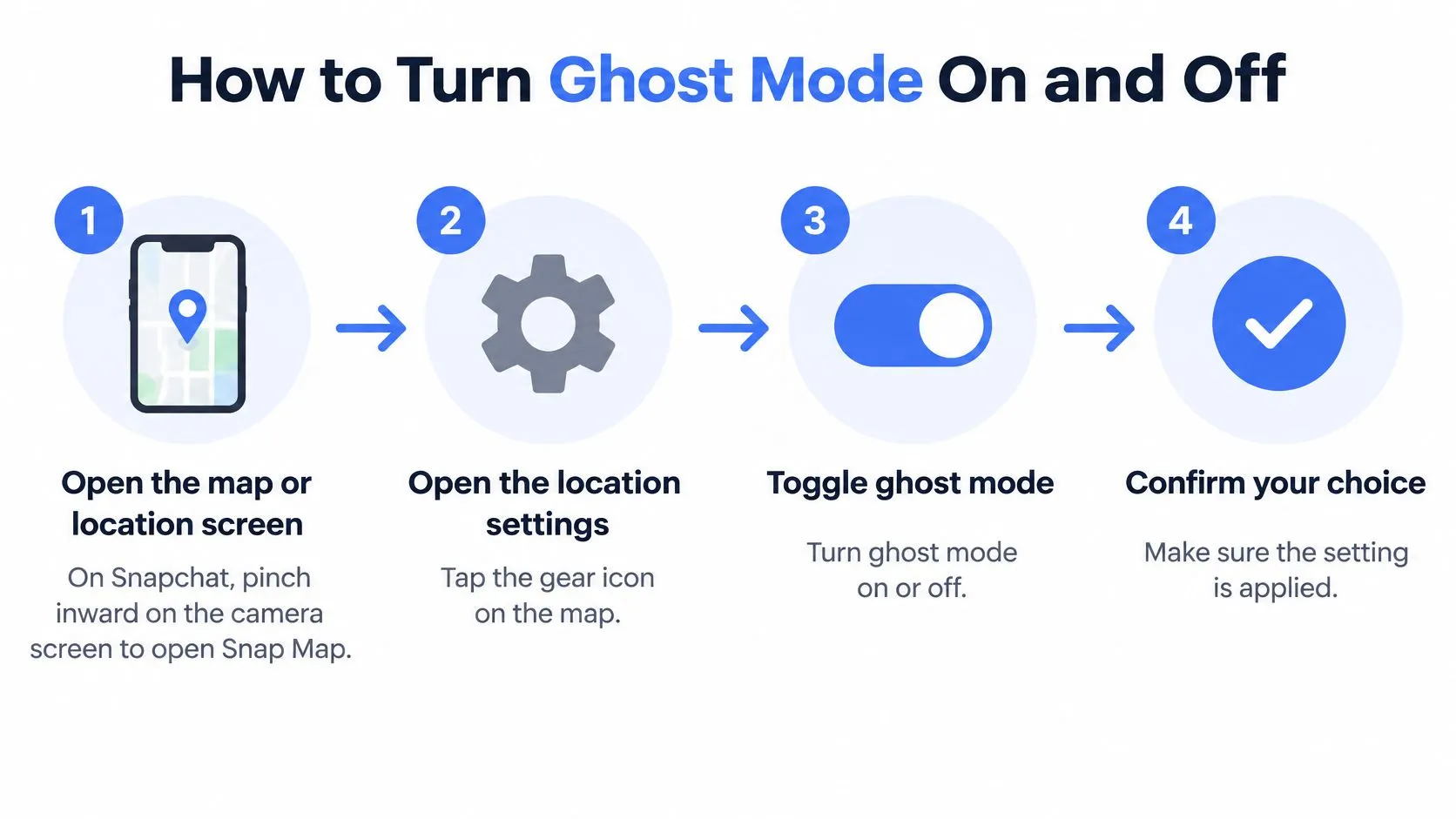
- Open the map or location screen. In Snapchat, pinch inward on the camera screen to open Snap Map. In other apps, look for the map tab or privacy settings.
- Open the location settings. On Snap Map, tap the gear icon. Find the setting labeled Ghost Mode, Hide me, or Visibility.
- Switch Ghost Mode on. The toggle hides your location from the map’s audience. This changes who can view your position, not necessarily whether the app collects location data.
- Choose a duration. Select a timer if one is available, or choose to keep Ghost Mode on until you turn it off. A timer gives you a defined return point; choose one that fits the situation.
- Confirm the status. Return to the map and check that it shows you as hidden. If the app displays when sharing resumes, check that time too.
- Turn Ghost Mode off when you want viewers to see you again. Return to the same settings and switch it off. Your location becomes visible to the permitted audience again. Turning off GPS tracking is a separate action: users can disable GPS tracking at any time, and the third party tracking them then stops tracking their location.
- Check the emergency path before hiding. Confirm that the SOS or responder options you rely on still work. If you are already in an active conversation with a responder, do not switch off the location access they need.
Use this visual guide to follow the Snapchat steps on your own phone or someone else’s.
The mistake that costs you the safety net
An indefinite setting can become easy to forget. You may turn Ghost Mode on for a particular situation and leave it on long after that situation has passed. Then the people you would want to contact in an emergency cannot see your current position, and a last known location may be out of date.
Use a timer when you want the boundary to be temporary. If you need privacy from certain viewers repeatedly, change who can see your location instead of relying on an indefinite setting. Ghost Mode is reversible, but the return to visibility only happens when the timer expires or you switch it off.
Set Ghost Mode on Your Terms
The whole decision compresses into one line: hide from audiences, not from allies, using a timer so visibility comes back on its own.
Do one thing today. Open the map settings in whatever app you use, look at who can see your location right now, and ask whether you’d still accept that audience during an emergency. If the answer is no, narrow it before you close the app.
Different products set the boundary differently, and it’s worth reading the fine print. A gaming platform’s how Gamerplug handles player data page is a useful model even if you never play: it states what’s collected, why, and how long it’s kept, which is the level of clarity you want from anything holding your coordinates.
As one example of the pattern, Ghost mode in 3rd-i takes the user off the map whenever they choose, while Go Live streaming, Safety Agent monitoring and 911 escalation through RapidSOS stay one tap away. That combination is the point: a private evening, not an unobserved one.
Location visibility is a setting you own. The best setup is the one you picked deliberately, with a timer and a fallback, rather than the one the app chose for you at signup.
3rd-i was built for exactly this trade-off. Ghost mode takes you off the map whenever you choose, while Go Live sends your route, camera and audio to the people you picked, a Safety Agent can watch your stream and text with you, and SOS escalates to 911 through RapidSOS when something goes wrong. See how live streaming, squad watching and emergency dispatch work together at 3rd-i before your next late trip.